
The organisation's ChatApp cabinet
How to connect the ChatApp cabinet (email, password, appId), why it is needed for WhatsApp, Telegram and other channel lines, and what to do when “Sign-in required” appears.
Pineo connects messengers (WhatsApp, WhatsApp Business API, Instagram, Facebook, Viber, VK, MAX, Avito, Ozon and others) through the ChatApp service. Every organisation has its own ChatApp cabinet: lines are connected from it, and messages go under your cabinet's tokens. The cabinet is set up in Settings → Channels, at the very top of the tab.
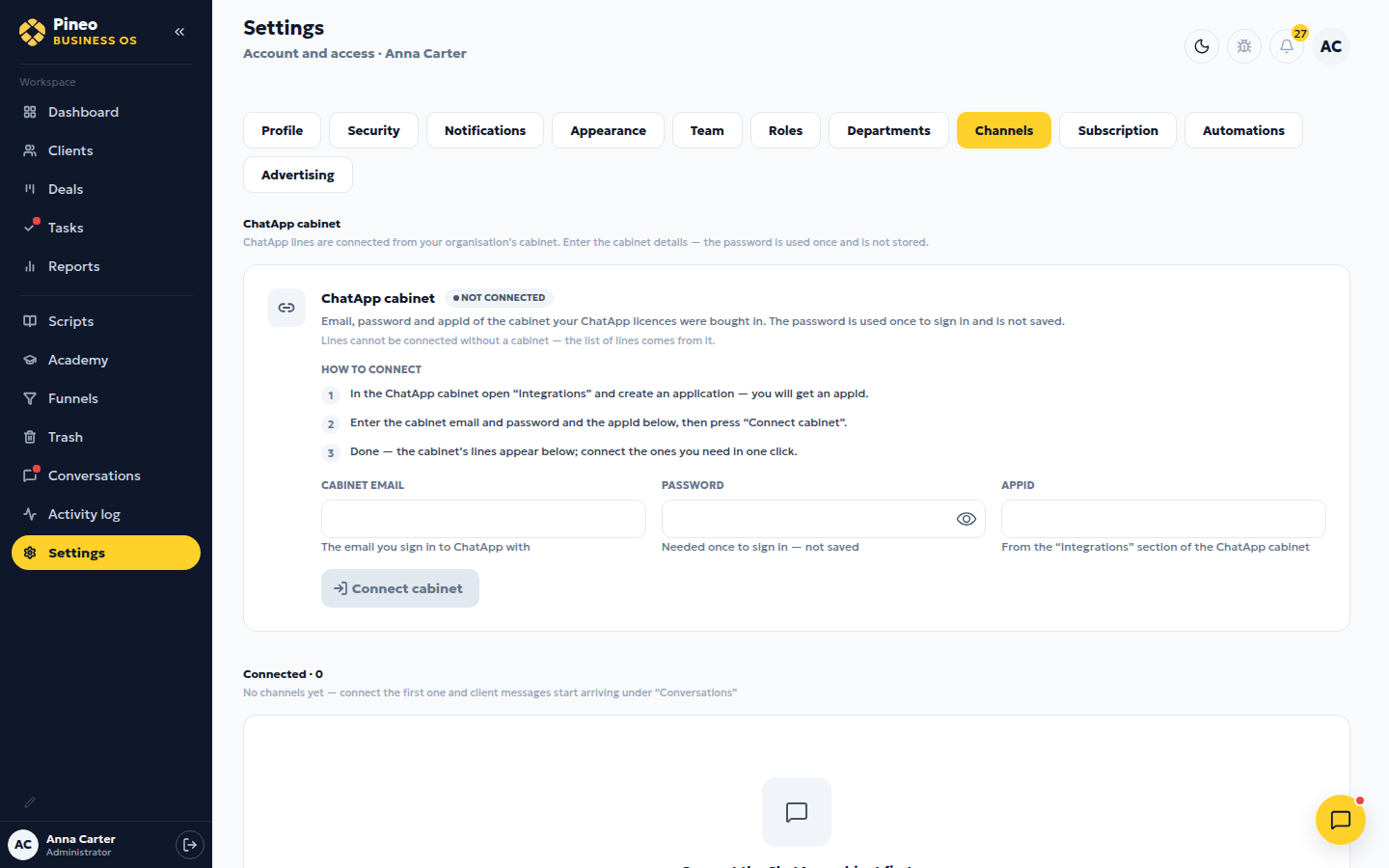
The block is available to the administrator and to a role with the Channels capability (by default, Supervisor). A manager does not see the “Channels” tab.
Connect the cabinet#
- In the ChatApp cabinet open the Integrations section and create an application — you get an appId.
- In Pineo open Settings → Channels.
- Enter the Cabinet email (the email you sign in to ChatApp with), the Password and the appId.
- Press Connect cabinet.
The status in the block header changes to Connected, and the list of the cabinet's lines appears below.
Cabinet statuses#
| Status | What it means |
|---|---|
| Not connected | No cabinet entered. Lines cannot be connected: their list comes from the cabinet. |
| Connected | Everything works, tokens refresh by themselves. |
| Sign-in required | ChatApp refused to refresh the tokens (the password changed, the term expired, access was closed). Sending and receiving on the lines is stopped, the conversations are kept. |
| Error | The cabinet is connected but the data could not be fetched — the reason is written in the card. |
When a new sign-in is required, every employee with the “Channels” capability gets a bell notification. Press Sign in again, enter the cabinet password once more (the email and appId are already filled in) — the lines come back to life.
Connect lines#
After the cabinet is connected:
- Press Connect channels — a window with all services opens.
- Choose a service and, in the panel, press Connect next to the line you need in the “Available lines” list. If you have just created the line in ChatApp, press Refresh list.
- Pineo subscribes the line to messages and checks it. The card status goes Checking → Working, or Error with a reason if something is wrong; the Re-check button repeats the check.
You do not type numbers — lines come straight from the cabinet. Lines already connected to the CRM are not shown. A licence connected in another organisation is unavailable. Step-by-step instructions for each channel are in Connecting channels.
Disconnect the cabinet#
Disconnect cabinet → confirmation. The lines stay in the list but stop sending and receiving messages until the cabinet is connected again. The conversations are kept.
If the cabinet is not connected but lines already exist#
A line without a cabinet is a valid but non-working state: messages do not go out through it, and the card says “Connect the cabinet first”. Connecting the cabinet binds the organisation's existing lines by licence number and subscribes them again.