
The interface: menu, header and notifications
Where things are on the screen, how to customise the sidebar, how the page header, the bell and search work.
The Pineo screen has three parts: a dark sidebar on the left, a page header on top and the work area.
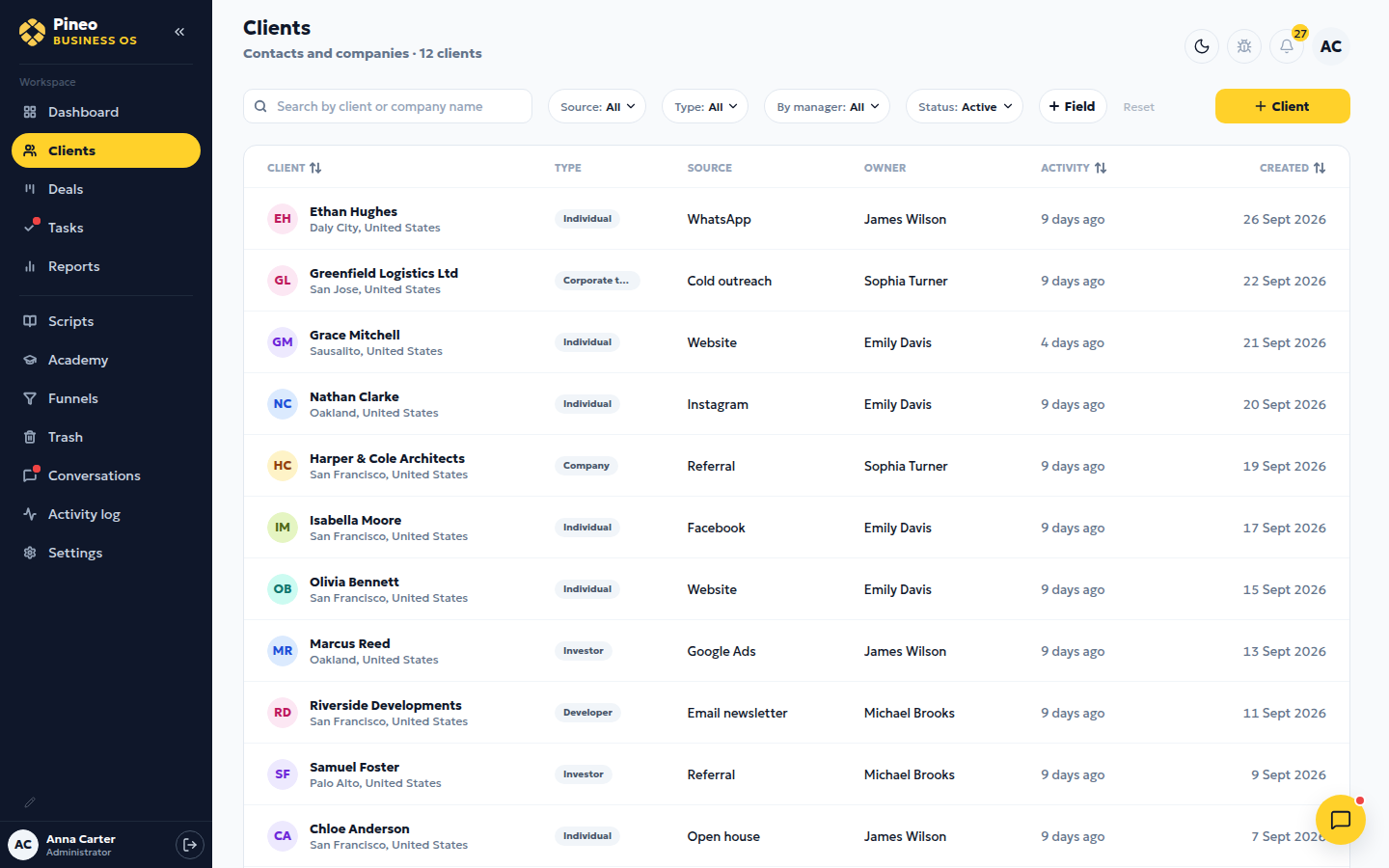
The sidebar#
The top group is captioned "Workspace" — Dashboard, Clients, Deals, Tasks, Reports. Below, after a dividing line: Scripts, Academy, Funnels, Trash, Conversations, Activity log, Settings. The set of items depends on the role: for example, "Funnels" and "Trash" are visible only to those whose role has the corresponding capability, and "Activity log" to those who see other employees' records. More — Roles and access.
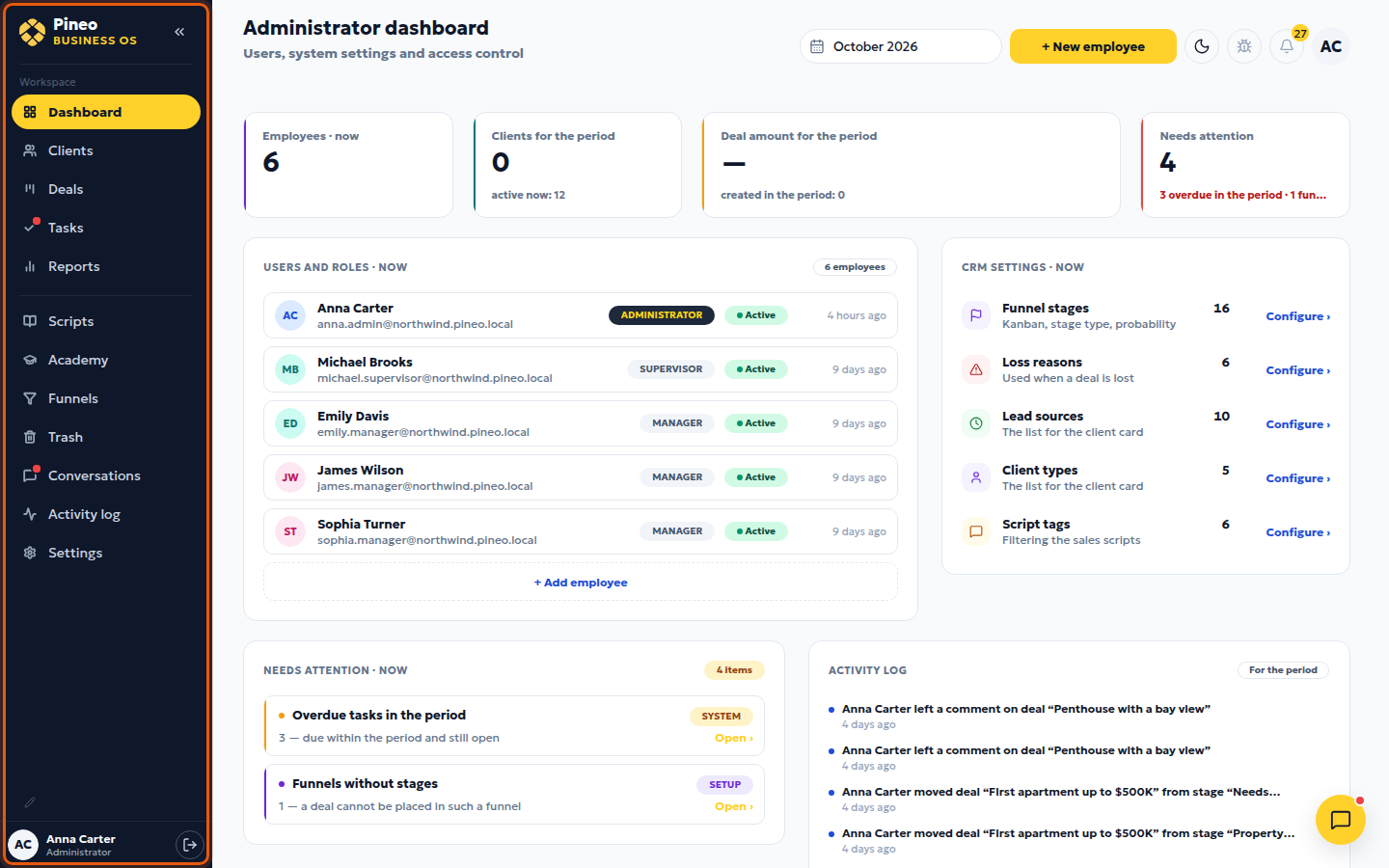
- A red dot next to an item means something new there. For Tasks — a task someone else assigned to you that you have not opened yet, or one of your own that is overdue. For Conversations — an unread conversation, internal chats included.
- The "‹‹" button at the top ("Collapse menu") folds the sidebar to icons; the same button ("Expand menu") brings it back.
- At the bottom — your name, role and the sign-out button.
Customise the menu#
Above your name there is a pencil icon, "Customize menu" (on a computer, with the sidebar expanded). Click it: items can be dragged — reorder them, move them between groups — and everything you drag below the "Hide" line disappears from the menu.
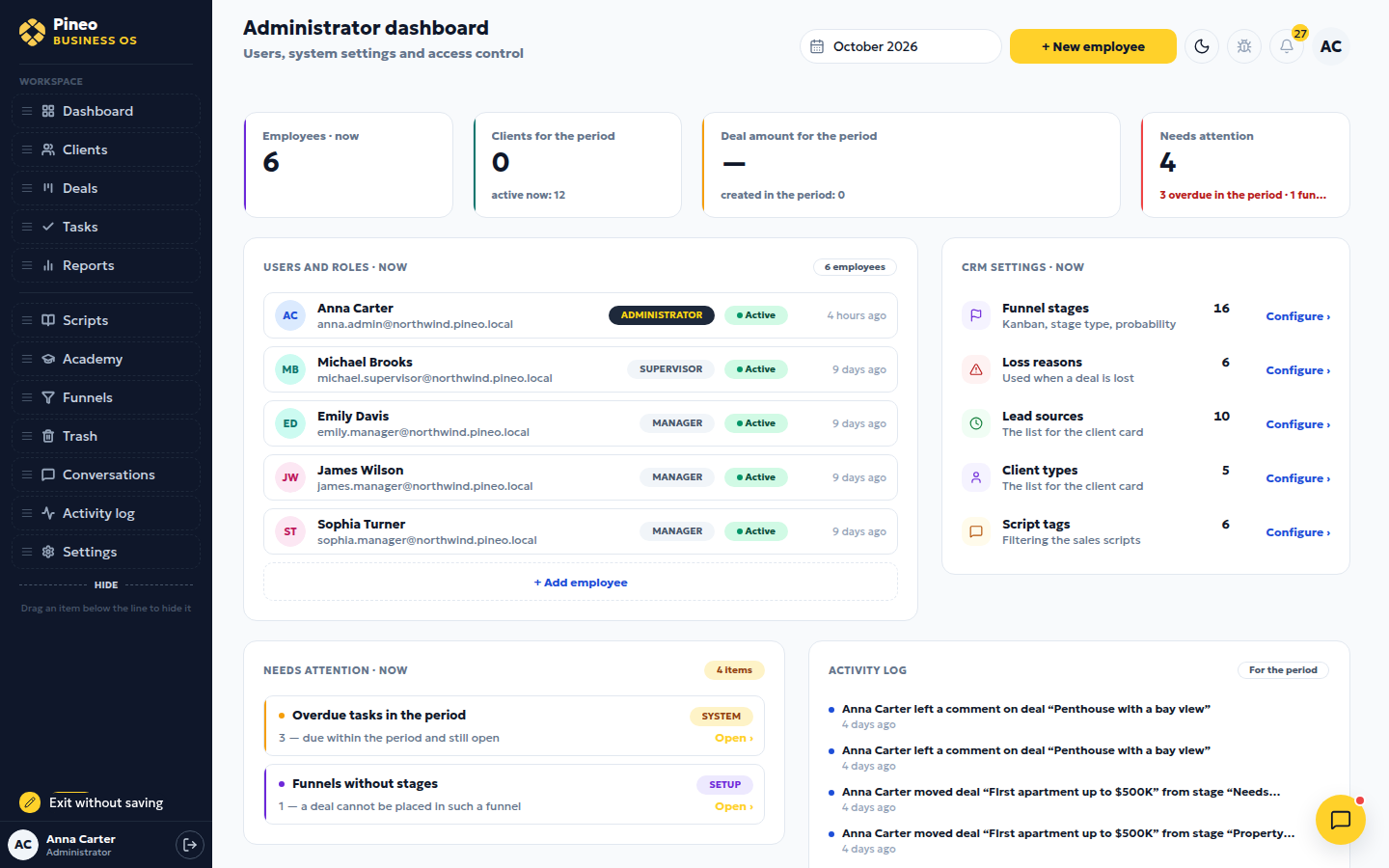
Buttons at the bottom: "Save", "Restore the default menu" and "Exit without saving". The layout is saved in your account and does not affect colleagues.
The page header#
The header holds the section title with a short description and buttons on the right. Which of them you see depends on the page and the role.
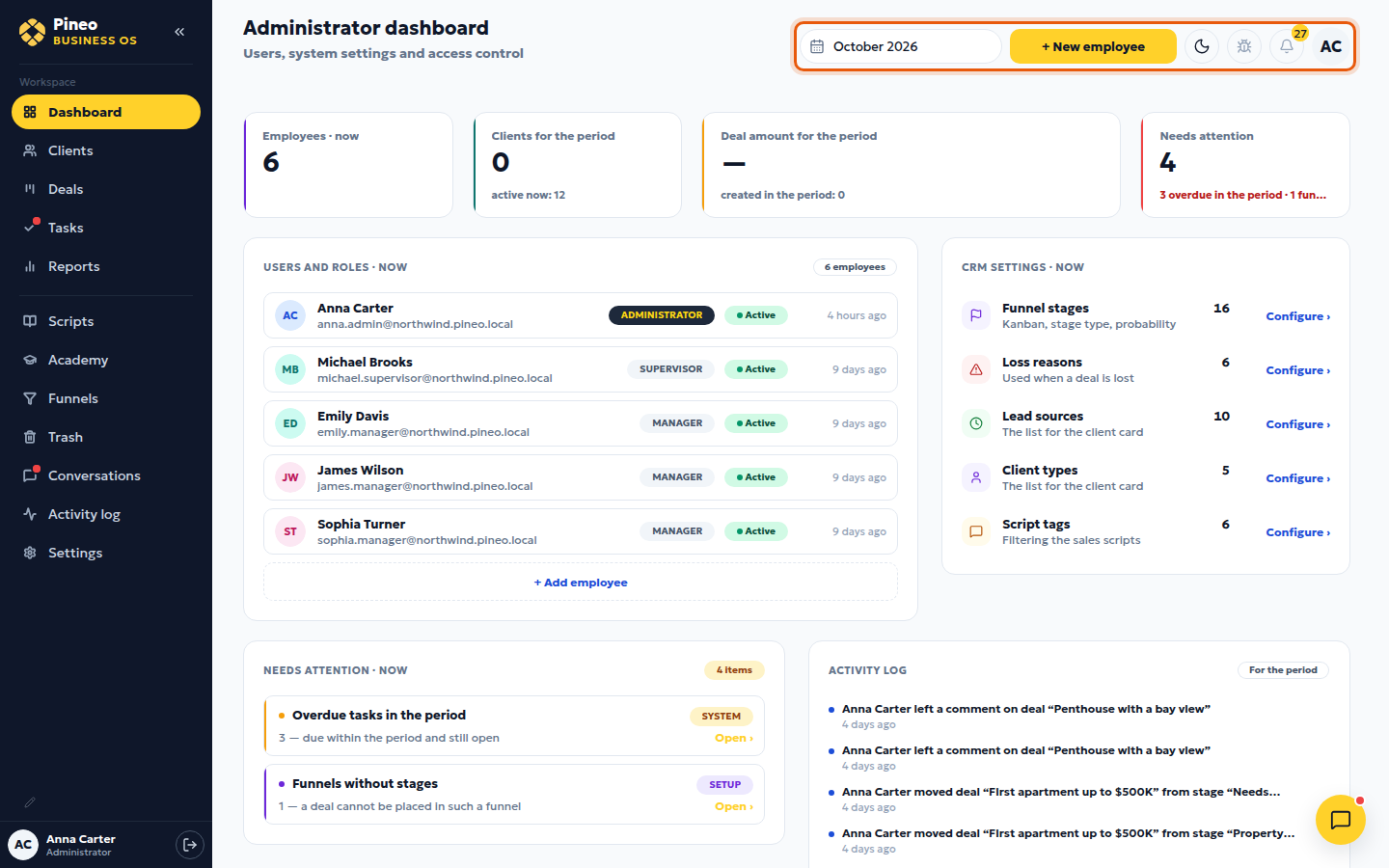
| Button | What it does |
|---|---|
| Period (calendar) | On the dashboard — which month to show the figures for. In reports, the period picker is in the filter row under the header. |
| The main action | A button in the accent colour (yellow by default): "+ New employee" on the dashboard, "+ Deal" on the deals board, "+ Task" in tasks, "+ Client" in the client list (there it sits in the filter row). |
| Moon / sun | Switches between the dark and light theme. The choice is saved in your account. |
| Bug | Report a problem — visible to the organisation administrator, not shown on a phone. |
| Bell | Notifications. The number on it is how many are unread. |
| Avatar | Your photo or initials; hover to see the full name. It is not a link: your profile is in Settings → Profile. |
Notifications#
Click the bell to open the list of recent notifications: a task was assigned to you, a deadline is near, a deal was handed to you, a supervisor left a comment, a client wrote, an automation fired. Mark all read clears the counter; Show read opens the history, New only goes back to the short list.
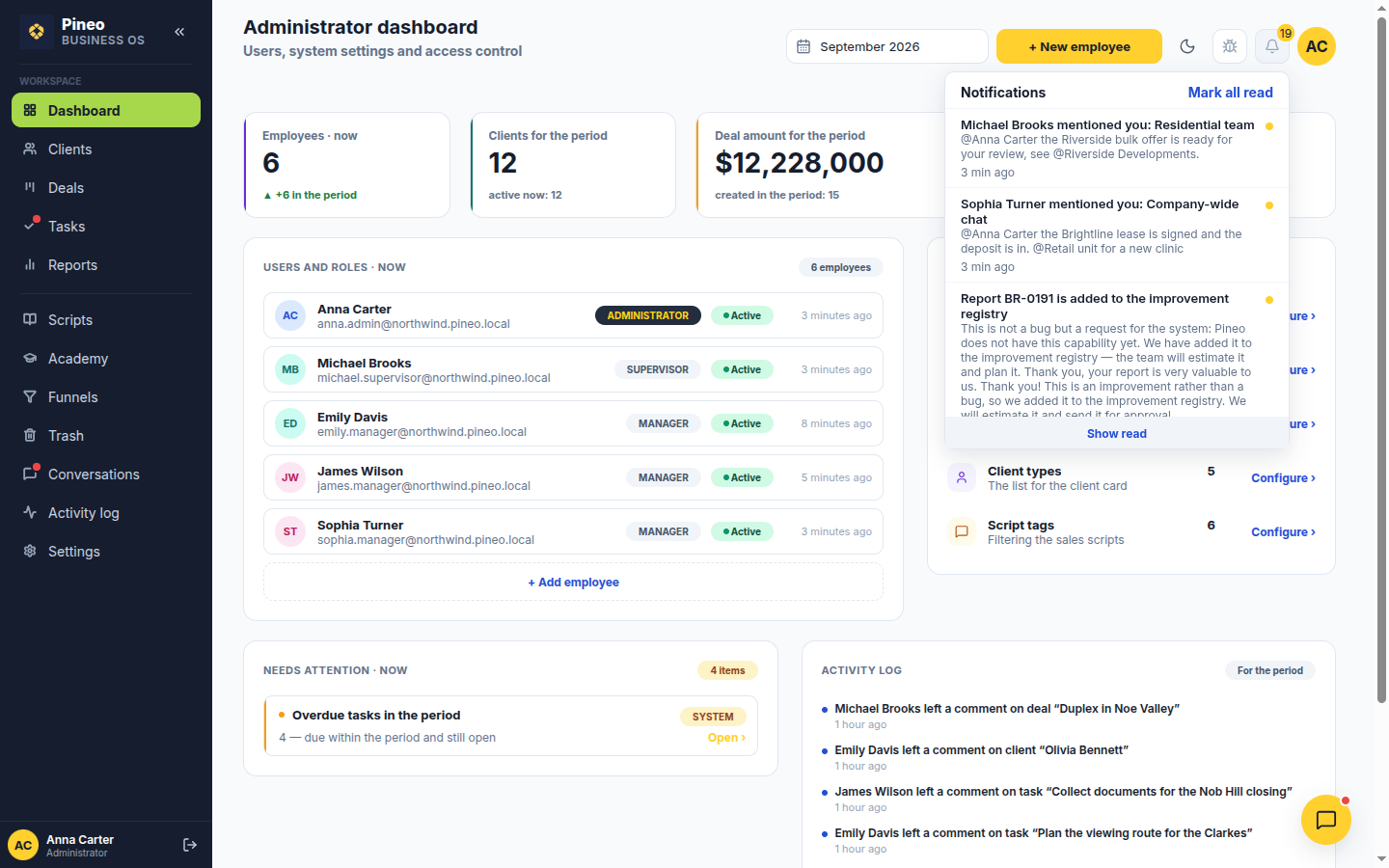
Not everything arrives by email. "A task was assigned to you", "A task is due soon", "A task is overdue" and similar go to email too. But "New message from …", and "@" mentions in comments and in internal chats, arrive in the bell only. More in Notifications.
Search#
Lists of clients, deals, tasks and conversations have a search box and filters above the table or board. Reset returns the list to its original state. Search in clients and deals finds not only names but also the client's phone or email (a phone is matched by digits — from three digits, the way it is written does not matter).
The header of a deal, client or task card has "Search CRM": it searches deals, clients and tasks (not employees); an empty query shows recent items. There is no global search on a phone.
Keyboard shortcuts#
Esc— close a panel or window.Ctrl/⌘+Enter— send a comment.- In a "Conversations" dialog,
Entersends the message andShift+Enterstarts a new line. Ctrl/⌘+ click on a deal in the table opens it in a new tab.- In the problem report window,
Esccancels the area selection.