
Tags and custom deal fields
Coloured labels for filtering deals and custom fields: where they are set up, which types exist and how "required from stage" works.
Tags#
A tag is a coloured label on a deal: "VIP", "Urgent", "Repeat sale". Tags are shared across the whole organisation and are also used in scripts.
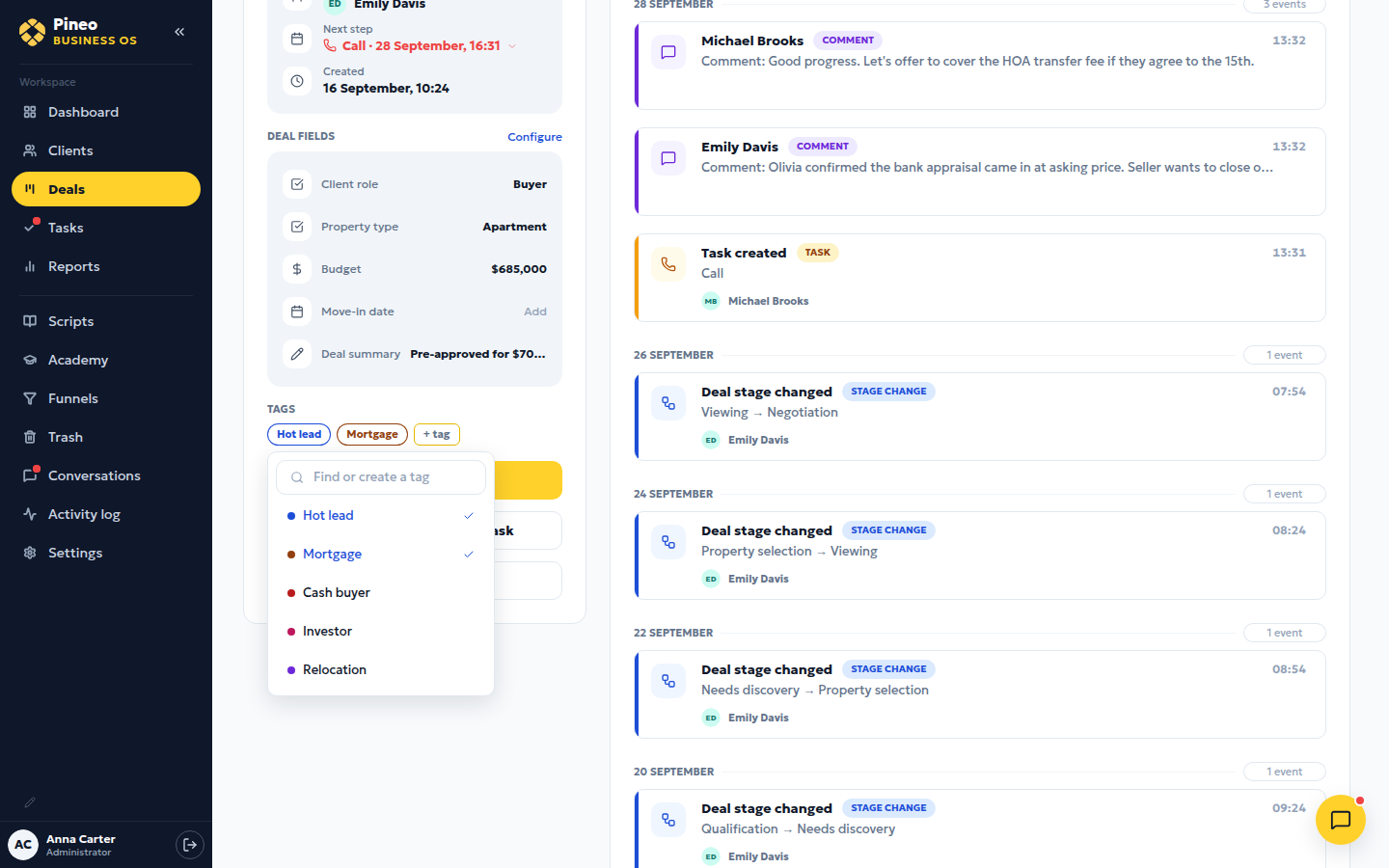
- Add a tag to a deal — the "+ tag" button in the card (search "Find or create a tag") or the Tags field when creating (up to 10 per deal). You can pick an existing tag or type a new one — it is created at once, and a new tag with no colour chosen gets the next free one.
- Find deals by tag — the "Tags" pill on the board and in the table (hidden while the directory has no tags).
- Who can do what. Any employee can create a tag. Renaming or recolouring needs the "Tags" capability in the role (supervisor and administrator). Deleting is for the administrator only: it is irreversible and removes the tag from all deals and scripts.
- Colour — one of eight palette tones (blue, green, amber, red, violet, pink, teal, neutral) or your own colour in HEX.
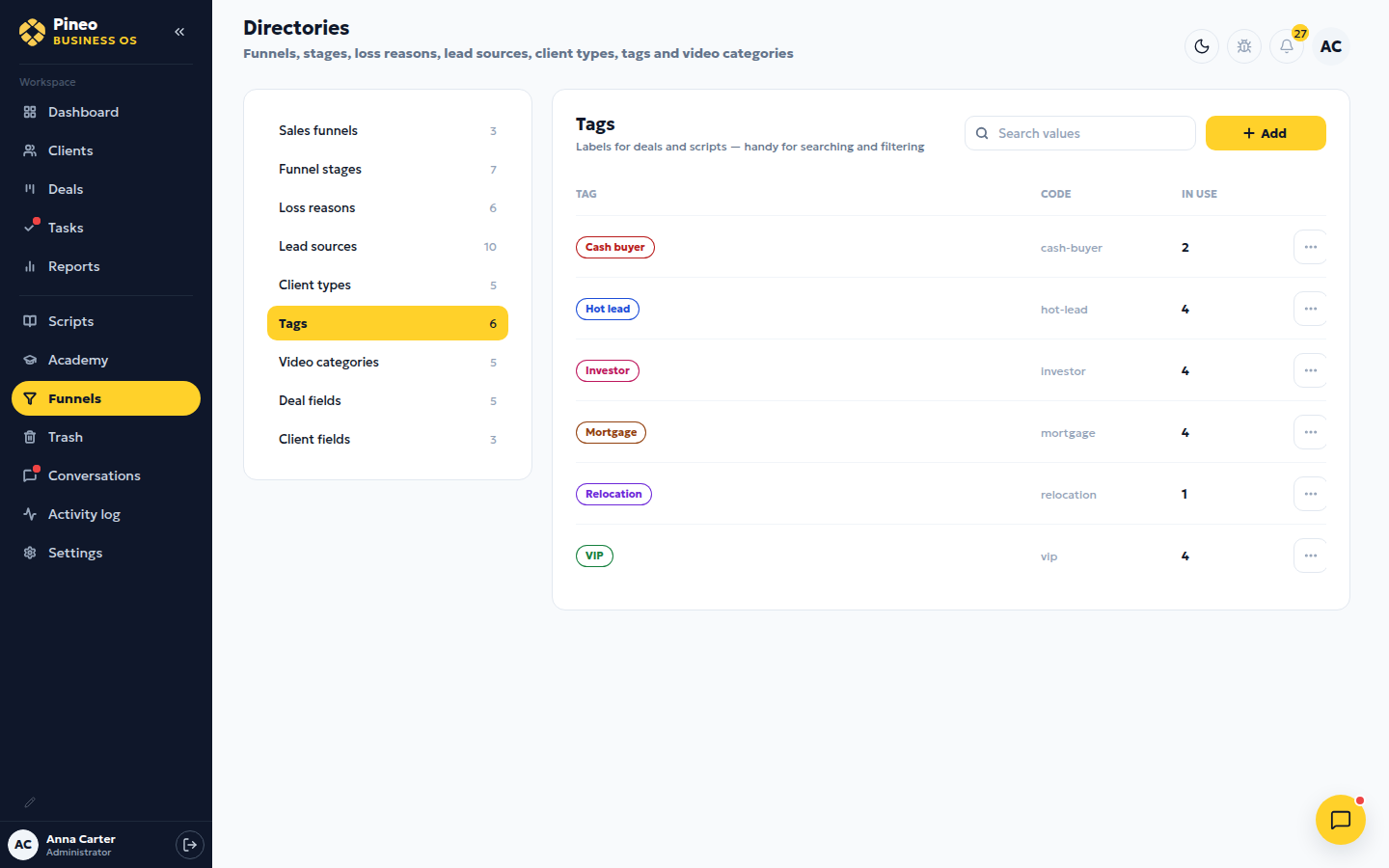
The tag directory is in the sidebar under Funnels → Tags (address /directories?d=tags).
Custom fields#
Besides the standard fields (amount, source, owner) an administrator can add any of their own. The field types:
| Type | What it is for |
|---|---|
| Text, Text area | A short and a long note. |
| Number, Money | Quantities, sums. |
| Date, Date and time | Deadlines, events. |
| Checkbox | Yes / no. |
| List | A choice from set values (several allowed). |
| Employee | A choice from the organisation's employees. |
| Link, Phone, Email | Contacts and addresses. |
| File | An attachment. |
A field belongs to the organisation, and the set of fields belongs to the funnel: "Residential Sales" can have "Neighbourhood" and "Floor area", "B2B" — "Batch volume". A field can be attached to one funnel or to "All funnels". In the card they appear in the "DEAL FIELDS" block.
Where they are set up#
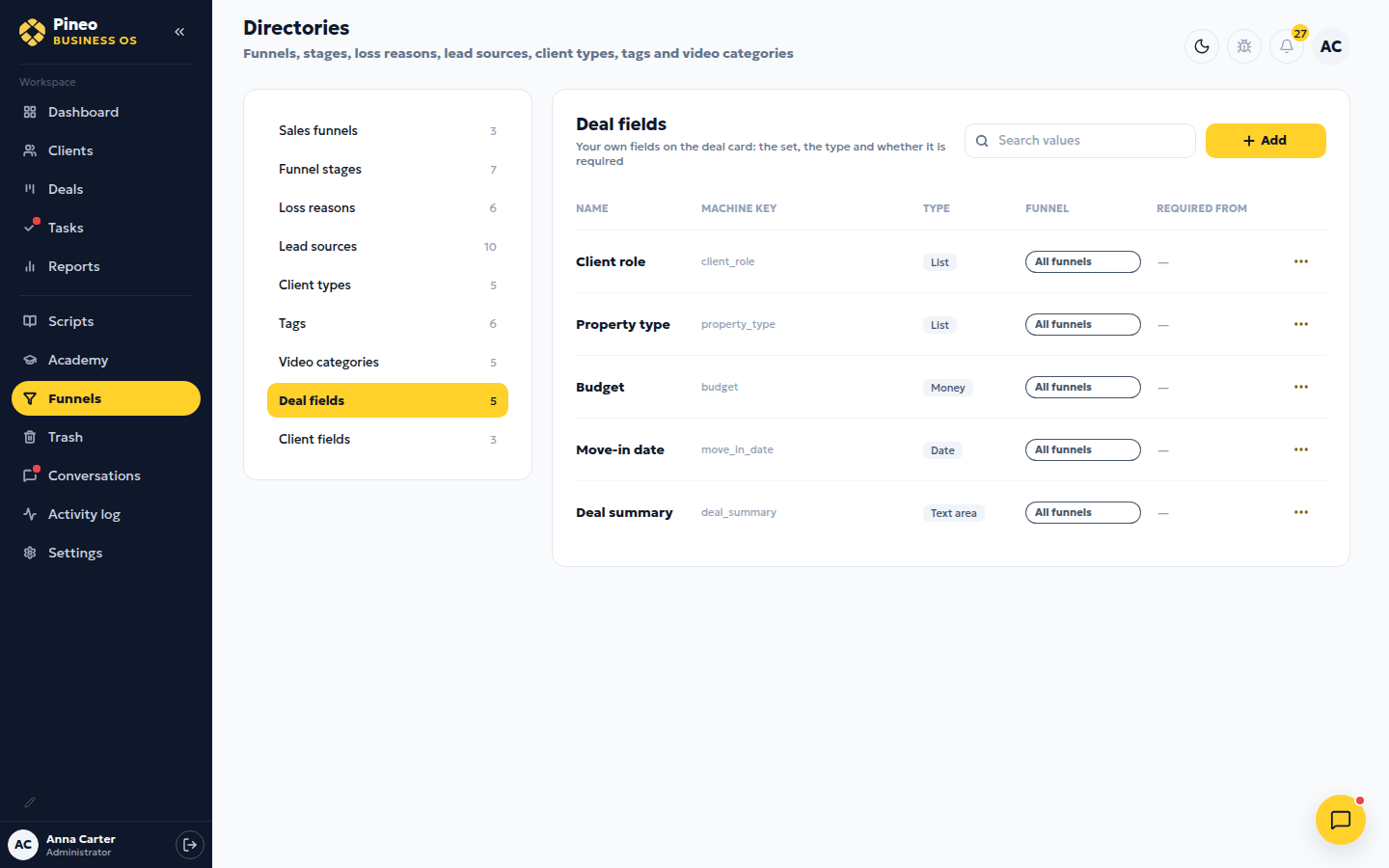
- The field catalogue — Funnels → Deal fields (
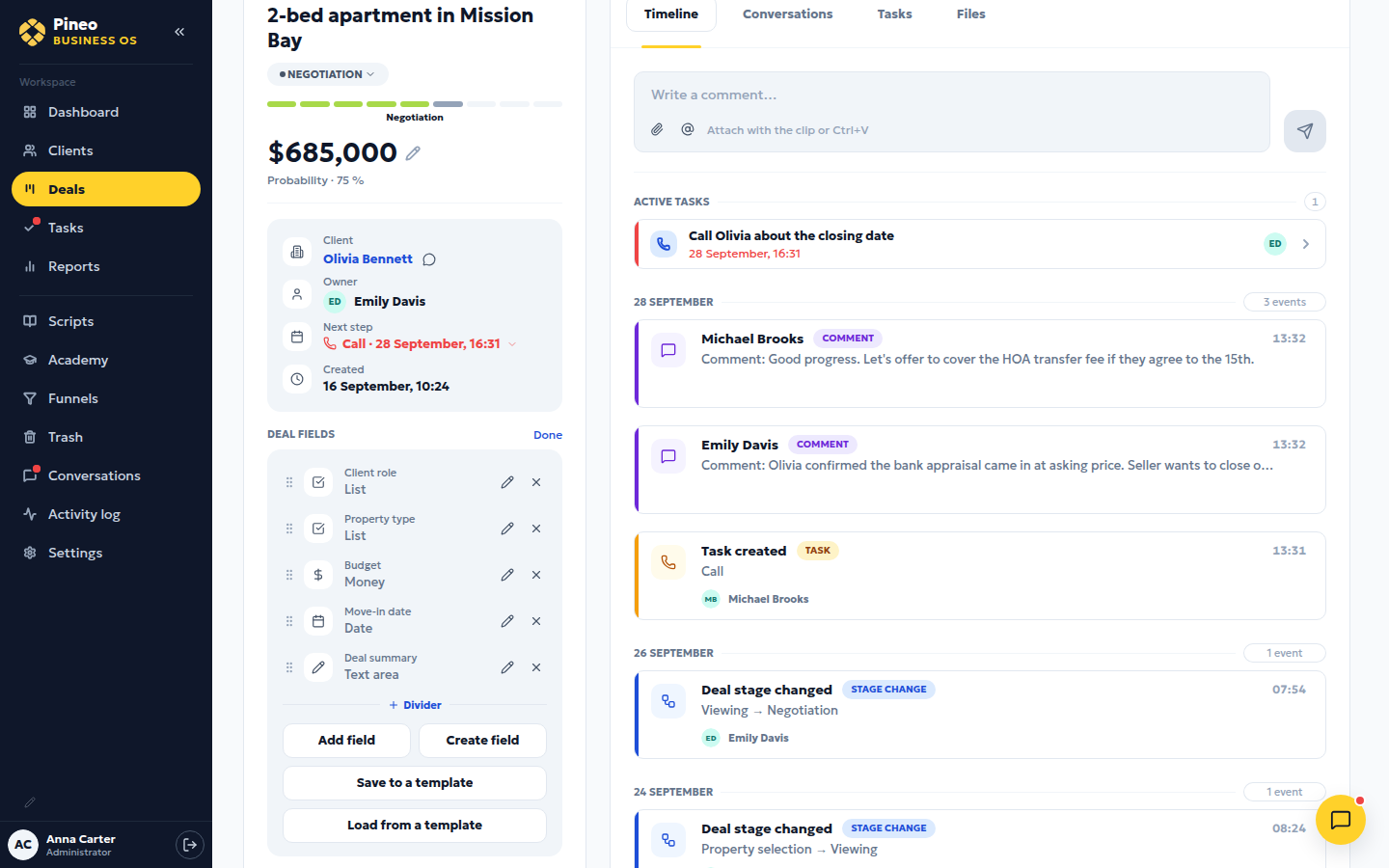
/directories?d=deal_fields), administrator only. Fields are created here, and their name and attachment changed. The "REQUIRED FROM" column shows the stage from which a field is required. - A funnel's set of fields and their order — in the deal card: the "DEAL FIELDS" block → "Configure" (visible to an administrator). Editing mode lets you drag fields, change each one, add ("Add field", "Create field"), insert a divider, save the set as a template ("Save as template") and load from a template ("Load from template"). The "Done" button leaves the mode.
Required from a stage#
For every field in a funnel the administrator sets the stage from which it is required ("REQUIRED FROM STAGE", "Not required" by default). Until the deal reaches that stage the field may stay empty; on moving to that stage and any later one the system demands it be filled in. More — Deal stages.
Filter by field#
The "Field" button ("Filter by field") on the board and in the table is not a column but a filter by the value of the chosen field. A funnel's fields can also be shown on a board card: Display → "This funnel's fields".
More about creating and typing fields — Custom fields. A field that holds values cannot be erased for good.