
The client card
What the card shows: contacts, owner, custom fields, deals, timeline, conversations, tasks and files; what the "···" menu does.
The client card holds everything that is known about a company or a person, and the whole history of working with them.
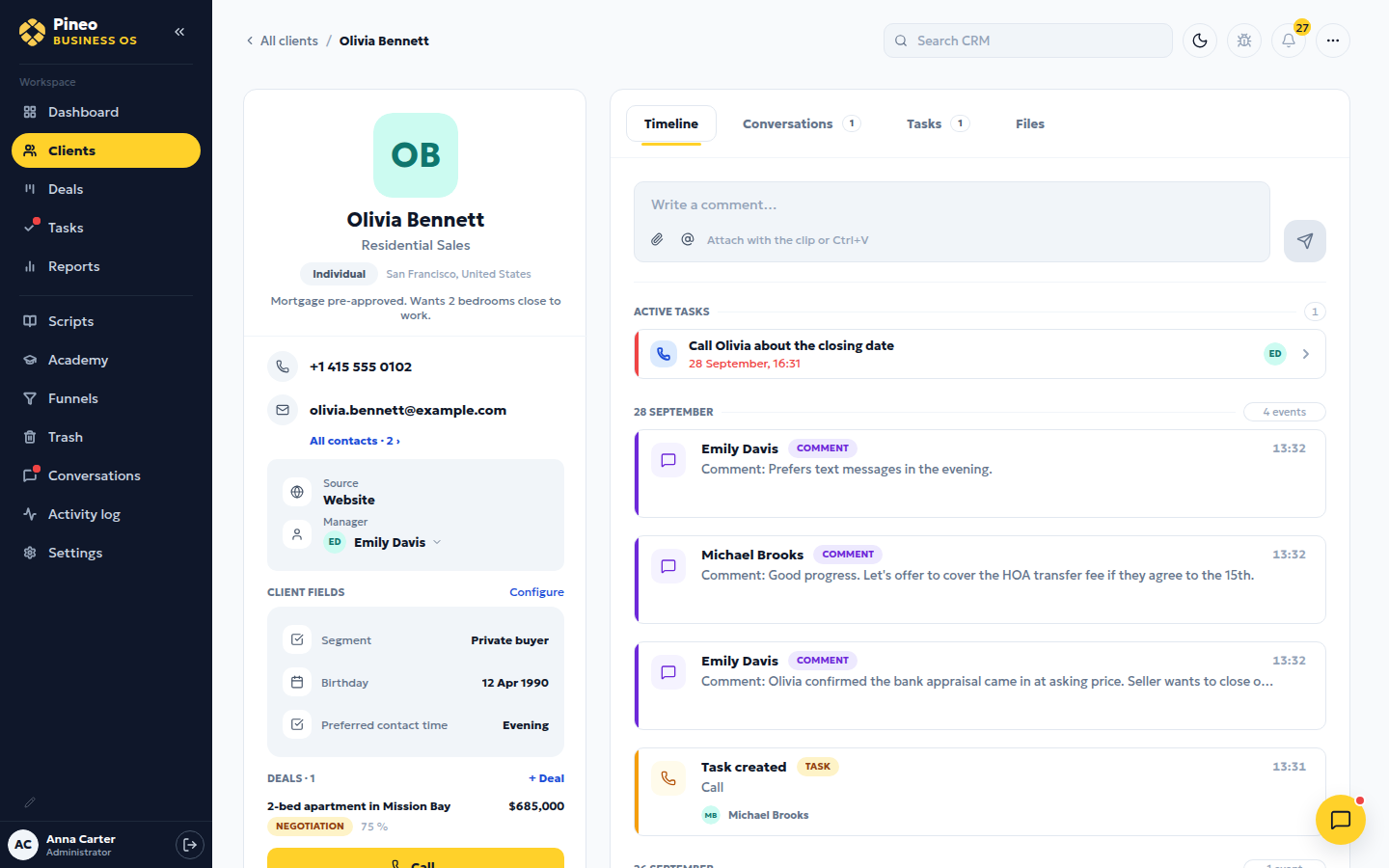
Left column — data#
- Avatar, name, department, type, city and country, a short description. An archived client has an "ARCHIVED" badge, an anonymised one — "ANONYMISED".
- Contacts — the main phone, email and messengers. The "All contacts · N ›" link opens the "Client contacts" panel: a client can have several contact persons and numbers, and the "Add contact" button is there too.
- Source and Manager (the owner). The owner can be changed with the arrow next to the name — available to those who may edit the client and assign others; for everyone else the name is plain text. A client with no owner shows "No owner" instead of a name.
- Client fields — custom fields. For an administrator the Configure button leads to the Funnels → Client fields directory.
- Deals · N — the client's deals with stage, probability and amount. Clicking a deal opens its side panel; "+ Deal" creates a new one.
- Buttons "Call" (opens the dialler), "Message", "Task" and "Edit client".
Right part — tabs#
| Tab | What is inside |
|---|---|
| Timeline | A comment box, an "Active tasks" block and the history of events for the client: card changes, deal stage changes, tasks — with date, time and author. |
| Conversations | Conversations with the client from all channels. You can reply right here; the "Message" button starts a new conversation (see How to reply to a client). |
| Tasks | The client's tasks with the filters "Active / Done / All"; a "New task" button. |
| Files | Two groups: "Client files" and "Deal files". An "Upload" button. |
The tabs carry counters; "Conversations" gets a dot when something is unread.
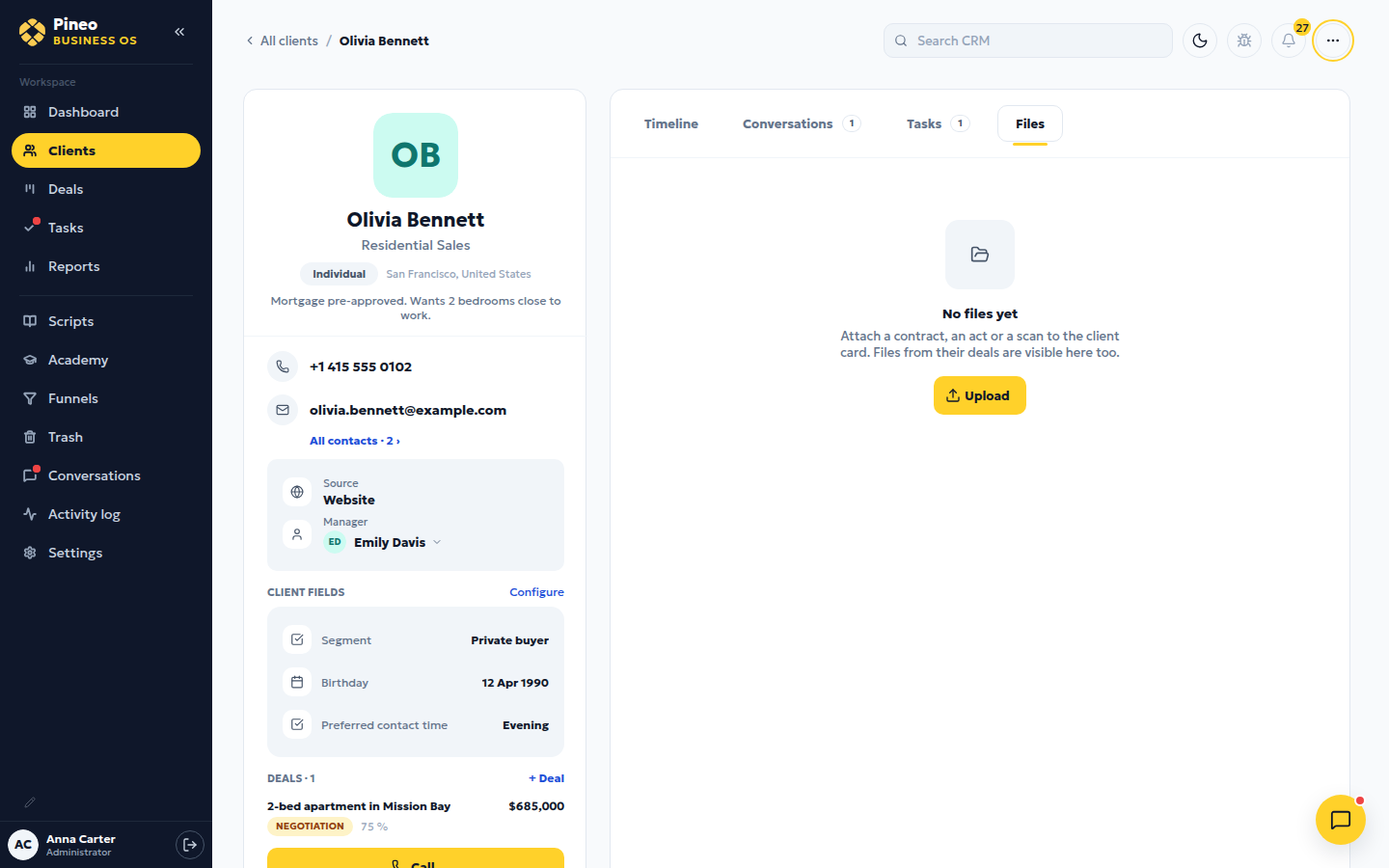
The "···" menu in the header#
The "···" button ("Card actions") opens a menu. Items are shown according to your rights:
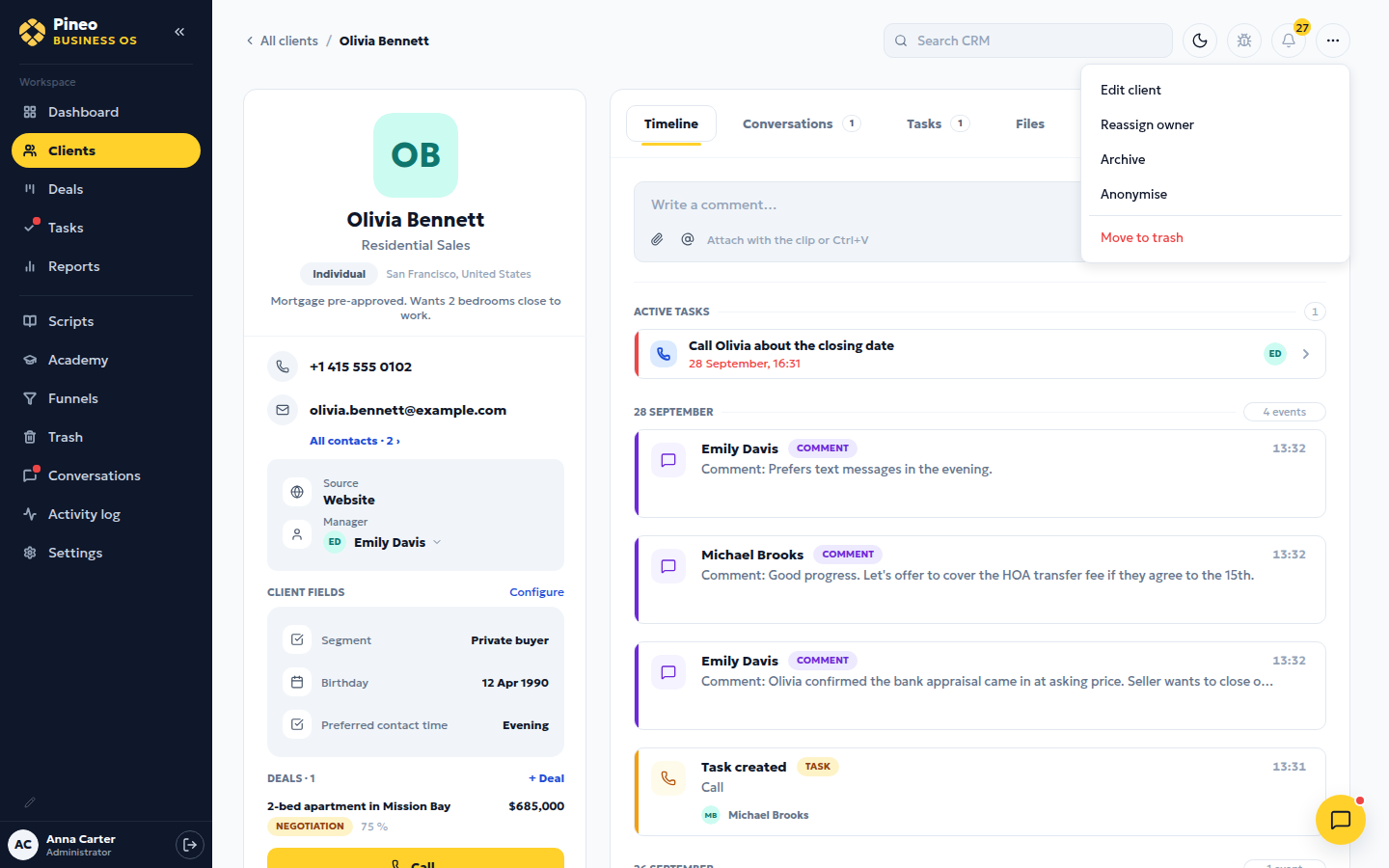
| Item | Who can use it |
|---|---|
| Edit client | Whoever may edit the client. |
| Reassign owner | Whoever may edit and assign others (supervisor, administrator). |
| Archive / Restore from archive | Whoever may edit the client. |
| Anonymise | Administrator only; the item is absent for an already anonymised client. |
| Move to trash | Whoever may delete the client. |
All changes are recorded in the timeline and in the activity log. How archiving, deleting and anonymising differ — see Archiving, deleting and anonymising a client.
The card header#
The header has the "All clients / Name" path to return to the list and a global Search CRM: you can quickly jump to another client, deal or task without leaving the card.
Was this article helpful?Thank you! If something is missing, write to us through support.