
Signing in, password and access recovery
How to get access by invitation, sign in, change or recover your password.
There is no self-registration in Pineo: access is granted by your organisation's administrator (Settings → Team). They send an invitation to your work email, and you set the password yourself from the link in the message.
Step 1. Accept the invitation#
Open the email titled "Доступ в Pineo CRM: задайте пароль" ("Access to Pineo CRM: set your password") and follow the link in it. The link is valid for 72 hours — if it has expired, ask the administrator to send the invitation again. Come up with a password, repeat it and save. Then you will see "Password saved — you can sign in now" with a Sign in button: signing in is a separate step.
Step 2. Sign in with your email and password#
The sign-in page is https://crm.pineoos.com. Enter the email the invitation went to and your password, then click Sign in.
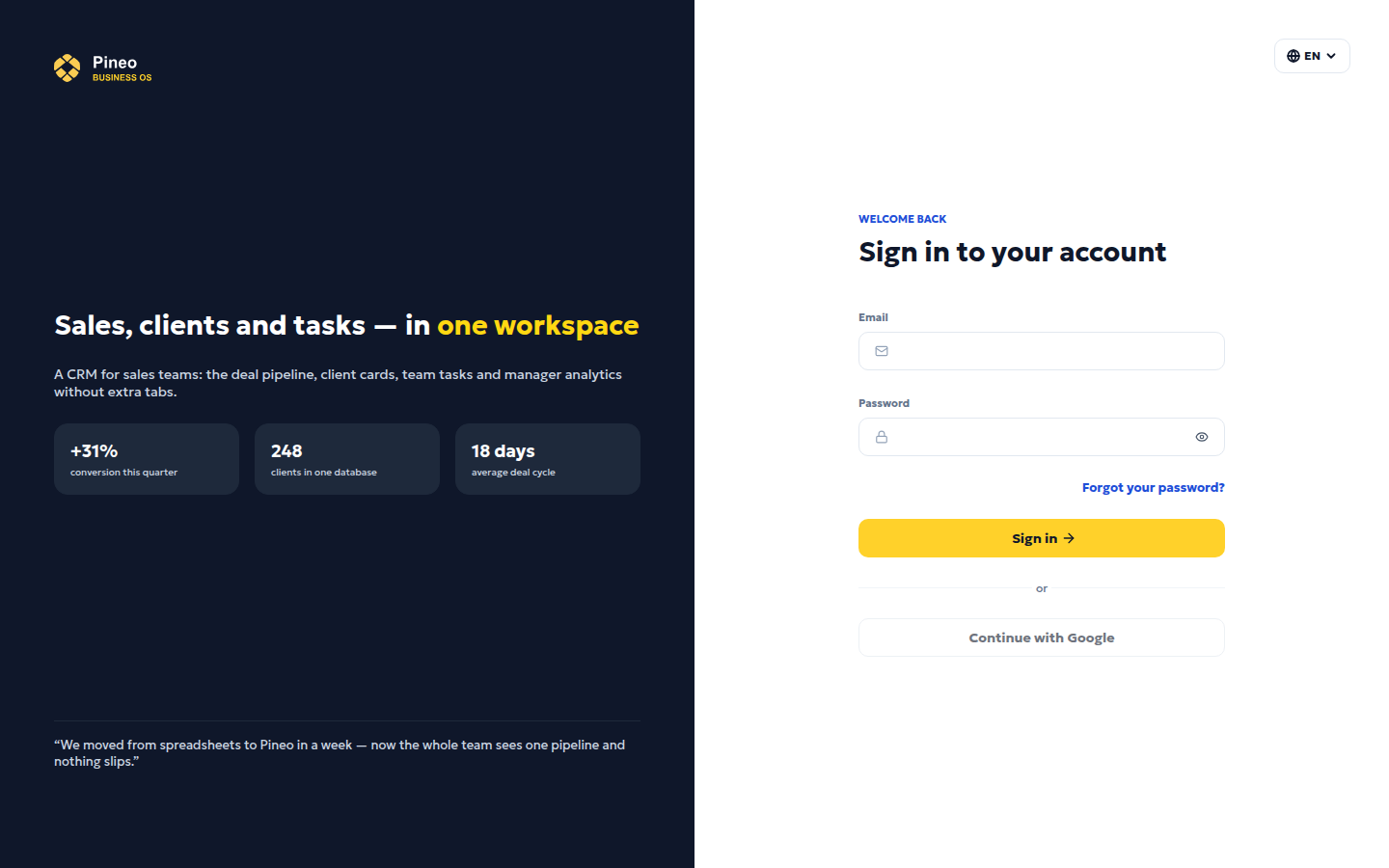
In the top-right corner is the interface language switch (RU / EN). The choice is remembered in the browser and also applies after sign-in. If you pressed the switch, the chosen language is also saved to your account after sign-in — notifications and emails will come in it.
Forgot your password#
- On the sign-in page, click Forgot your password?
- Enter your email and click Send link — a password-reset link arrives there. The link is valid for one hour.
- Follow the link and set a new password.
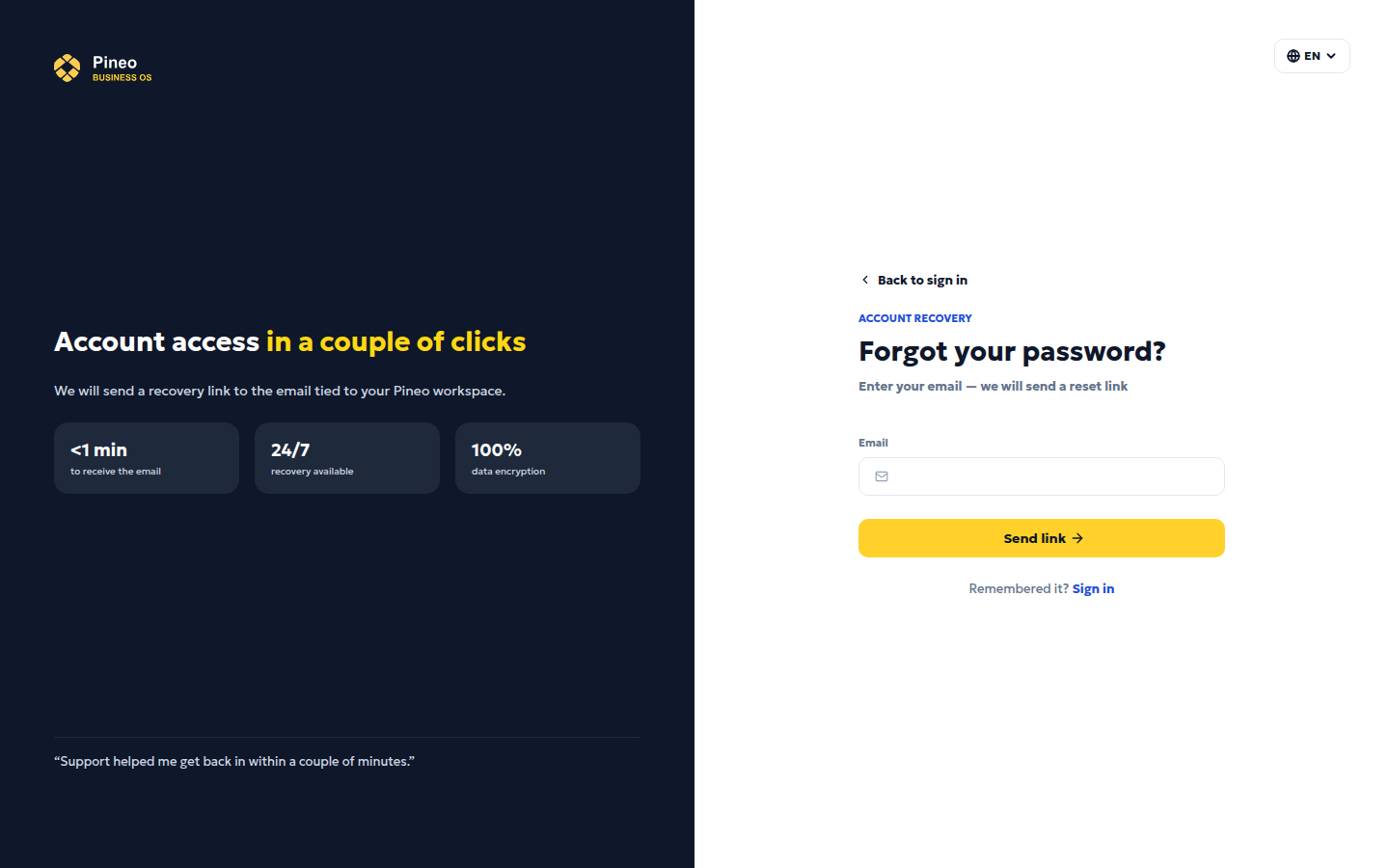
A repeat email to the same address can be requested no more than once a minute. Resetting by link, like changing the password, ends all your sessions.
Change your password#
Open Settings → Security and enter the current and the new password. The new password revokes sign-in on all devices, including the current one: after the change you have to sign in again. The same page has a "Sign out of all sessions" button.
Signing out#
The sign-out button is at the bottom of the sidebar, to the right of your name.