
Departments
How to create a department, nest it in another, add members and a head, and what a department changes in data visibility and funnels.
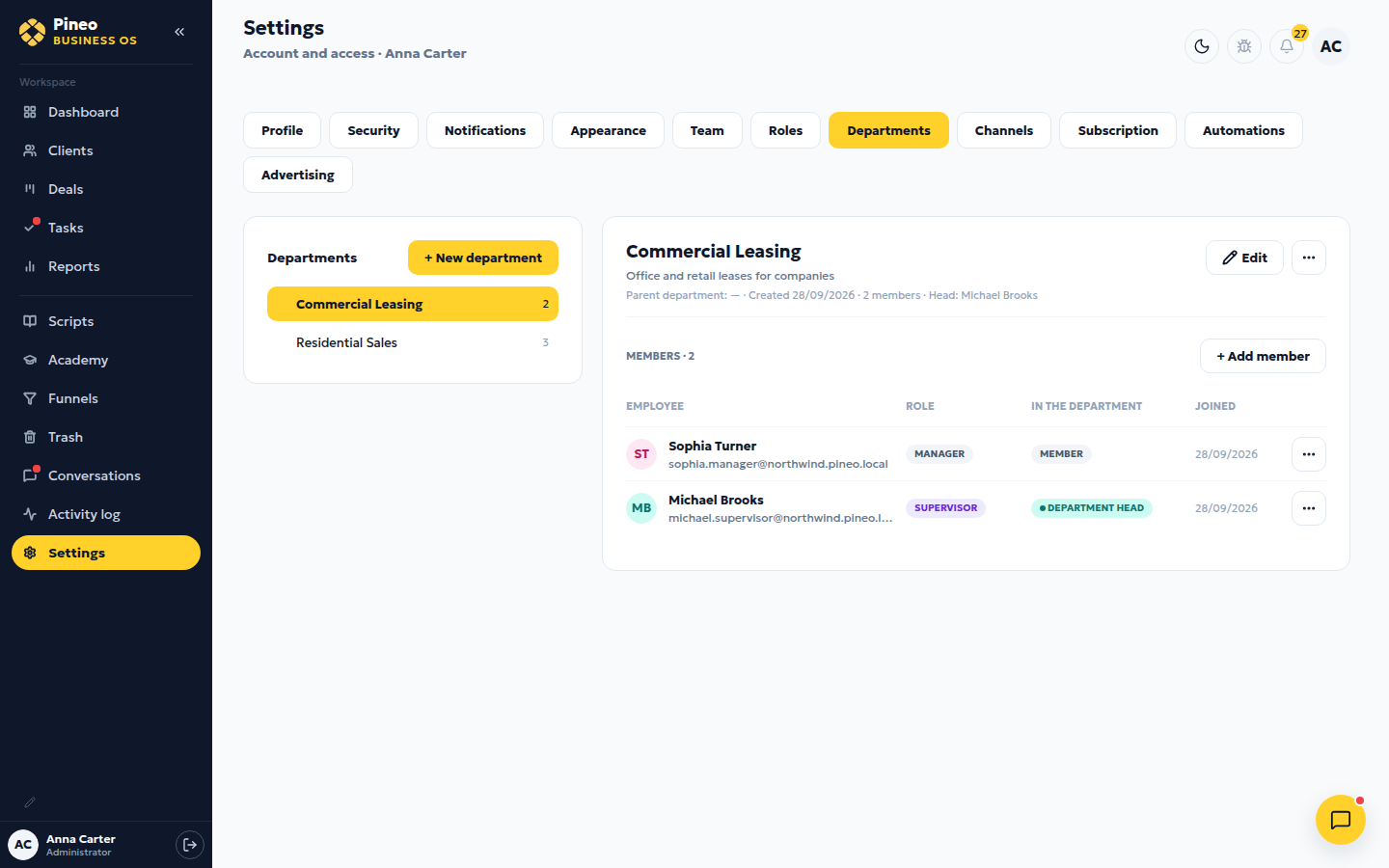
Settings → Departments is the company structure. On the left is the department tree, on the right the card of the selected one: description, parent department, head and members. Only the administrator can change the structure; a supervisor by role and a department head do not have this right.
Create a department#
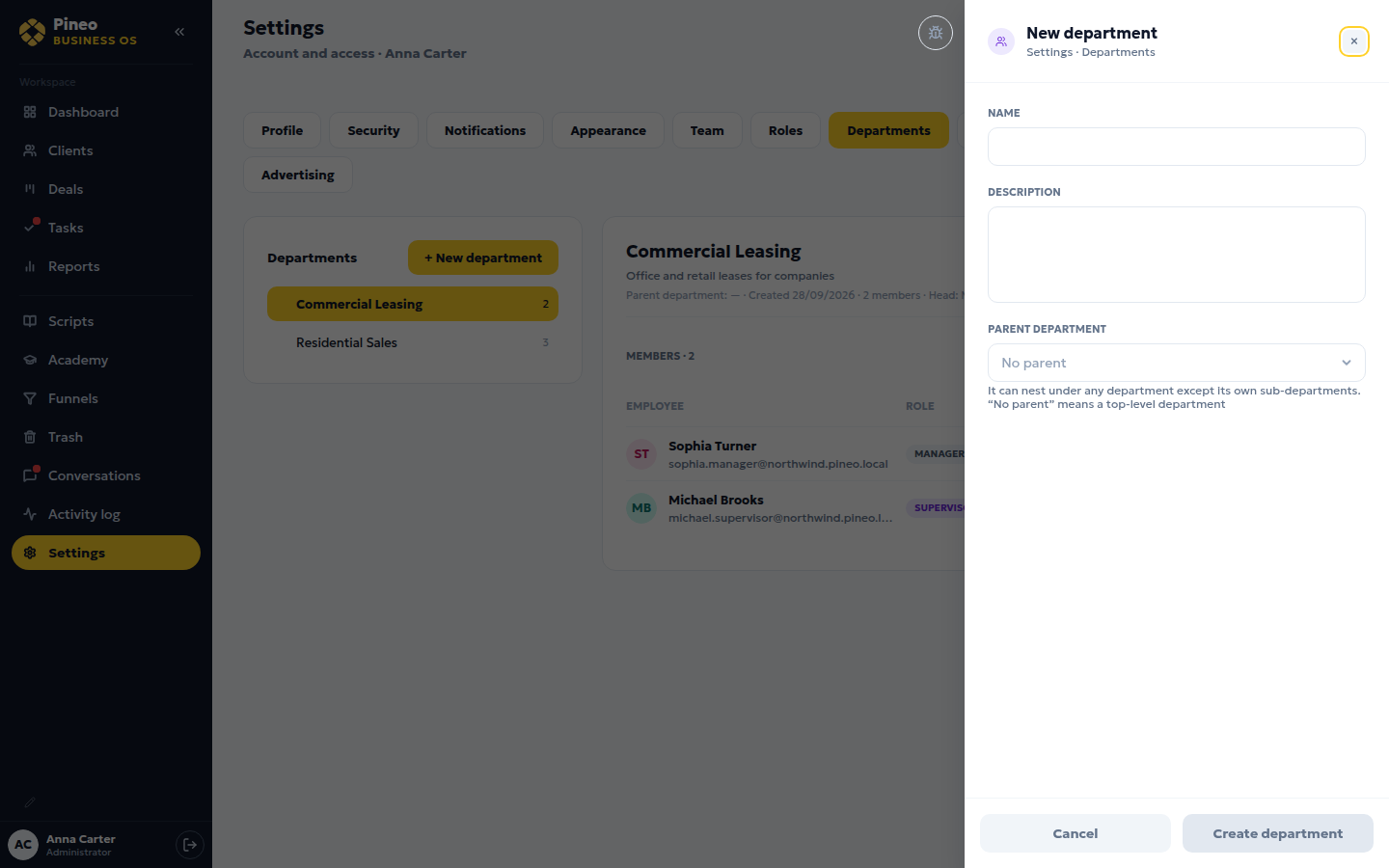
- + New department.
- Enter the Name, the Description and, if the department is nested, the Parent department (you can nest it under any department except its own sub-departments; “No parent” — top level).
- Press Create department.
Departments form a tree: the “Sales department” can have a “B2B group”.
Members#
+ Add member — choose an employee (the list shows only people who are not in this department yet) and the role in the department: Department head or Member. One employee can belong to several departments. The ··· menu on a member — Make head / Make a member and Remove from the department.
A department head cannot be removed directly: first change their role in the department or appoint a new head.
What a department changes#
- Record visibility. The “Own department” level in a role opens the records of employees from the departments the person belongs to. A department is a strict boundary: a supervisor by general role sees only their own departments, not all of them.
- Funnels. A funnel can be tied to departments — only their members can work in it (Funnels and stages).
- Filters. Departments are useful in report and dashboard filters.
Edit or archive#
Edit changes the name, the description and the parent. The ··· menu → Archive removes the department together with its sub-departments from settings and filters; members stay employees, and their clients, deals and tasks do not change. An archived department stays in the Trash for 30 days — the administrator restores it from there. A funnel tied to an archived department stays closed to everyone else.