
What Pineo is and how it works
A short overview of what the system does, which sections it has, what an administrator should set up on day one and where a manager starts.
Pineo is a CRM for a sales team. It works in the browser at https://crm.pineoos.com, so there is nothing to install. One window holds clients and their contacts, deals on a board by funnel stage, employee tasks, conversations with clients through WhatsApp, Telegram and email, call scripts, training videos and supervisor reports.
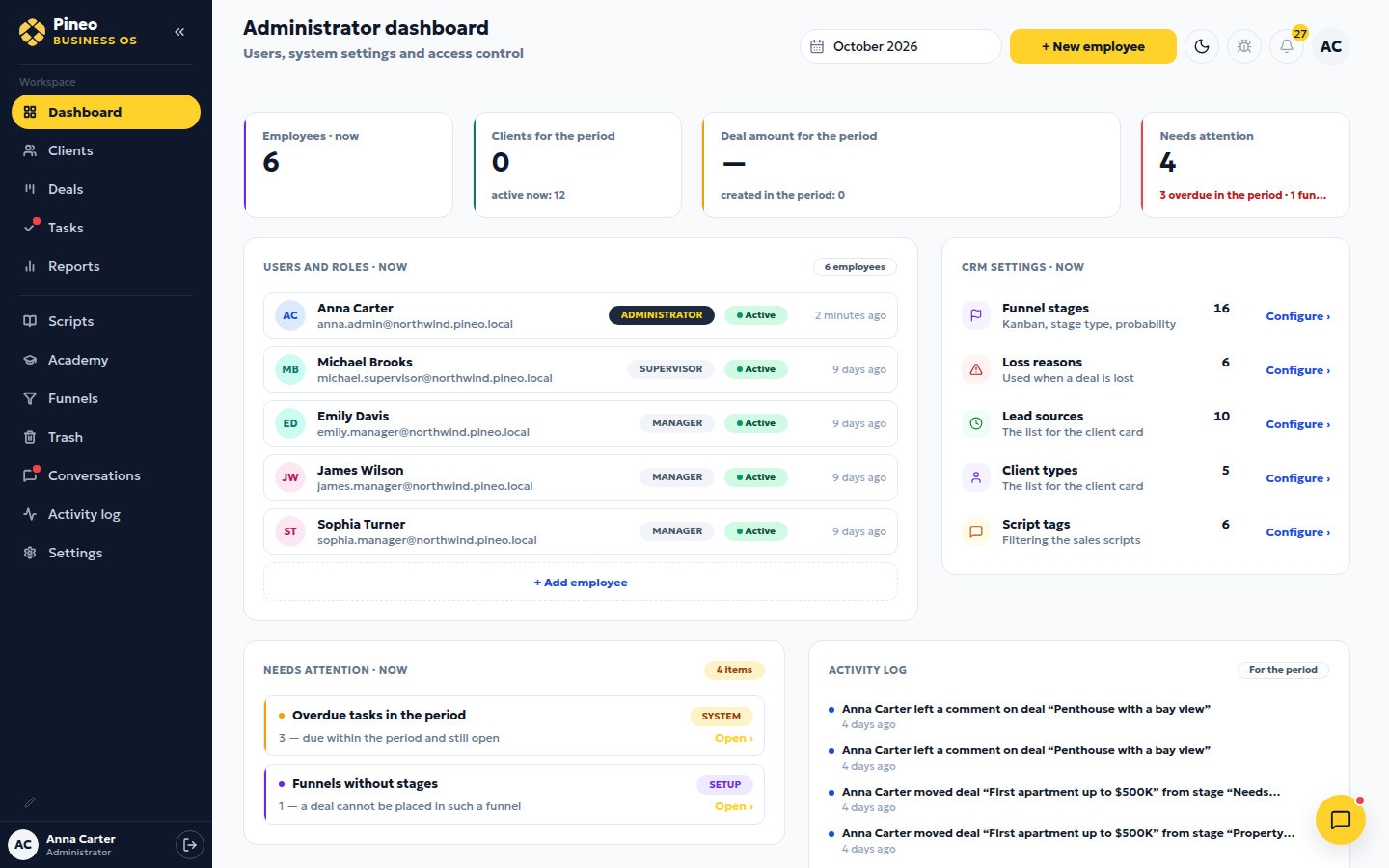
What the workspace consists of#
Which items you see in the sidebar depends on your role (see Roles and access). With the standard roles a manager sees nine items: Dashboard, Clients, Deals, Tasks, Reports, Scripts, Academy, Conversations, Settings.
| Section | What it is for | Who sees it |
|---|---|---|
| Dashboard | The key figures for a period and what needs attention. Managers, supervisors and administrators each get a different dashboard. | Everyone |
| Clients | The base of clients and companies with contacts, source and owner. | Everyone |
| Deals | A board by funnel stage; a deal card with history, conversations, tasks and files. | Everyone |
| Tasks | What has to be done and by when; checklists and comments. | Everyone |
| Reports | Sales, tasks, lead sources and team training; export to Excel. | Everyone |
| Scripts | Ready-made conversation scenarios and AI script suggestion. | Everyone |
| Academy | Training videos and materials, each employee's progress. | Everyone |
| Funnels | Directories: funnels and stages, loss reasons, sources, client types, tags, custom deal and client fields. | Those whose role has "Funnels" or "Tags" |
| Trash | Deleted records that can be restored until their retention period ends. | Those whose role has "Trash" |
| Conversations | Conversations with clients from all channels and the team's internal chats. | Everyone |
| Activity log | Every action of every employee in the system. | Those who see other employees' records |
| Settings | Profile, security, notifications, appearance; for an administrator also team, roles, departments, channels, subscription, automations, advertising. | Everyone (the set of tabs depends on the role) |
One organisation — one workspace#
Every company works in its own organisation: its employees see only their own clients, deals and tasks. Inside an organisation, access is governed by roles — who sees which records and what they can do with them.
What an administrator should set up on day one#
Pineo works out of the box, but four settings are needed so that client enquiries do not get lost. Go in this order.
- Invite your employees — Settings → Team. See Employees.
- Set up the funnel — Funnels → Sales funnels and Funnel stages. Mark one funnel "For new enquiries": Pineo will put there the deals it creates by itself. See Funnels and stages.
- Connect channels — Settings → Channels: first your organisation's ChatApp cabinet, then WhatsApp, Telegram and email lines. See Connecting channels.
- Appoint the owner for new enquiries — Settings → Roles, the "New enquiries" card. Otherwise new clients will pile up in the unassigned queue with no owner.
How these four settings work together is shown in How an incoming message becomes a deal.
Where a manager starts#
- Sign in using the invitation from your administrator.
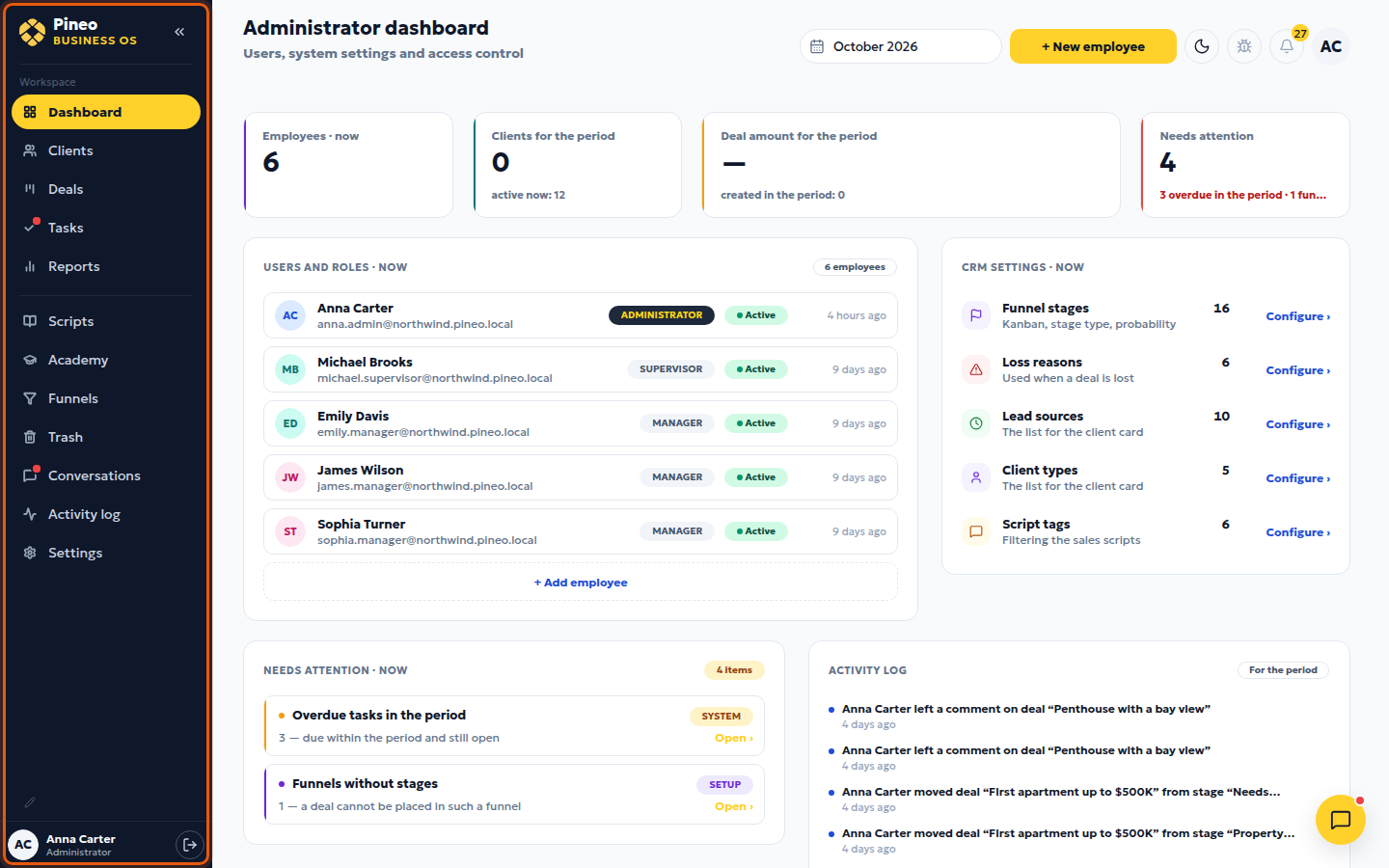
- Learn the interface: the section menu, the header, notifications.
- Open Deals — if your administrator has set up channels, new enquiries are already waiting in the first column. You can also add a client, create a deal and set yourself a first task by hand.