
Advertising and website enquiries
The website enquiry form (creating, embed code, owner, deleting), end-to-end analytics and the Google Ads and Meta ad accounts.
Settings → Advertising is a single page of three blocks from top to bottom: Connected (ad accounts), End-to-end analytics (counters) and Website enquiries (forms). The tab is visible if the role has the Advertising and analytics capability (by default, the administrator and supervisors). A supervisor can view and run forms, but only the administrator connects accounts and counters.
Website enquiries#
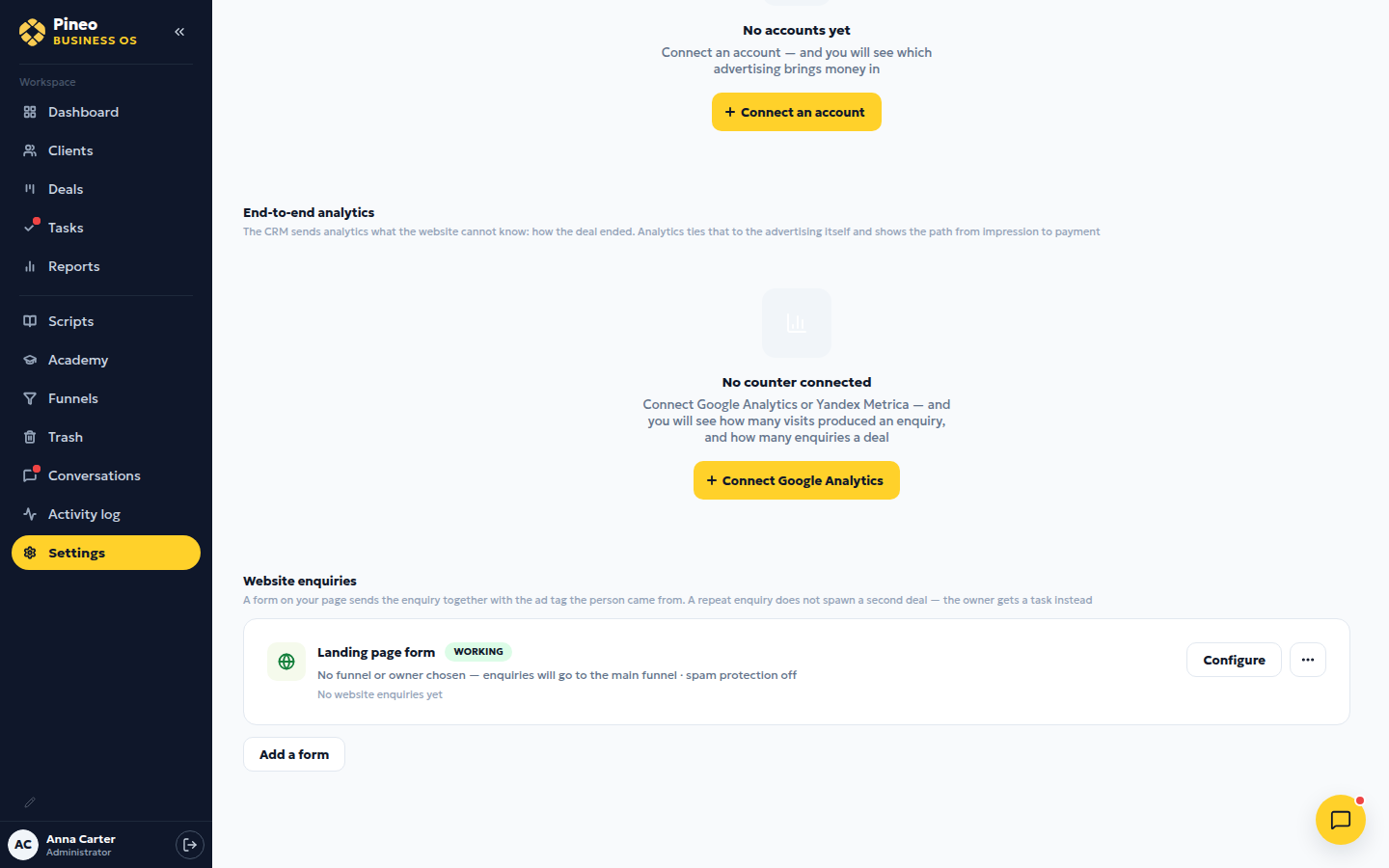
Pineo accepts enquiries from your website without manual entry: create a form, paste its code on the page — and every enquiry becomes a client and a deal. The enquiry is saved together with ad tags (UTM), the landing page and the visitor's identifiers — the Sources report uses them to show which advertising channel brings deals (Reports).
Create a form#
- In the Website enquiries block press Create a form (for the next one — Add a form).
- In the Website form panel set the Form name — only you see it.
- Expand Where enquiries land:
- Funnel — where the deal goes. Empty — the organisation's main funnel.
- Default owner — who receives the enquiry. If the client already has an owner, the enquiry stays with them.
- Allowed page addresses — the domains the form accepts enquiries from (for example,
example.com). Empty — enquiries are accepted from any page; if you fill it in, list all your domains, includingwwwand landing pages, otherwise an enquiry from an unlisted address is refused. - Spam protection (Turnstile) — a check before the form is sent; it works if captcha is enabled on your Pineo installation.
- In Form fields, Appearance and After submission set the fields (by default name, phone, email, comment; at least one contact is required), the look, and what the visitor sees after sending.
- Press Create a form.
Embed code#
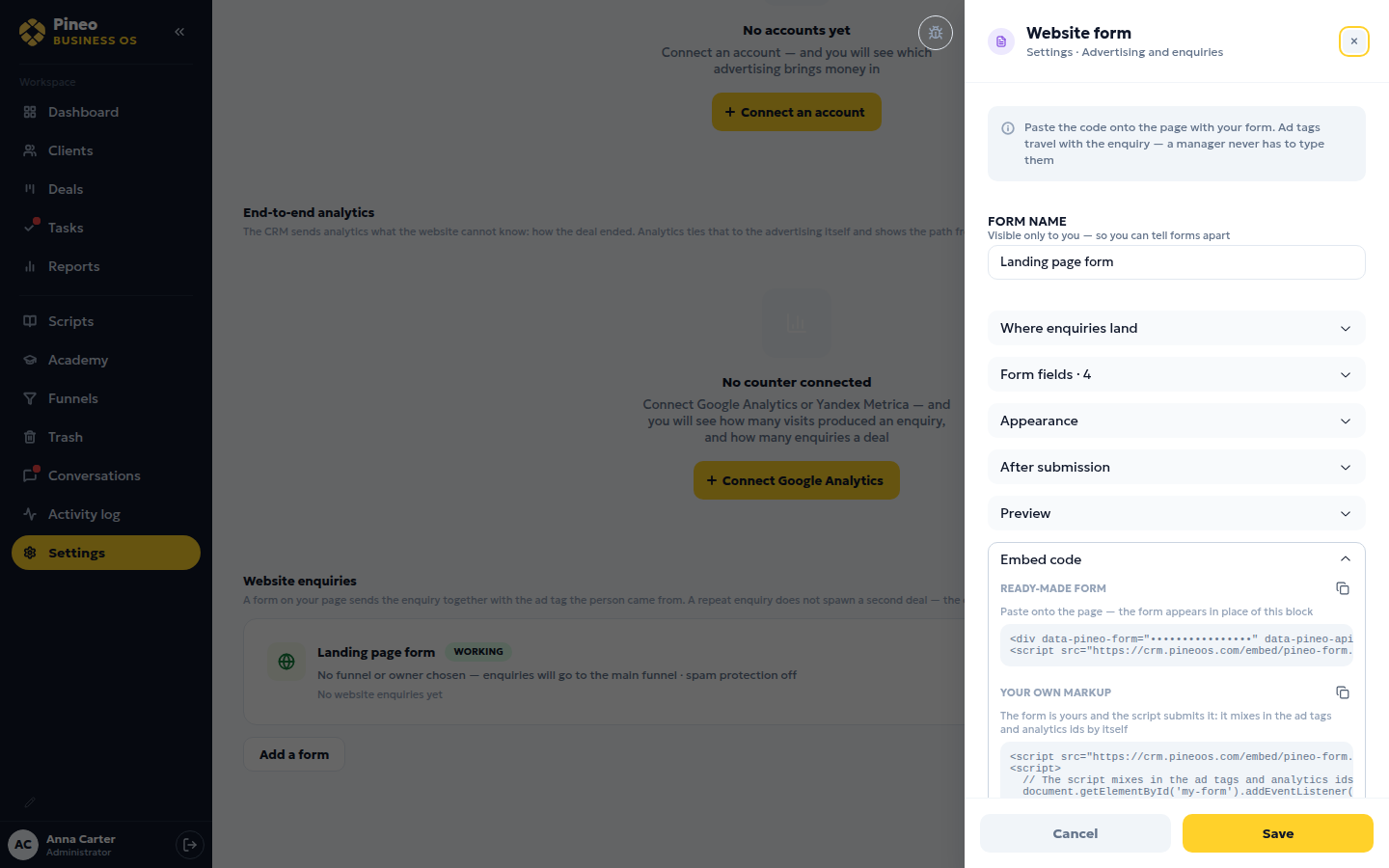
After saving, the panel shows the Embed code block:
- Ready-made form — paste two tags on the page and the form appears in place of the block.
- Your own markup — if the form is your own, it sends the data with the Pineo script; the script adds ad tags and analytics identifiers itself.
Below are the Enquiry intake address with a copy button and Recent enquiries with statuses: received, client and deal created, client recognised, repeat within the window, rejected, processing failed.
What happens to an enquiry#
- The client is looked up by phone (including WhatsApp) or email. If there is none, a new one is created.
- If the client already has an open deal, no second one is created: the owner gets the task “Repeat enquiry from the site” due in one hour.
- A repeat enquiry from the same contact within 10 minutes counts as a duplicate.
- The deal's funnel is the one chosen in the form; empty — the main funnel. The funnel mark “For new enquiries” relates to messages from channels; for forms the funnel is set in the form itself.
- Owner: the existing client's owner → the form's Default owner → the employee from Settings → Roles → New enquiries → the first active administrator. More in Inbound enquiries: what to set up.
- Required custom fields are not demanded when an enquiry is received: an enquiry does not ask for what it does not contain.
Delete a form#
In the form card, the Form actions → Delete form menu.
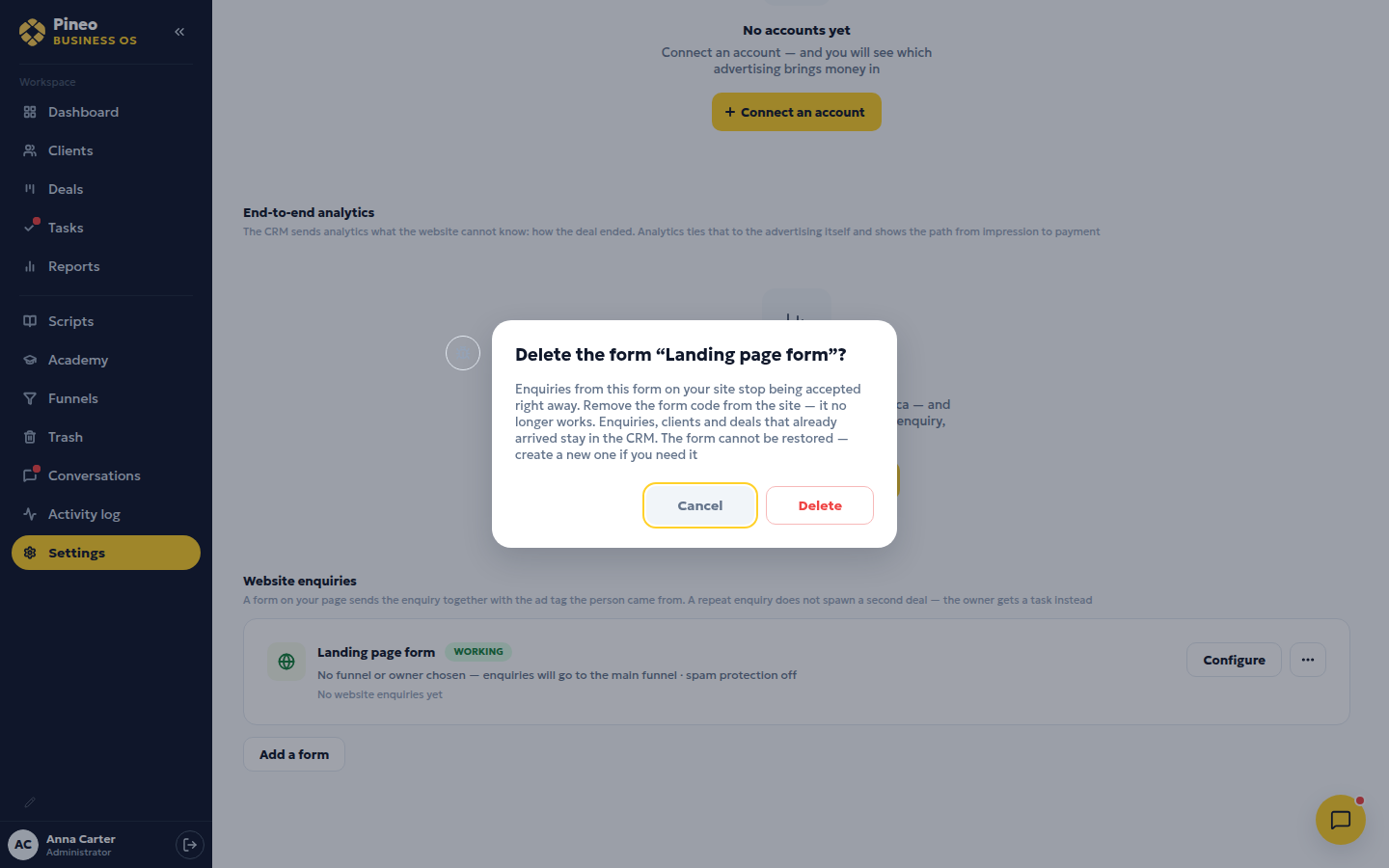
Deletion is a revocation of the form:
- enquiries from it stop being accepted at once; remove the form code from the site — it no longer works;
- enquiries that already arrived, clients, deals and the enquiry log stay in the CRM;
- the form cannot be restored — create a new one if you need it (with a new code).
There is no “switch the form off” toggle: if you need the form later, create it again.
Ad accounts#
The Connected block shows the connected Google Ads and Instagram and Facebook (Meta) accounts. The Connect an account button → sign in with Google or Facebook → choose the account. An account is needed to send won deals to it as conversions: the platform learns to bring clients who buy, not just click. Conversion settings are switched on in the account card (Conversion settings); the account is disconnected with the Disconnect button — won deals stop being sent, and what was already sent stays.
End-to-end analytics#
The End-to-end analytics block connects Google Analytics 4 (the stream ID G-… and a Measurement Protocol key) and Yandex Metrica (the counter number, a token, the “Deal won” goal). Pineo passes to analytics what the site cannot know: how the deal ended. Buttons: Check connection, Disconnect.