
Funnels and stages
How sales funnels work, what the “Default” and “For new enquiries” marks mean, how to tie a funnel to departments, set up stages and delete a funnel.
The funnel directory opens from the Funnels menu item (the “Directories” screen, with the list of directories on the left). The item is visible if the role has the Funnels or Tags capability (Roles and permissions).
Sales funnels#
Choose Sales funnels — the list of funnels is on the right.
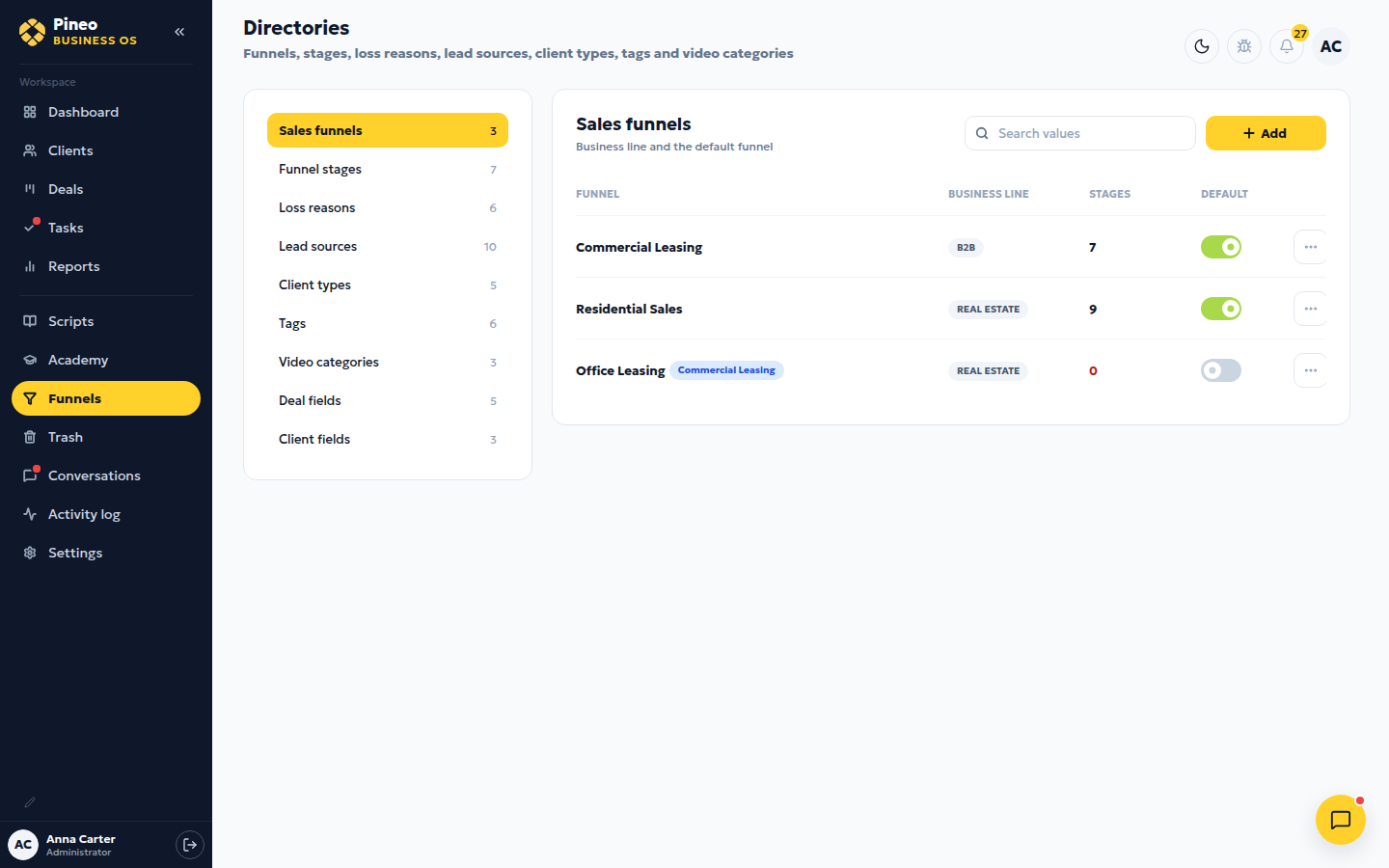
For each funnel you see the business line, the number of stages and the Default switch. The + Add button creates a funnel; the ··· menu on a row gives Edit or Delete. The funnel's name and marks are changed in the “Edit value” panel:
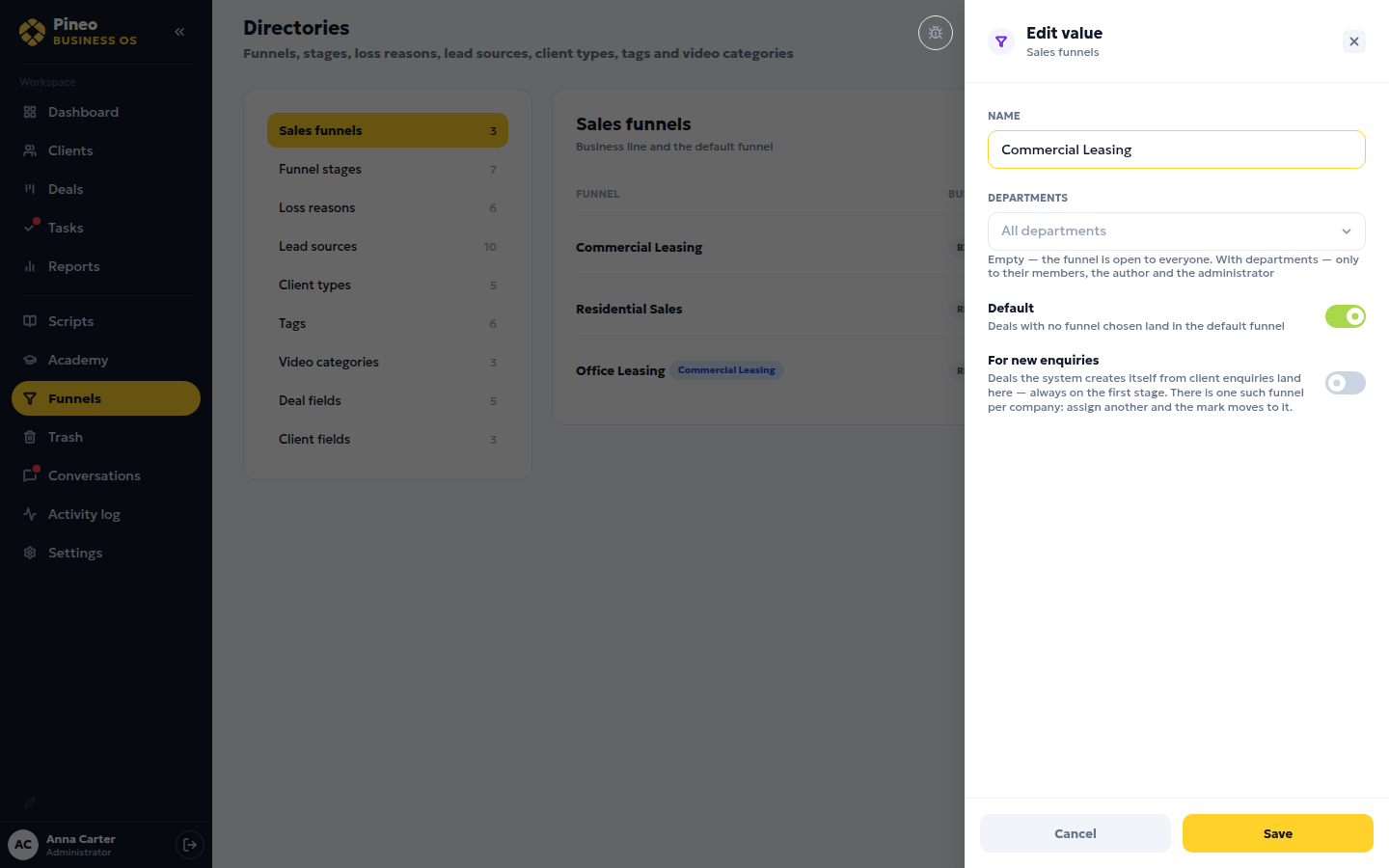
Two funnel marks — and how they differ#
| Mark | Where the deals go | How many funnels |
|---|---|---|
| Default | Deals with no funnel chosen: created by hand without picking a funnel. | One per business line. |
| For new enquiries | Deals that Pineo creates by itself from client enquiries in messengers and email, and from website enquiries (if the form has no funnel of its own). Always on the first open stage. | Exactly one per company: mark another one and the mark moves to it. |
Both marks are changed by the administrator: for a supervisor the switches are greyed out with the hint “An administrator assigns the default funnel”. Anyone with the “Funnels” capability can create a funnel — they become its author and configure their own funnels themselves; other people's funnels are view-only.
Funnel departments#
The Departments field in the funnel panel limits who works with it.
- Empty (“All departments”) — the funnel is shared, everyone uses it.
- Departments chosen — only members of those departments, the funnel's author and the administrator see the funnel and move deals through it.
This does not hide the deals themselves: a person who sees a deal by their role still sees it in the list and the card, but cannot move it through the stages of a closed funnel. Deals from website enquiries and automatic enquiries are not affected by this limit. More about departments — Departments.
Funnel stages#
Choose Funnel stages, then a funnel in the list — its stages are below, in order.
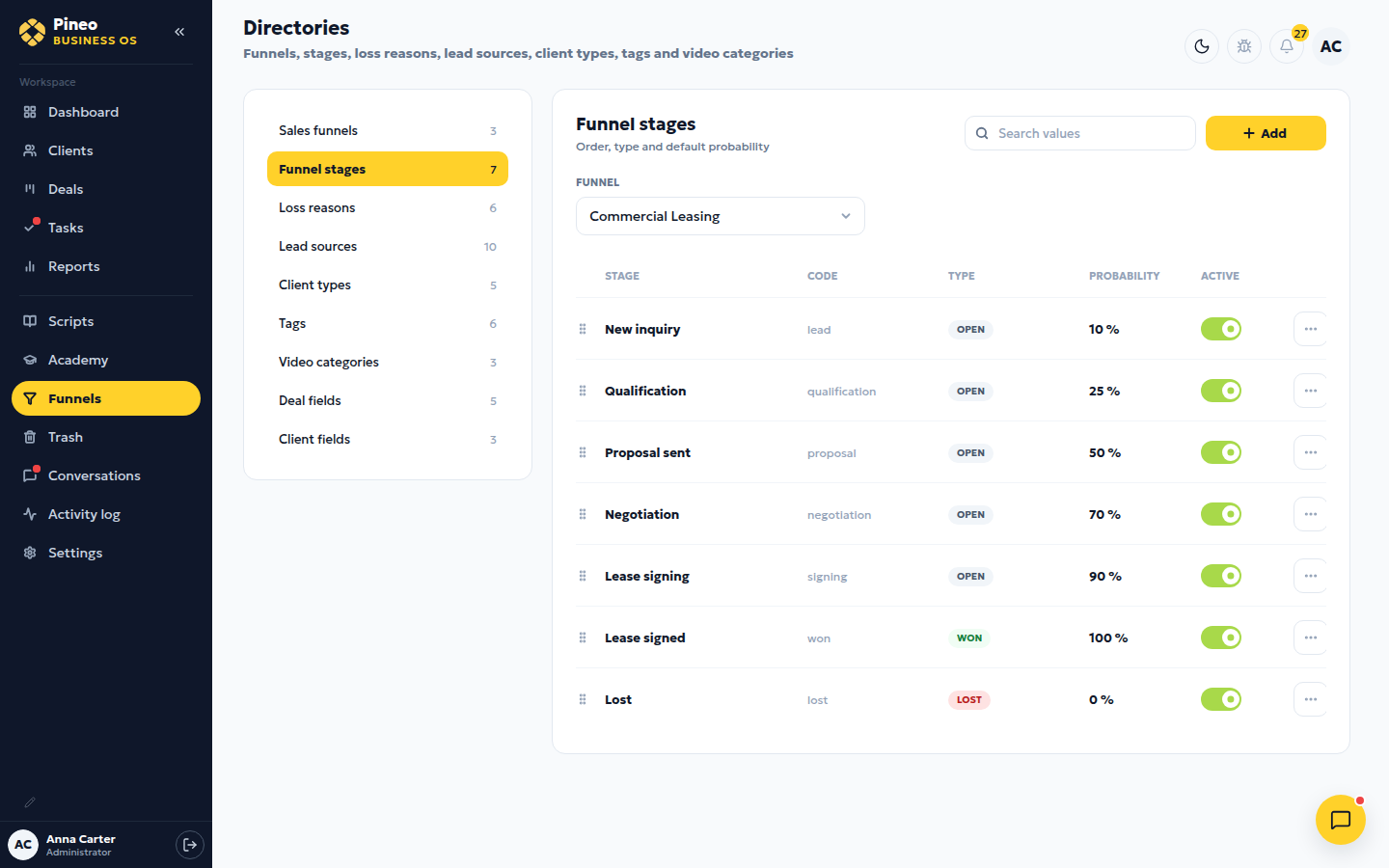
| Field | Meaning |
|---|---|
| Name | The name as on the board. |
| Code | A short machine code (lead, payment); it does not change after creation. |
| Stage type | Open, Won or Lost. A funnel needs at least one won and one lost stage. It does not change after creation. |
| Colour | Optional: the colour of the board column and of the stage in the deal card. Empty — the colour follows the stage order. |
| Default probability, % | The percentage set on a deal when it moves to the stage. |
| Active | A switched-off stage is hidden from the board and the filters; the deals on it stay. |
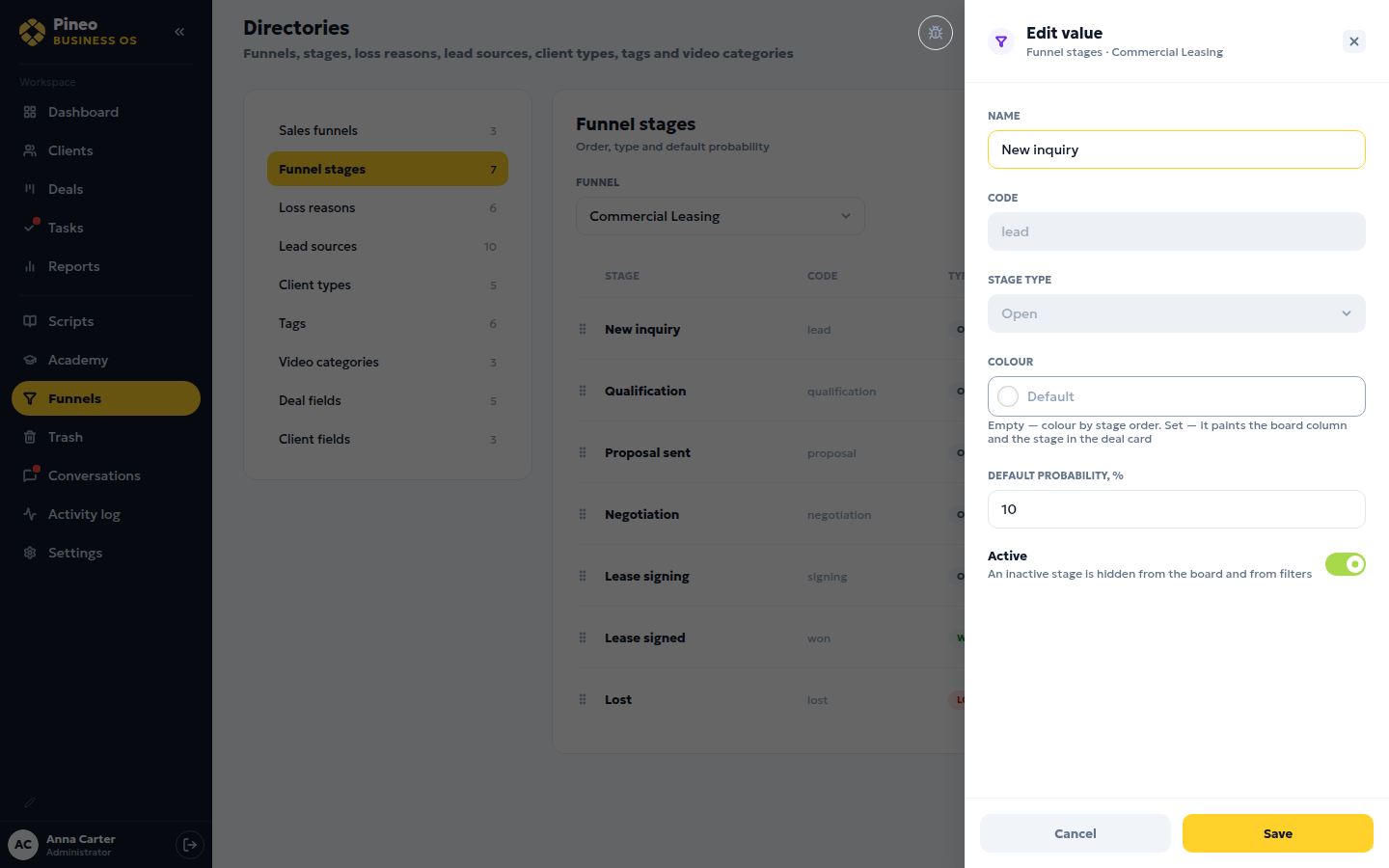
You change the order by dragging the handle on the left. A stage with deals on it cannot be deleted — move them first. A deleted stage goes to the trash for 30 days; the administrator can restore it.
Fields that become required from a certain stage are configured in Custom fields.
Delete a funnel#
The ··· menu → Delete. Pineo asks what to do with the funnel's deals:
- Move them to the trash with the funnel — each deal goes to the trash for 30 days; you can restore a deal after you restore the funnel.
- Transfer them to another funnel — deals in progress go to the first stage, won and lost ones go to the stage with the same outcome. Choose the funnel in the “Transfer to” field.
A funnel marked Default cannot be deleted — first remove the mark or make another funnel the main one. The funnel with its stages stays in the trash for 30 days (Trash).
What employees see#
The catalogue of funnels and stages is shared across the organisation (unless a funnel is tied to departments): every deal refers to a stage. The visibility of the deals themselves is limited by the employee's role.