
Subscription, seats and payments
The organisation's plan, how many employees it allows, changing the plan, payments and receipts, disk space and the read-only mode.
Settings → Subscription is visible only to the organisation administrator.
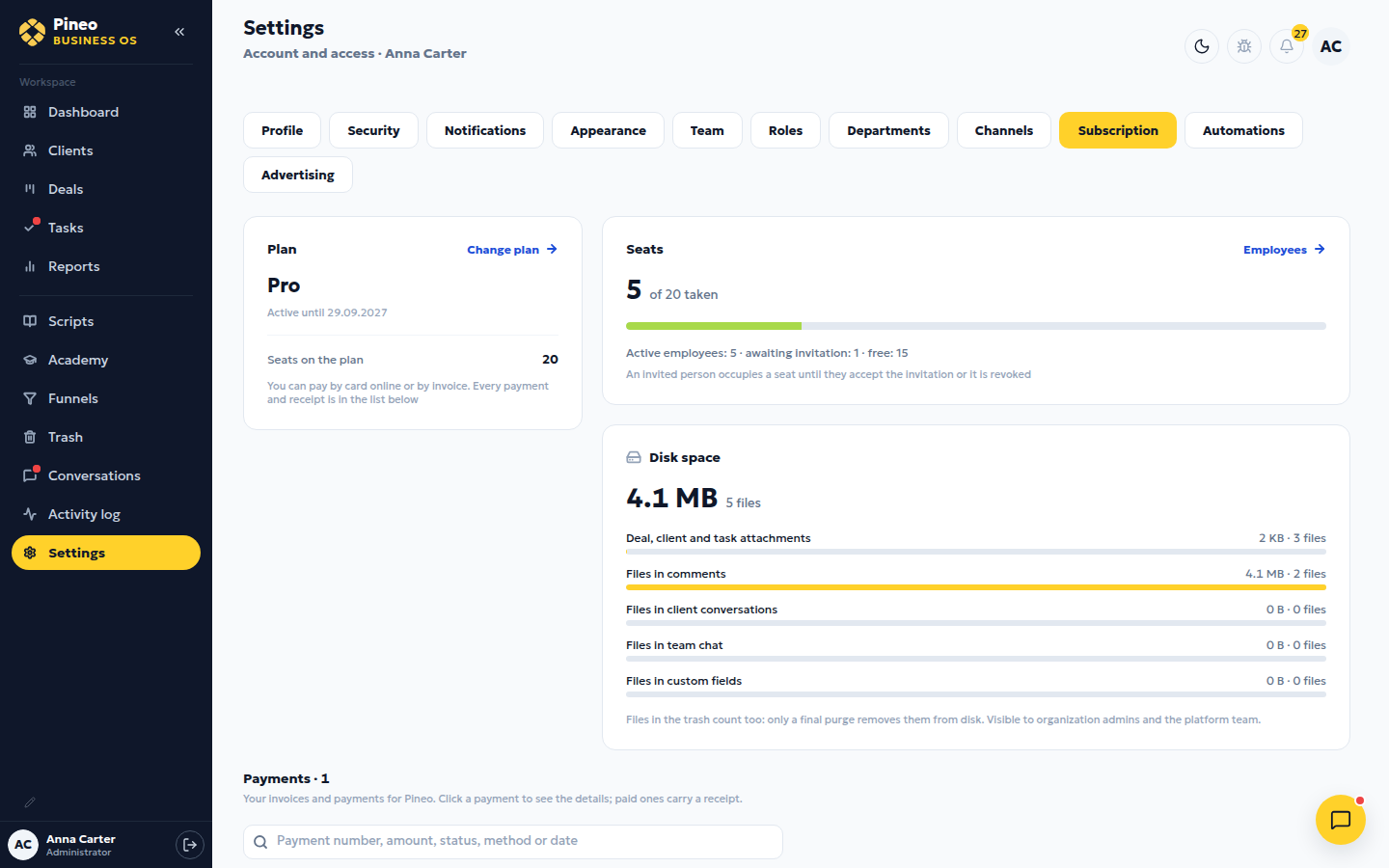
Plan and seats#
Plans differ only in the number of active employees; the functionality is the same for all.
- The Plan card — the name, the term (“Active until …”, “Trial until …”, “Expired …”) and the seats on the plan. The Change plan link opens the change.
- The Seats card — how many seats are taken, how many active employees there are and how many invited ones are waiting to sign in. The Employees link leads to “Team”.
A seat is taken by an active employee; an invited person who has not signed in does not take one. The limit is checked when a person sets a password after the invitation and when you switch a blocked person back on. Blocking frees the seat at once. If the organisation has no plan assigned, the number of seats is not limited — this state is shown as “No plan configured”.
Change the plan#
- Press Change plan.
- Choose the Plan (those that fit your team; one that is too small is marked “too small for your team”) and the Subscription term — 1, 3 or 12 months. The new term starts when the current one ends.
- Choose the Payment method: Card online or By invoice.
- At the bottom, To pay — the calculation with credit for the rest of the current term.
- Press Go to payment.
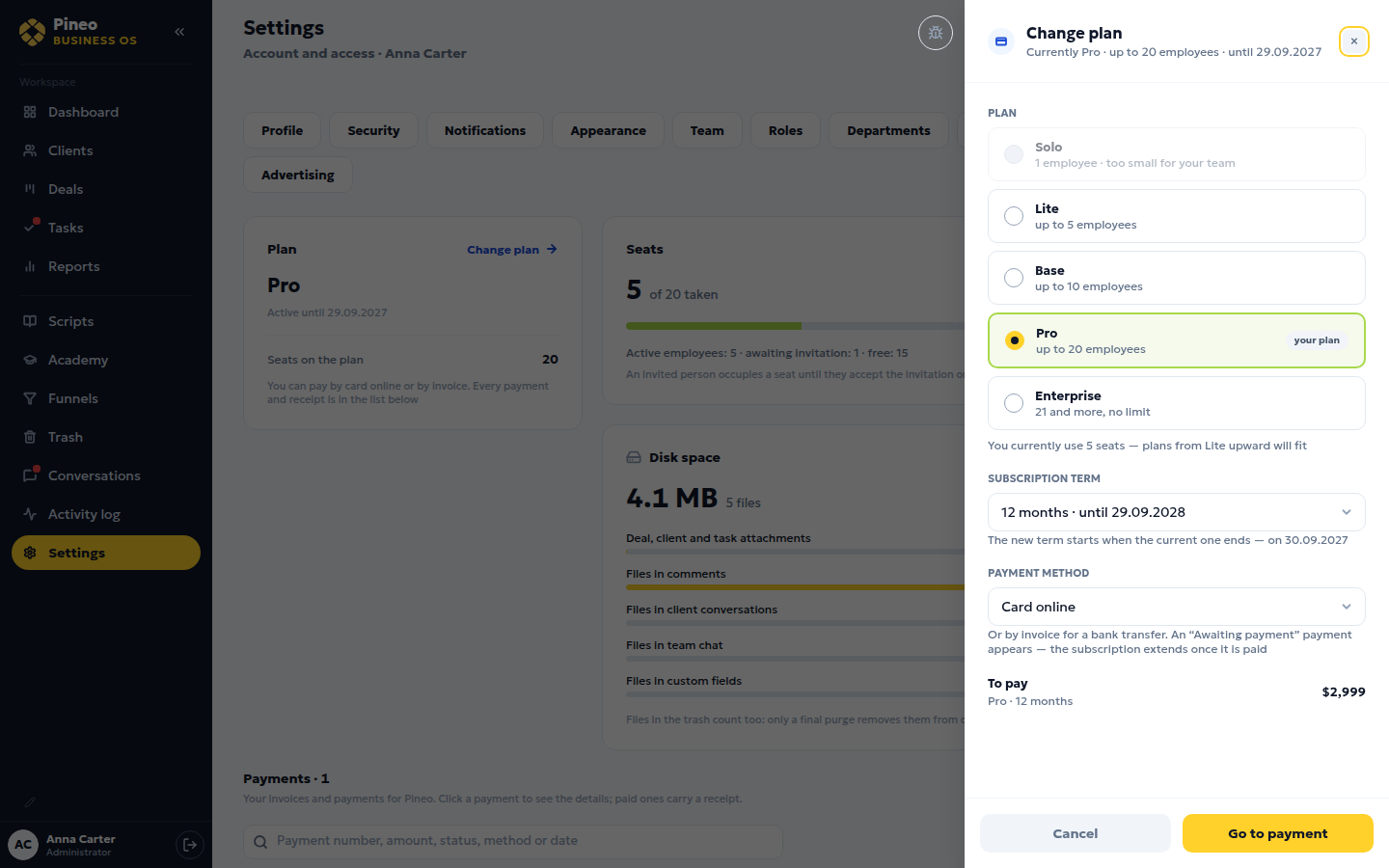
A payment with the status Awaiting payment appears. The subscription is extended when the payment becomes Paid.
Payments and receipts#
Below is the list of invoices and payments: number, plan and term, amount, payment method, status, payment date, receipt. You can open a row for details.
| Status | Meaning |
|---|---|
| Awaiting payment | The invoice is issued. After 14 days without payment it closes automatically. |
| Paid | The money was received, the subscription is extended. |
| Payment failed | The money was not charged; issue a new payment through “Change plan”. |
| Expired | The payment was not made in time. |
A receipt (PDF, JPEG or PNG) is attached by the Pineo team; it appears on paid payments and can be downloaded.
Disk space#
The Disk space card shows the volume of your organisation's files and how it splits: attachments of deals, clients and tasks; files in comments; in client conversations; in the team chat; in custom fields. Files in the trash count too: only the final purge removes them from disk.
If the subscription has ended#
When the subscription has expired, or the organisation is suspended or archived, it works in the read-only mode: the data is visible but cannot be changed (write requests are refused with an explanation) until the subscription is extended. A “Read-only” bar with a Subscription link appears on screen. Still available are signing in and changing the password, extending the subscription (except for an archive) and reporting a problem. Incoming client messages keep arriving.