
The Conversations section: client conversations
How the conversations window works: the conversation list, channel and manager filters, the conversation header, the floating Messages button.
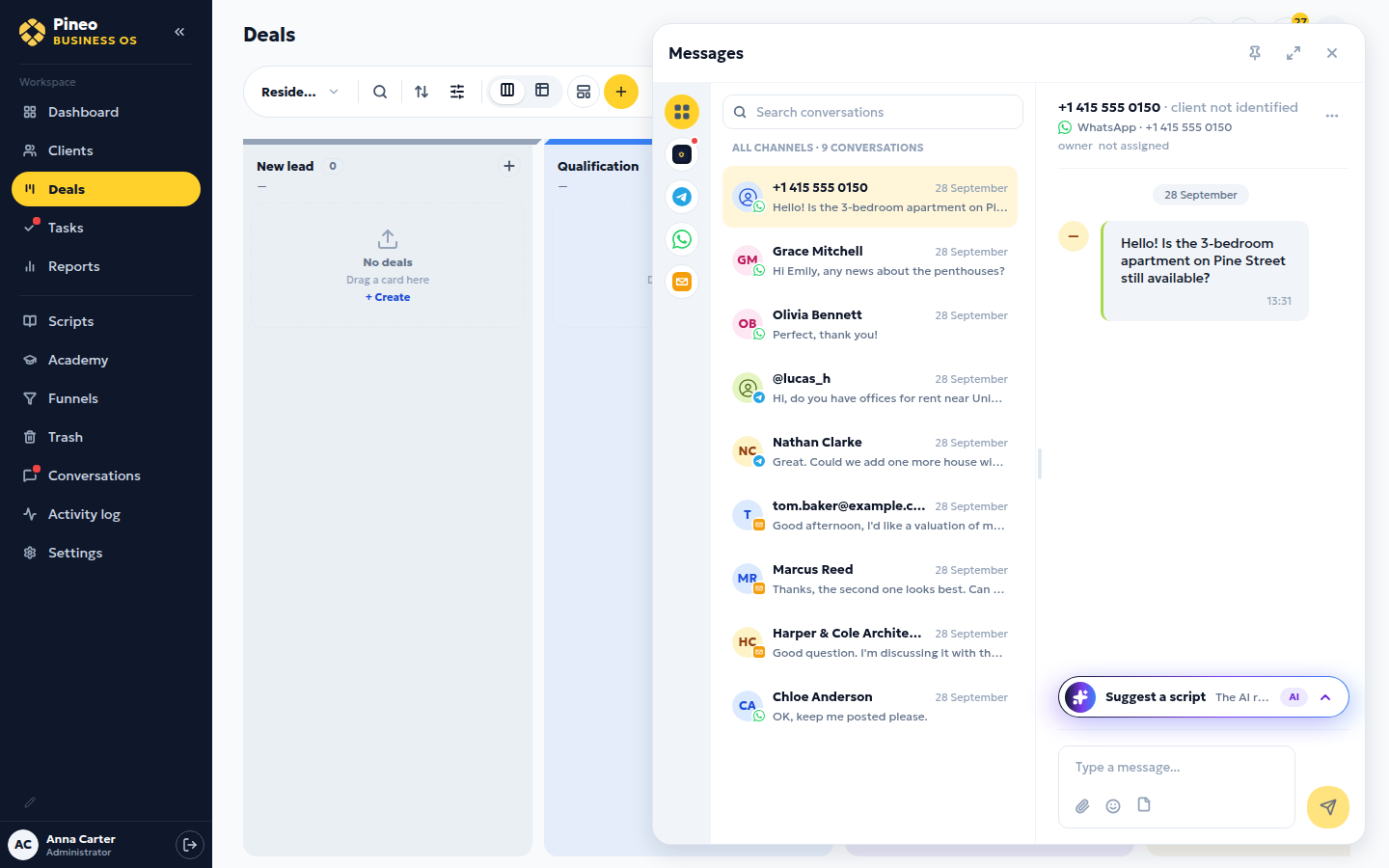
Conversations brings together every conversation with clients from the connected channels — WhatsApp, Telegram, email and others — plus the team's internal chats. A manager does not have to switch between messengers: they reply from one window, and the history stays in the client's and the deal's card.
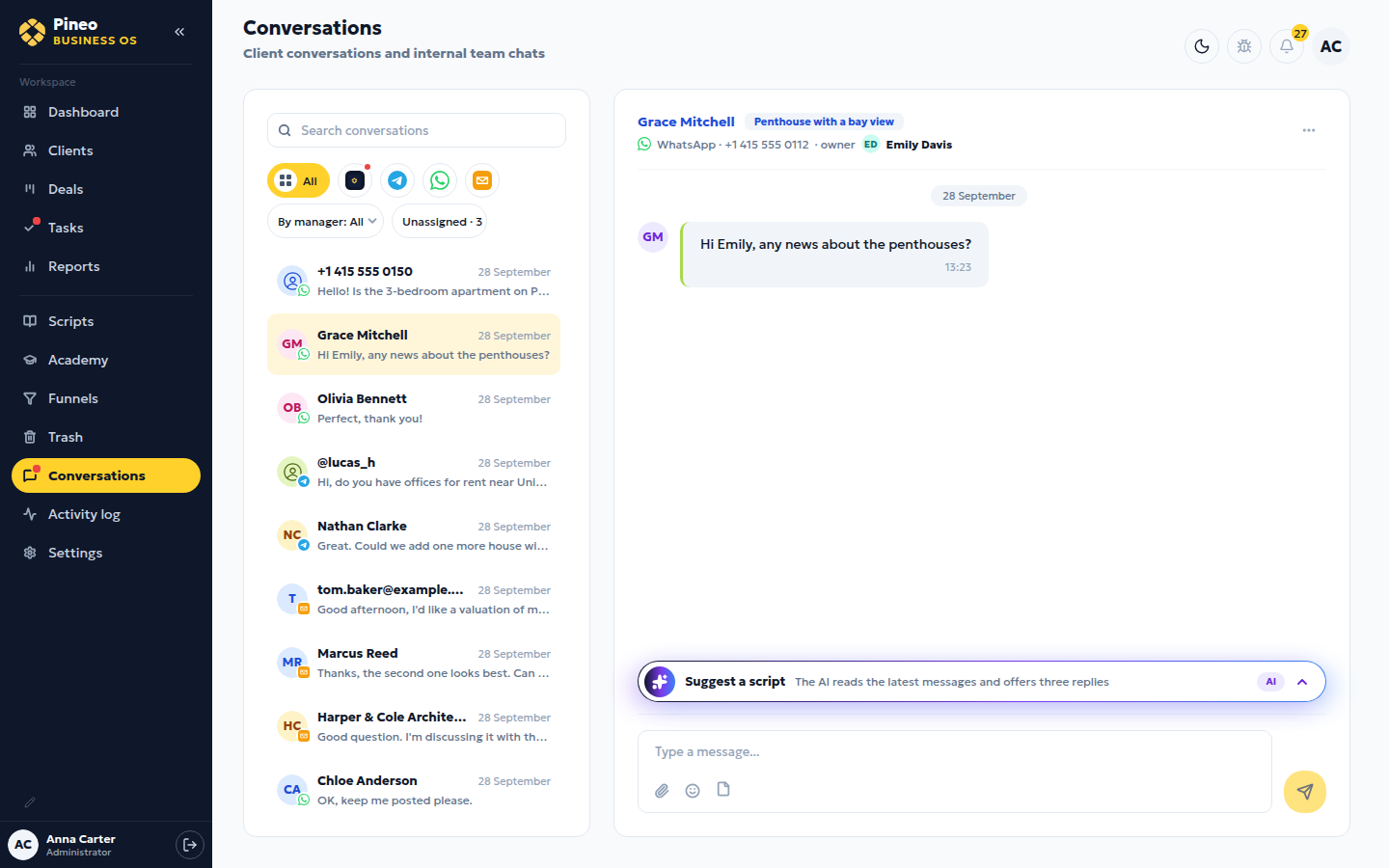
Left column — the conversation list#
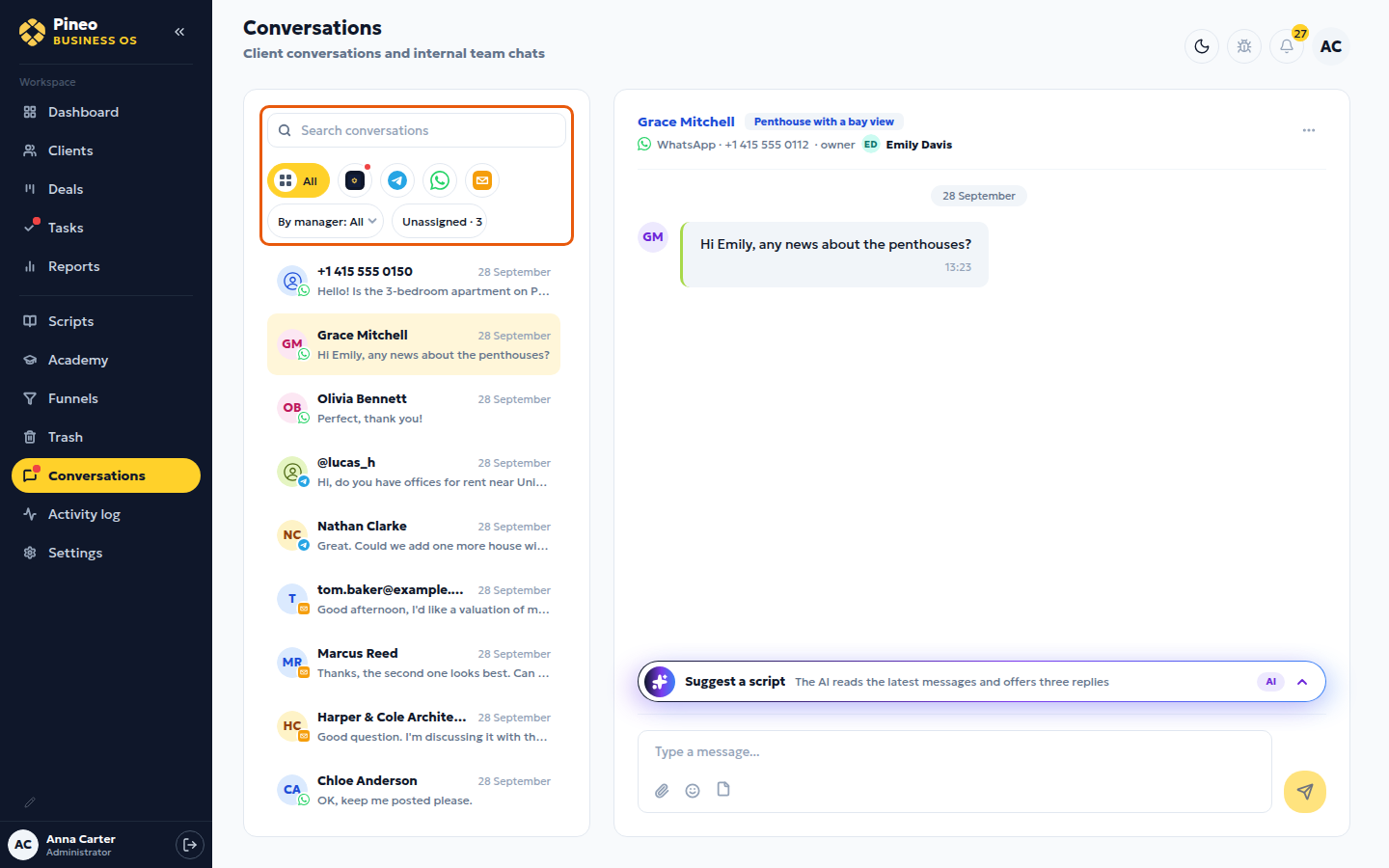
- Search conversations — by client name, their contact and the text of the last message.
- The channel row — "All" and buttons with the icons of connected channels. A red dot on a button means unread messages in that channel. The button with the Pineo logo opens the internal chats.
- By manager: All — conversations of the chosen owner. The pill is visible to those whose role lets them see other people's conversations.
- Unassigned · N — the queue of conversations without an owner. Visible to those whose role has "Unsorted conversations" or "Lead qualification". See The unassigned queue.
- Spam · N — appears when some conversations are marked as spam.
- A conversation row shows the client's name, the channel icon, the last message, the date and the unread counter.
Right part — the conversation#
The header shows the client's name (a link to the card), the linked deal (for example, "Enquiry · …"), the channel and contact, and the conversation's owner.
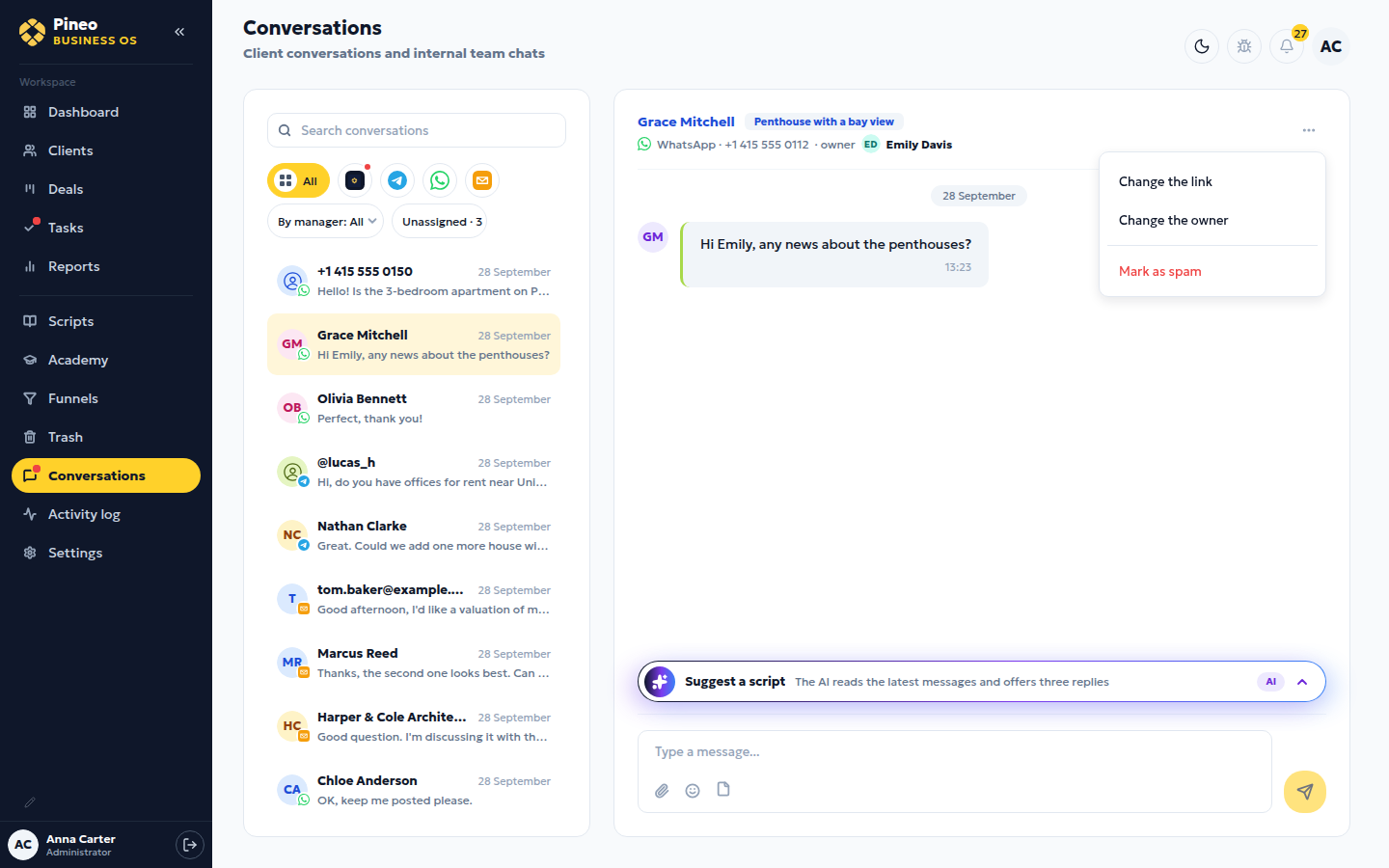
The "···" button in the header opens the actions menu:
| Item | What it does |
|---|---|
| Triage the conversation / Link a deal / Change the link | Link the conversation to a client and a deal. The name depends on whether it is already linked. |
| Assign an owner / Change the owner | Choose an employee or "Take it". Visible to those allowed to hand out conversations. |
| Ask for the number | Bots only (Telegram bot, MAX bot): ask the client to share their number. |
| Mark as spam / Not spam | Messages from this sender stop arriving in Pineo, and the conversation moves to the "Spam" folder. The mark can be removed. |
Below is the message feed by day: incoming on the left, yours on the right with a delivery-status icon. Each message has its own menu: "Reply", "Copy the text", "Forward" to an internal chat, "Delete for the client".
At the bottom is the input field with the paper clip (file) and the templates button, and above it the AI assistant's "Suggest a script" oval (Script suggestion in a conversation). How to reply — see How to reply to a client.
The floating Messages button#
On every screen except "Conversations" itself there is a round messages button in the bottom-right corner. A red dot on it means unread messages.
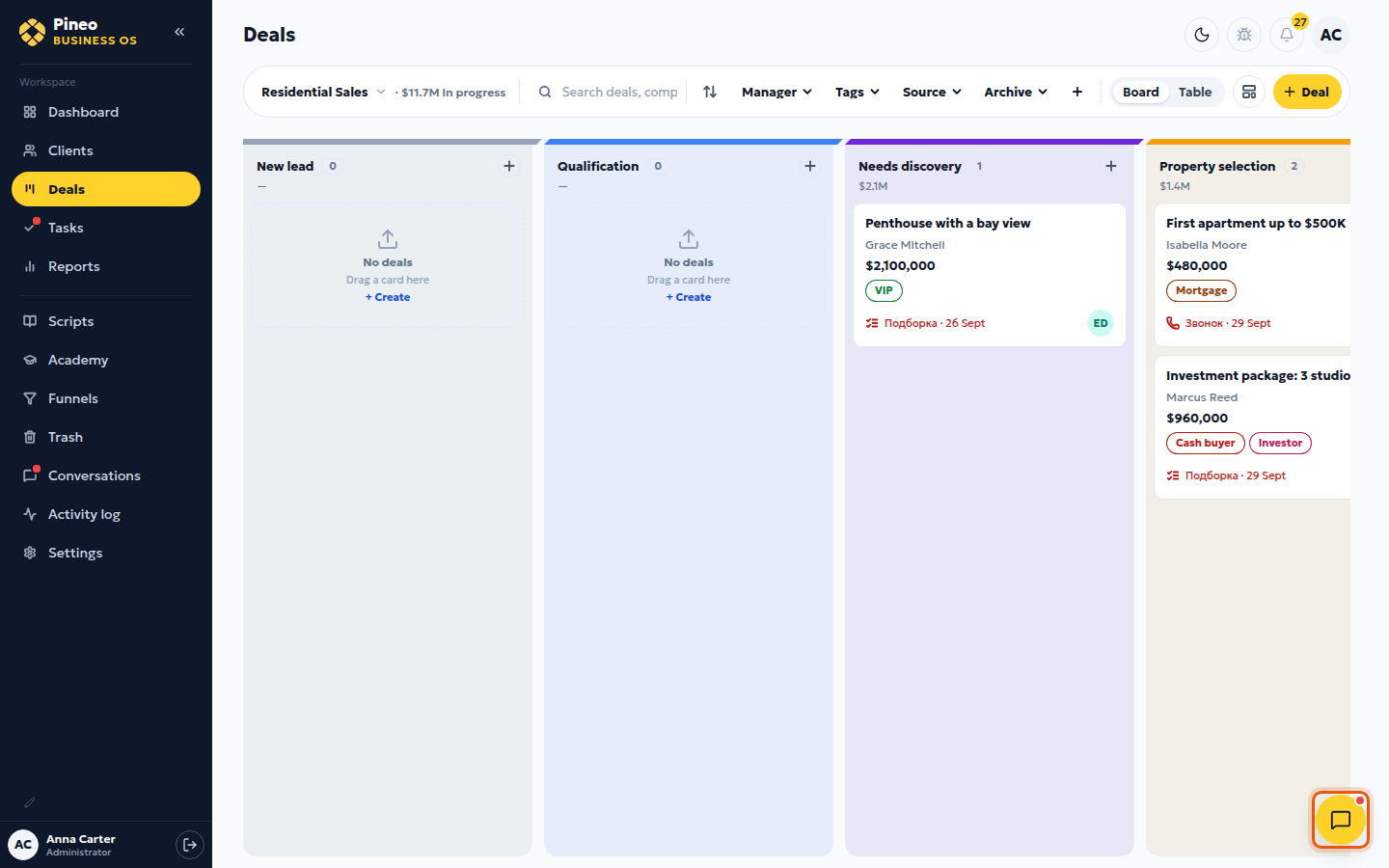
Click it to open a mini-window with the same conversations: you can reply to a client without leaving the deals board or a card. The window header has "Pin to the side" (the screen splits in two), "Open “Conversations”" and "Close". The button can be tucked against the screen edge and brought back.
Who sees which conversations#
Conversations follow the same rules as deals: a manager sees conversations they own, a supervisor — their own and their team's, an administrator — all. A conversation without an owner, but with a client who has an owner, is visible along that owner's chain. A conversation with no owner and no owned client is visible only in the unassigned queue.
Read / unread#
Read marks are personal for each employee. Opening a conversation marks its messages as read for you; sending a reply does too. The red dot on the Conversations menu item goes out when no unread conversations (internal chats included) remain.
On a phone#
On a phone, "Conversations" opens from the More tab. Instead of pills there are folder tabs "All", "Unassigned", channels, "Internal", "Spam", and the floating "Message" button starts a new conversation.