
How to set a task
Creating a task for yourself or a colleague: name, type, deadline, client, deal, assignee; tasks from automations.
Step 1. Click "+ Task"#
The "+ Task" button in the Tasks section, and also the "Task" button in a client or deal card and "Create task" on the "Tasks" tab — then the client and the deal are filled in for you. You can also set a task from the calendar: hover over a day and click "+" (the deadline is 10:00 of that day).
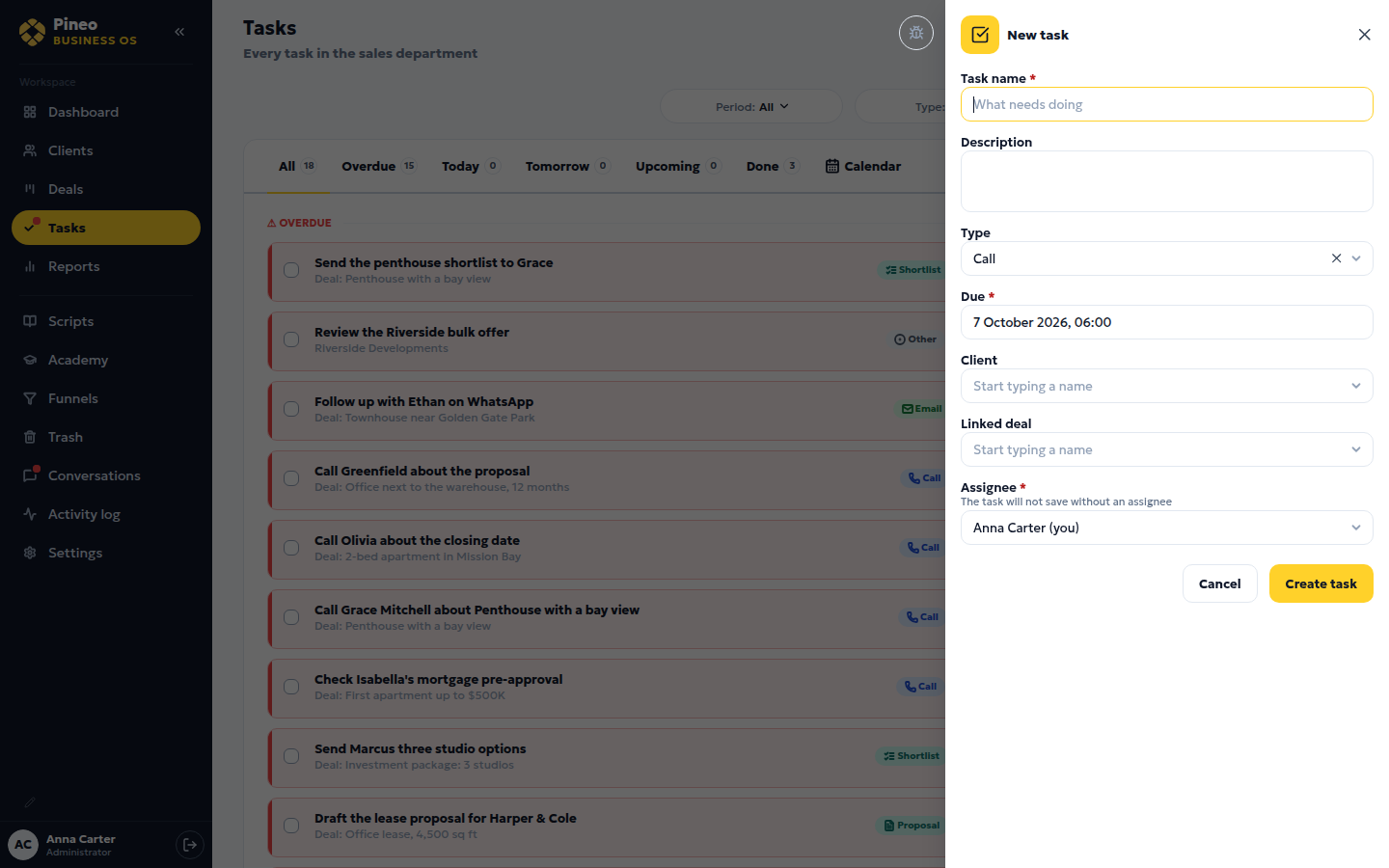
Step 2. Fill in the fields#
| Field | What to enter |
|---|---|
| Task name | What has to be done: "Call the client", "Send a proposal". Required. |
| Description | Details for the assignee. |
| Type | From the type directory kept by the administrator in Task settings. You can leave "No type". If the administrator has created no types, the field is disabled with the hint "Task types are configured by the administrator". |
| Due | Date and time. Required and must be in the future ("The deadline must be in the future"). The nearest whole hour is filled in by default. Reminders and "overdue" are counted from the deadline. |
| Client, Linked deal | At least one of the two is needed — otherwise you get "Specify a client or a deal — a task cannot be without a link". The deal must belong to the chosen client. |
| Assignee | Who will do it. The field is visible to those whose role lets them assign others (supervisor, administrator); the hint says "A task will not be saved without an assignee". A manager has no such field: the task is recorded on them. |
Step 3. Create#
Click Create task. If the assignee is not you, they get the "A task was assigned to you" notification (in the bell and by email), and the "Tasks" item in their menu gets a red dot. A task you set for yourself creates no notification.
Tasks from automations#
An administrator can set up rules that create tasks by themselves. In Settings → Automations → "From a template" there are ready-made templates in the "Standard" group, among them:
- "New deal — call within the hour" — when a deal is created, its owner gets a "Call the client" task due in one hour;
- "Owner changed — hand over the work" — the new owner gets a task "Take over the deal · {deal name}" due in a day.
Such tasks look like ordinary ones; who created them is visible in the task history. More — Automations.