
Notifications
Which events arrive in the bell and by email, who they are addressed to and what language they are written in.
Notifications arrive in two ways: in the bell in the header and as an email to the work address you sign in to Pineo with.
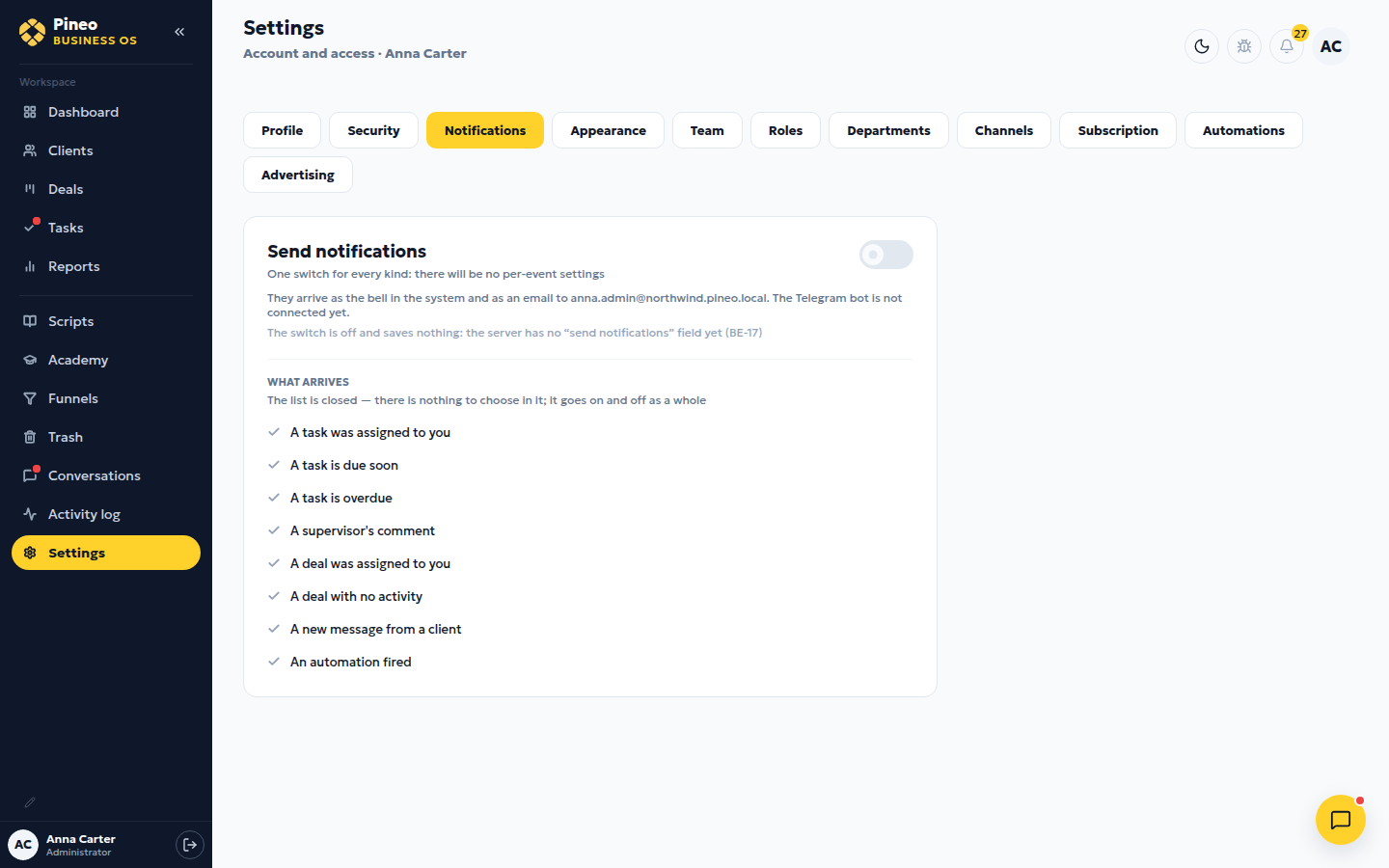
The Settings → Notifications tab currently shows what exactly arrives. The single Send notifications switch on it is off and saves nothing: there are no per-event settings yet, and a separate kind of notification cannot be switched off.
What arrives, and for whom#
| Event | For whom | Where |
|---|---|---|
| A task was assigned | The assignee (unless you assigned it to yourself) | bell and email |
| A task is due soon (under a day) | The assignee | bell and email |
| A task is overdue | The assignee | bell and email |
| A supervisor's comment | The owner of the task, deal or client | bell and email |
| A deal was assigned | The new owner | bell and email |
| A deal with no activity (daily, 7-day threshold) | The owner | bell and email |
| A new message from a client | The owner of the conversation | bell only |
| An automation fired | Whoever the rule names | bell and email |
| You are mentioned in a chat or a comment | The mentioned person | bell only |
| Progress on your problem report | The report's author | bell and email |
| The ChatApp cabinet requires a new sign-in | Everyone with the “Channels” capability | bell and email |
Notifications are addressed to the direct owner; supervisors do not get copies — they see their subordinates' overdue items in the “Tasks” section. You get no notifications about your own actions.
The bell#
It shows new notifications; clicking one opens the related record. Mark all read clears the mark, Show read opens the history. The red dot in the menu at “Tasks” and “Conversations” are separate counters of new tasks and unread conversations.
Language and delivery#
The email and the text in the bell are written in the recipient's language — the language of their account — and stay that way once sent: changing the language later does not translate notifications already created. The account language is changed with the language switch in Settings → Appearance, together with the interface language (see Language and theme).
A notification in the bell is always created, even if the email could not be delivered. If emails do not arrive, check the “Spam” folder and the address in Settings → Profile.