
Automations: “event → conditions → actions” rules
Events, conditions and actions, templates, the run log, whose authority a rule runs under, and how to avoid loops.
An automation is a rule of the form “when an event happens and the conditions are met — do the actions”. It is configured in Settings → Automations. Only the administrator can create, change, switch on and delete rules; a role with the Automations capability (by default, the supervisor) sees them and the log.
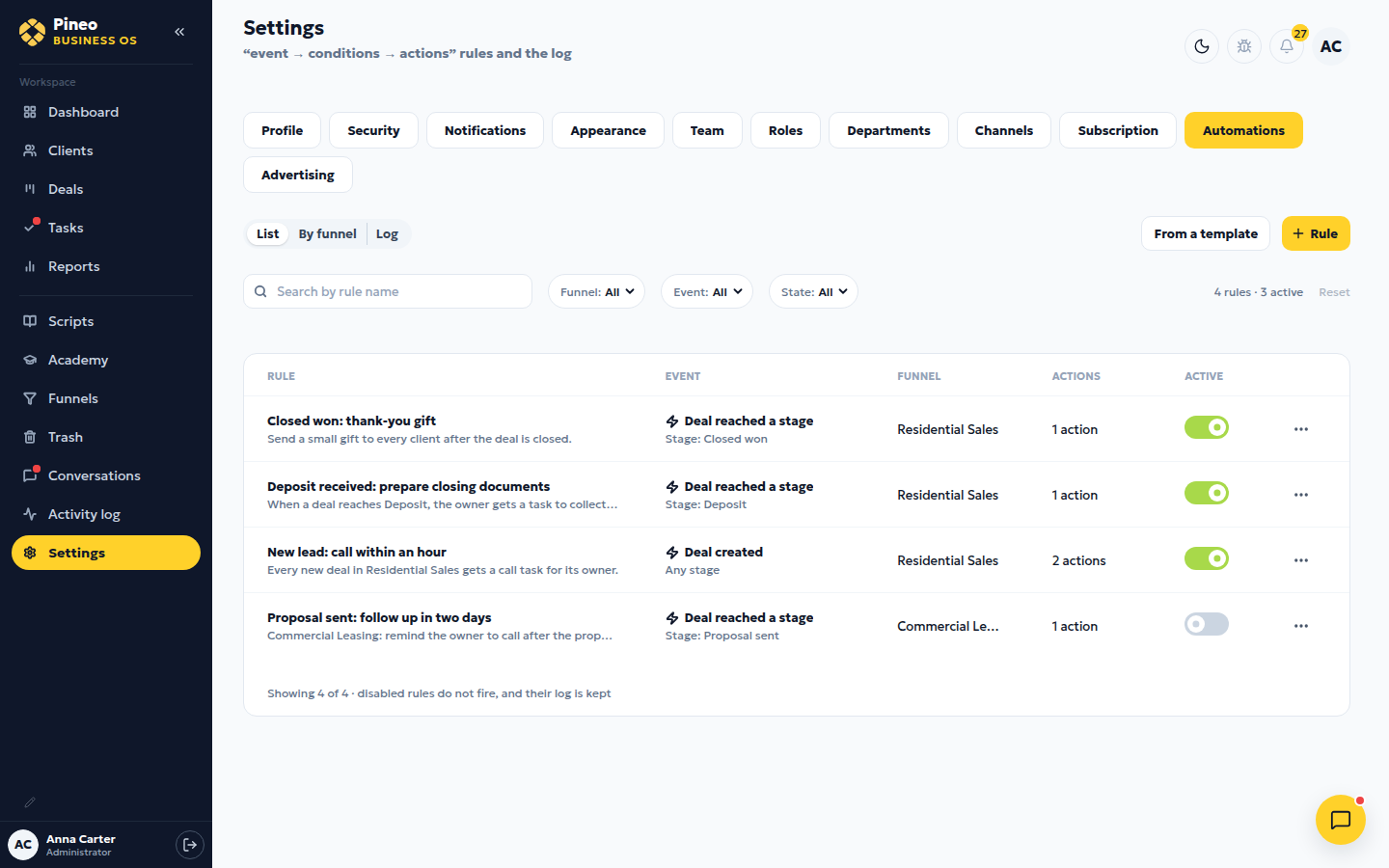
The page switches between the List, By funnel (rules per stage) and Log views. In the header are the From a template and + Rule buttons.
Events#
A rule has exactly one event.
| Event | When it fires |
|---|---|
| Deal created | Right after a deal is created, on the first stage of the funnel. |
| Deal reached a stage | On moving to the chosen stage (being created directly on that stage does not count). The stage is required. |
| A deal field changed | One of the fields changes: “Amount”, “Probability”, “Owner”, “Next action date”, “Archived”. The field is chosen in the rule. |
| Deal with no activity | Once a day in the morning deals are checked; the threshold is system-wide (7 days). Closed, archived and owner-less deals are skipped; a rule fires on one deal at most once per threshold. |
| Client wrote | An incoming client message — only if the conversation is linked to a deal. |
The funnel in a rule is optional: empty means “All funnels”. For a rule on all funnels the stage is compared by code, and codes repeat across funnels.
Conditions#
Optional. All conditions must hold (“and”); “or” is done with a second rule. With no conditions the rule fires on every event.
Available conditions: Stage, Stage type, Deal amount, Currency, Probability, %, Days without activity, Client type, Lead source, Owner's role, Archived, Has an owner. Operators: “equals”, “does not equal”, “is one of”, “is at least”, “is at most”.
Actions#
| Action | What it does |
|---|---|
| Create a task | A task on the deal: name, type, due date relative to the event. |
| Notify an employee | A notification to the deal owner, the rule author or a specific employee. |
| Change the owner | Assigns the deal owner. |
| Move to a stage | Moves the deal through the funnel. |
| Set the probability | Changes the deal's probability. |
| Run a ChatApp bot scenario | Starts a bot scenario; on a failure there is one retry after a minute. |
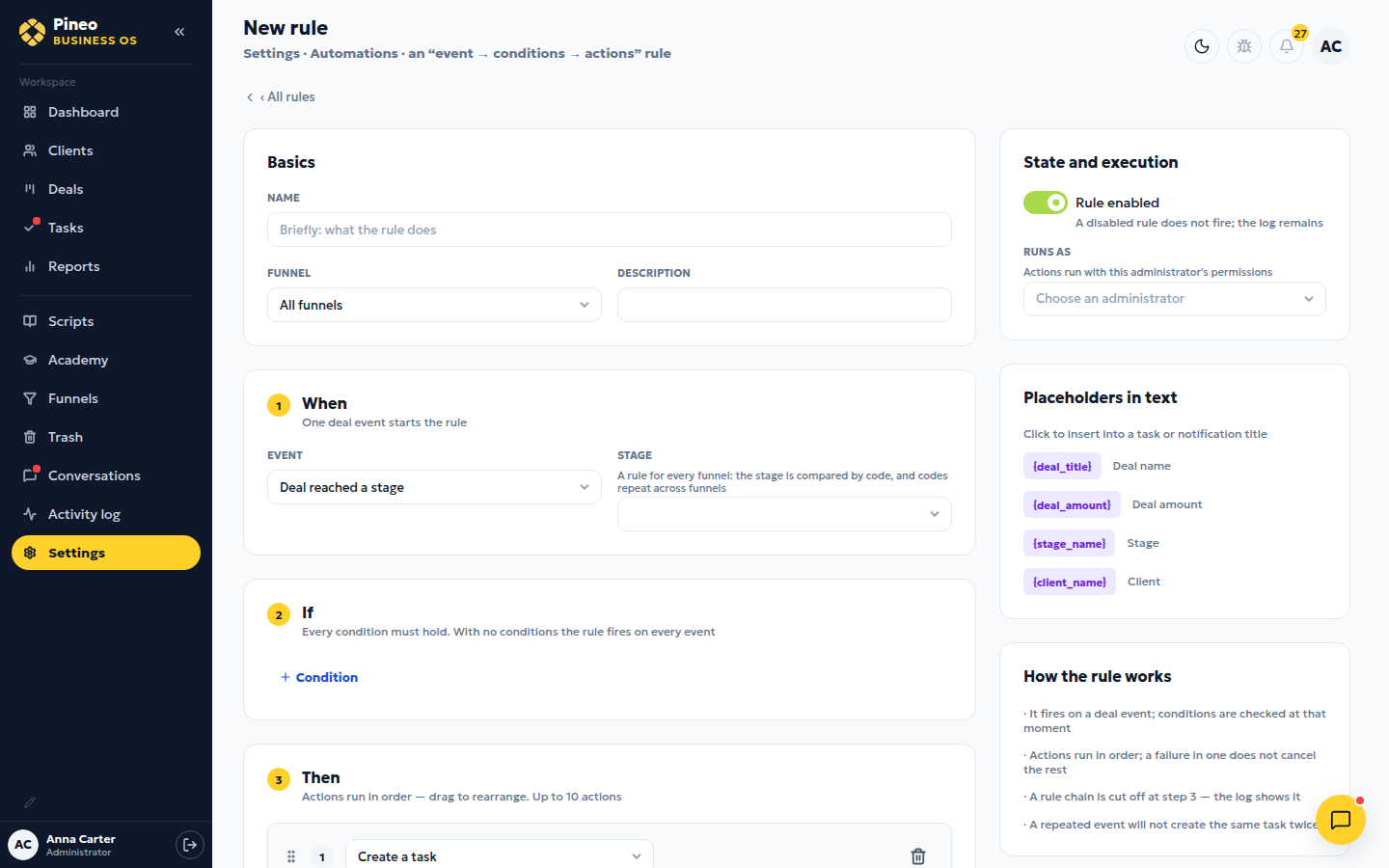
One rule can have up to 10 actions; they run in order (drag to reorder), and an error in one does not cancel the others. In the text of a task or notification you can insert {deal_title}, {deal_amount}, {stage_name}, {client_name} — they are filled in when the rule fires.
Whose authority the rule runs under#
The Runs as field is the administrator whose permissions the actions use (the rule author by default). If that person is blocked or stops being an administrator, the rule is skipped and the log shows “Skipped”. Choose another administrator.
Create a rule#
- + Rule — an empty form: “Basics” (name, funnel, description), “When”, “If”, “Then”.
- From a template — ready-made drafts.
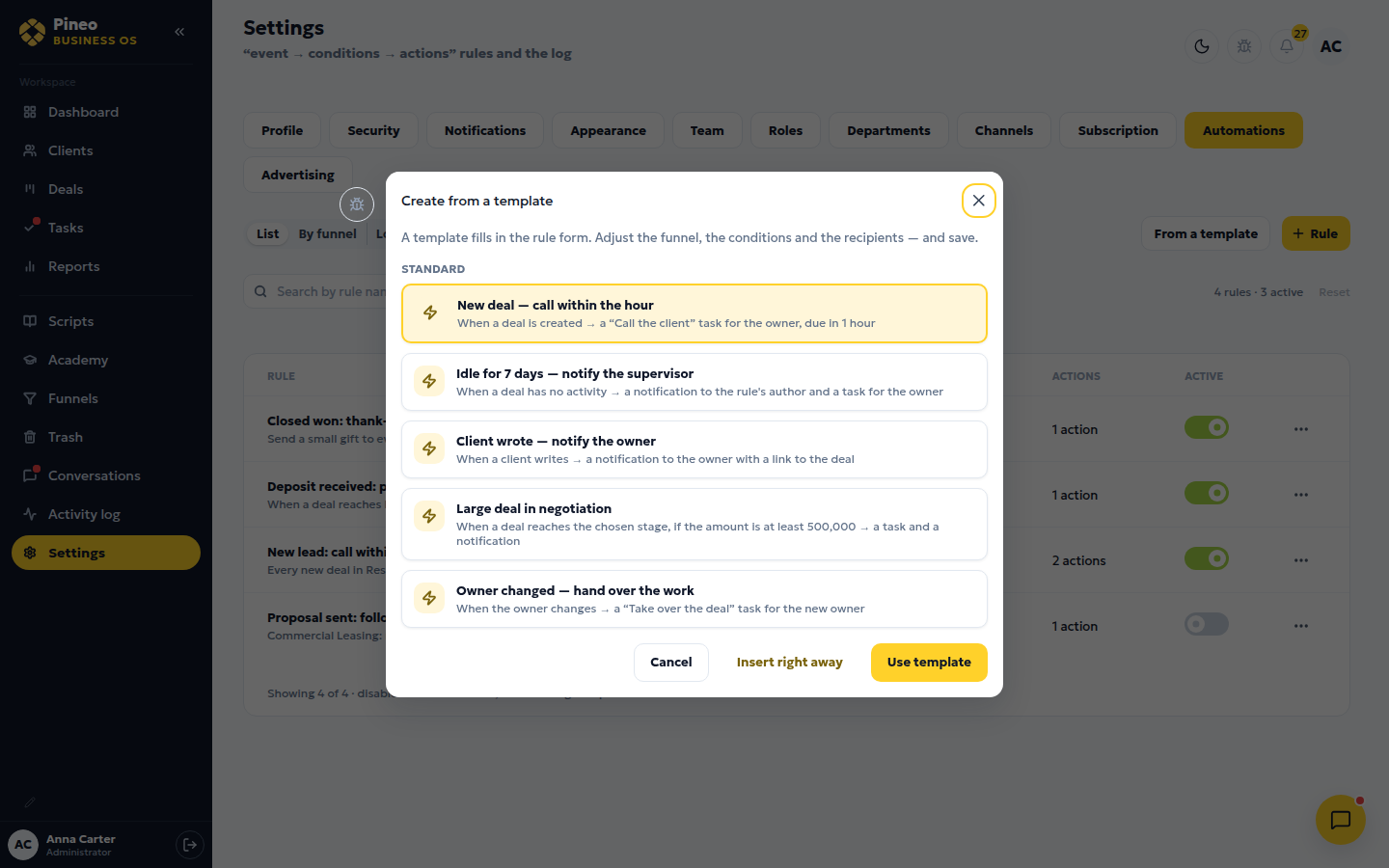
In the Create from a template window choose a draft and press Use template — the form is filled in and you only adjust the funnel, conditions and recipients; or Insert right away — the rule is created without the editor (you are asked for the funnel and, if needed, the stage). Drafts: “New deal — call within the hour”, “Idle for 7 days — notify the supervisor”, “Client wrote — notify the owner”, “Large deal in negotiation”, “Owner changed — hand over the work”. A template never picks the stage for you. The Pineo team can also give your organisation its own templates — contact support.
Switch on and off#
The Active switch in the list (or Rule enabled in the form). A switched-off rule is kept but does not fire; the log stays.
The log#
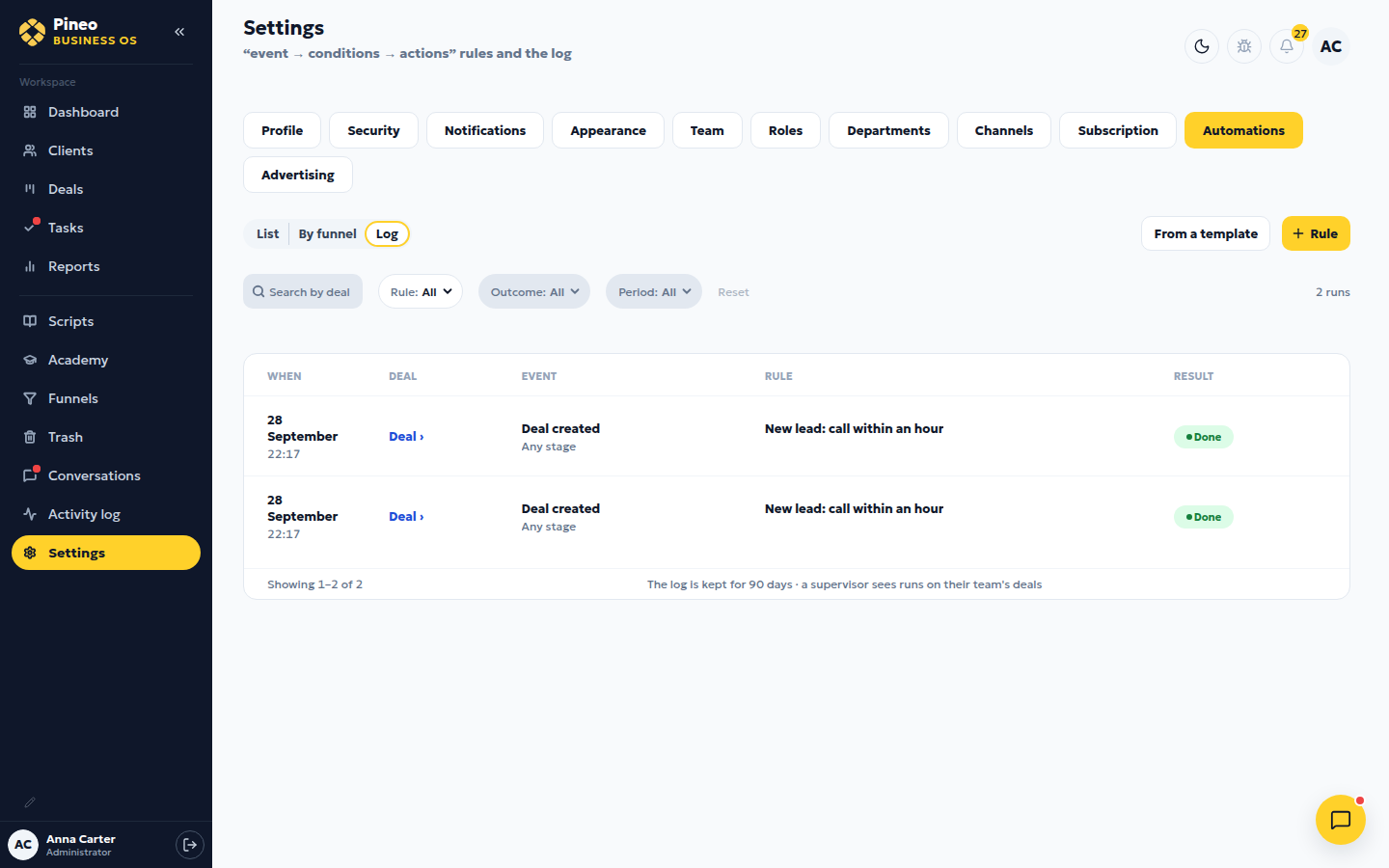
The Log view shows every run: time, deal, event, rule and outcome.
| Outcome | Meaning |
|---|---|
| Done | All actions ran. |
| Condition not met | The event happened but the conditions did not match. |
| Error | The rule is configured incorrectly or an action failed — the reason is in the row. |
| Cut off: chain | The chain limit was reached. |
| Skipped | The rule's executor can no longer be one. |
| Retry scheduled | The bot scenario will be retried. |
The log is kept for 90 days. A supervisor sees runs on their own deals and their direct reports' deals, the administrator sees all. In the deal card the “Automations” block shows what fired on that very deal.
How to avoid loops#
A rule that changes the stage can start another rule. A chain is limited to three steps: beyond that the action is not run and the log says “Cut off: chain”. The same event does not create a duplicate task.
Deletion#
A rule is deleted to the Trash for 30 days; the administrator can restore it. The run log is kept.