
The task calendar
Tasks on a month or week grid, colours, rescheduling by dragging and quick task creation on the day you need.
The Calendar tab in the Tasks section shows the same tasks by day.
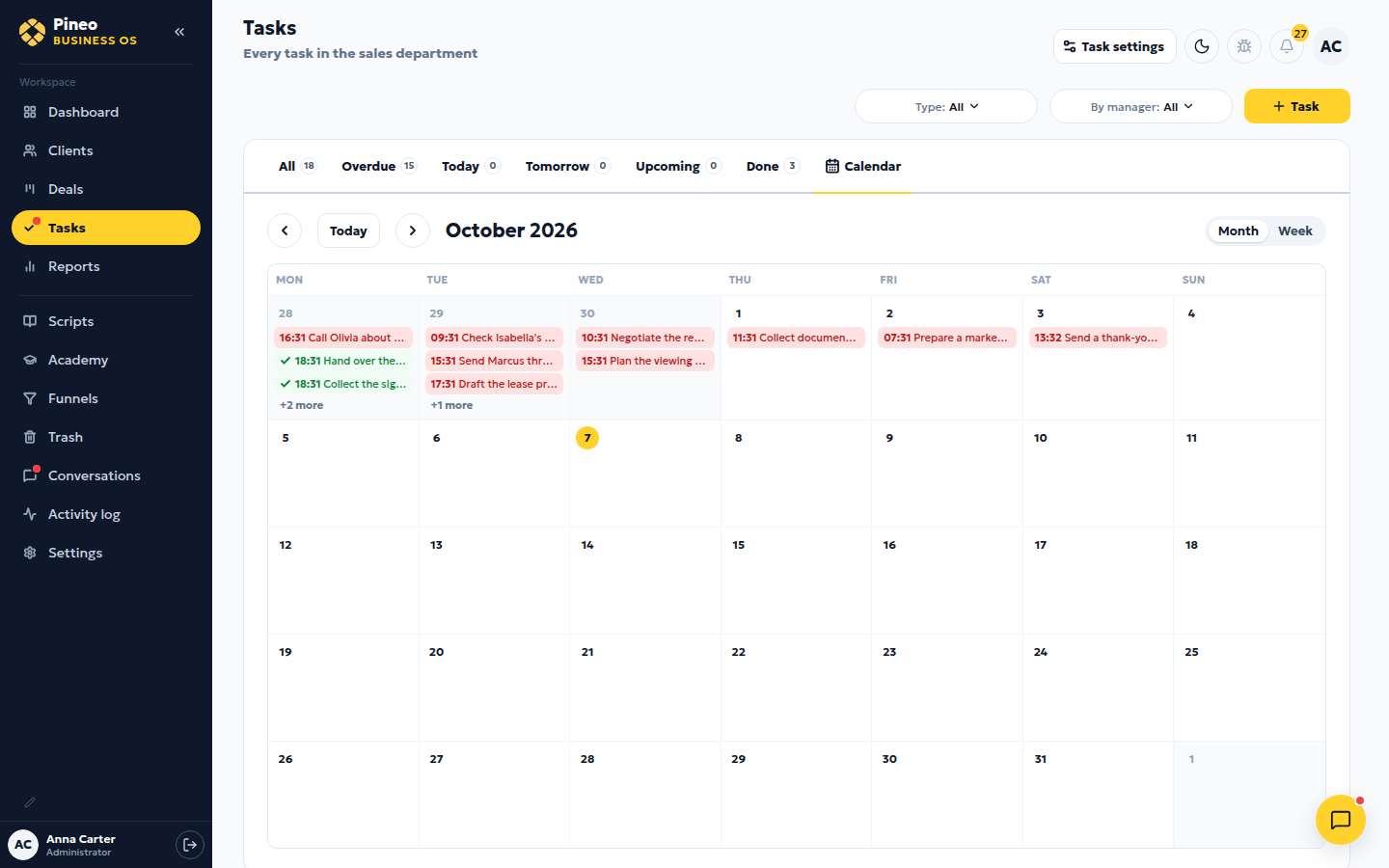
- The Month / Week switch on the right changes the scale; the arrows and the Today button navigate.
- A day cell shows the time and name of a task. Green with a tick are completed, red are overdue, and the rest are coloured with the task type's colour. In "Month" mode, if there are more tasks than fit, "+N more" appears: click it to see the whole day in a popover.
- Click a task — a side panel opens on the right; the "Open full screen" button leads to the task card.
- Drag a task to another day — its deadline is moved (for unfinished tasks you may edit).
- Hover over today or a future day — a "+" appears ("Add a task on this day"): the new-task panel opens with the deadline 10:00 of that day.
- The Type and By manager filters work here too: a supervisor can look at a particular employee's week. There is no "Period" filter on the calendar — the calendar itself sets the period.
Today's date is marked with a circle in the accent colour (yellow by default). At most 1000 tasks are shown per period — if there are more, a hint appears to narrow the choice by manager.
Was this article helpful?Thank you! If something is missing, write to us through support.