
The deals board and table
How to read the board by funnel stage, switch to the table, search and filter deals, tune the card layout and departments-restricted funnels.
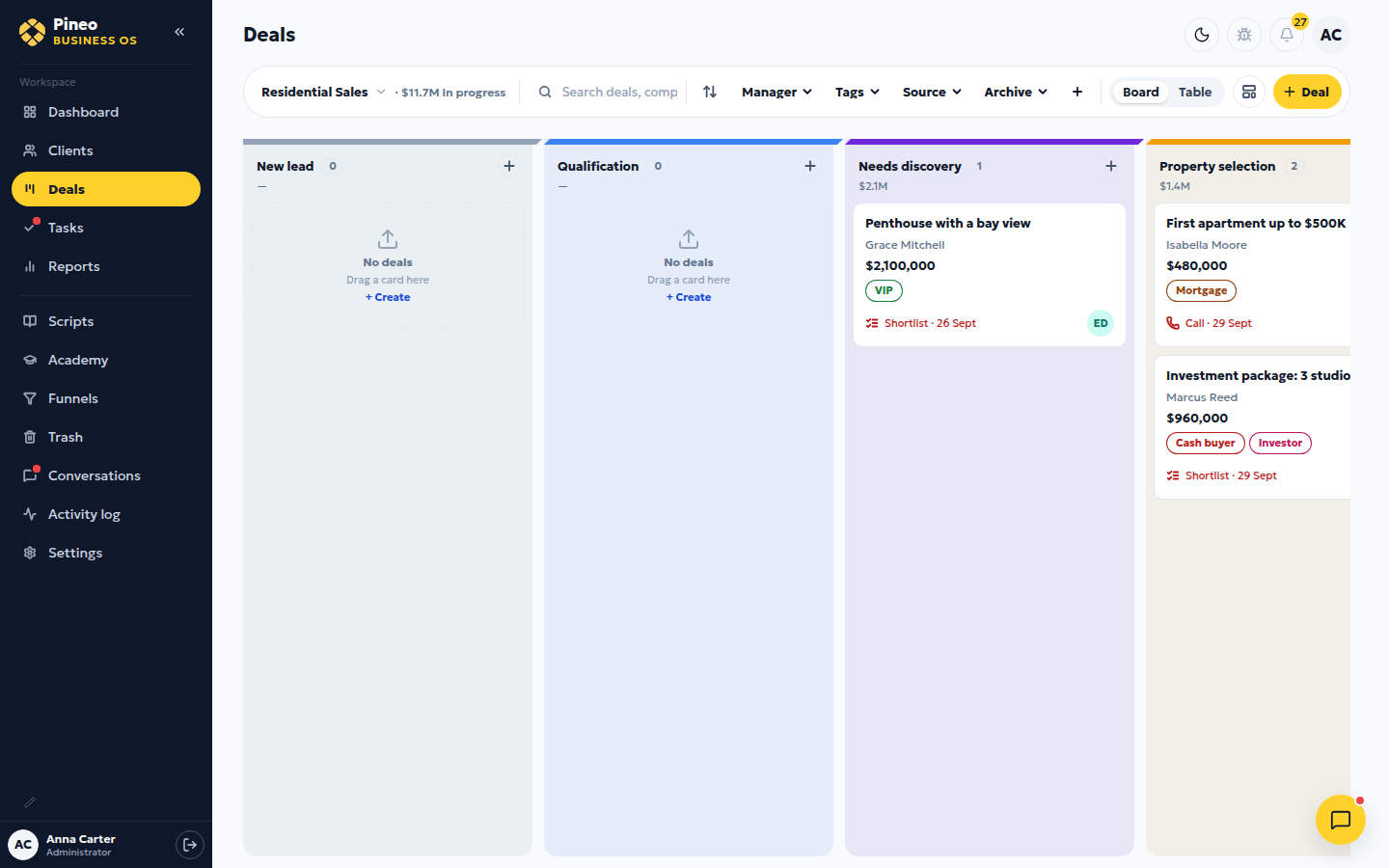
The Deals section shows the sales funnel as a board: columns are stages, cards are deals.
The toolbar#
All work with the board is gathered in one strip above the columns.
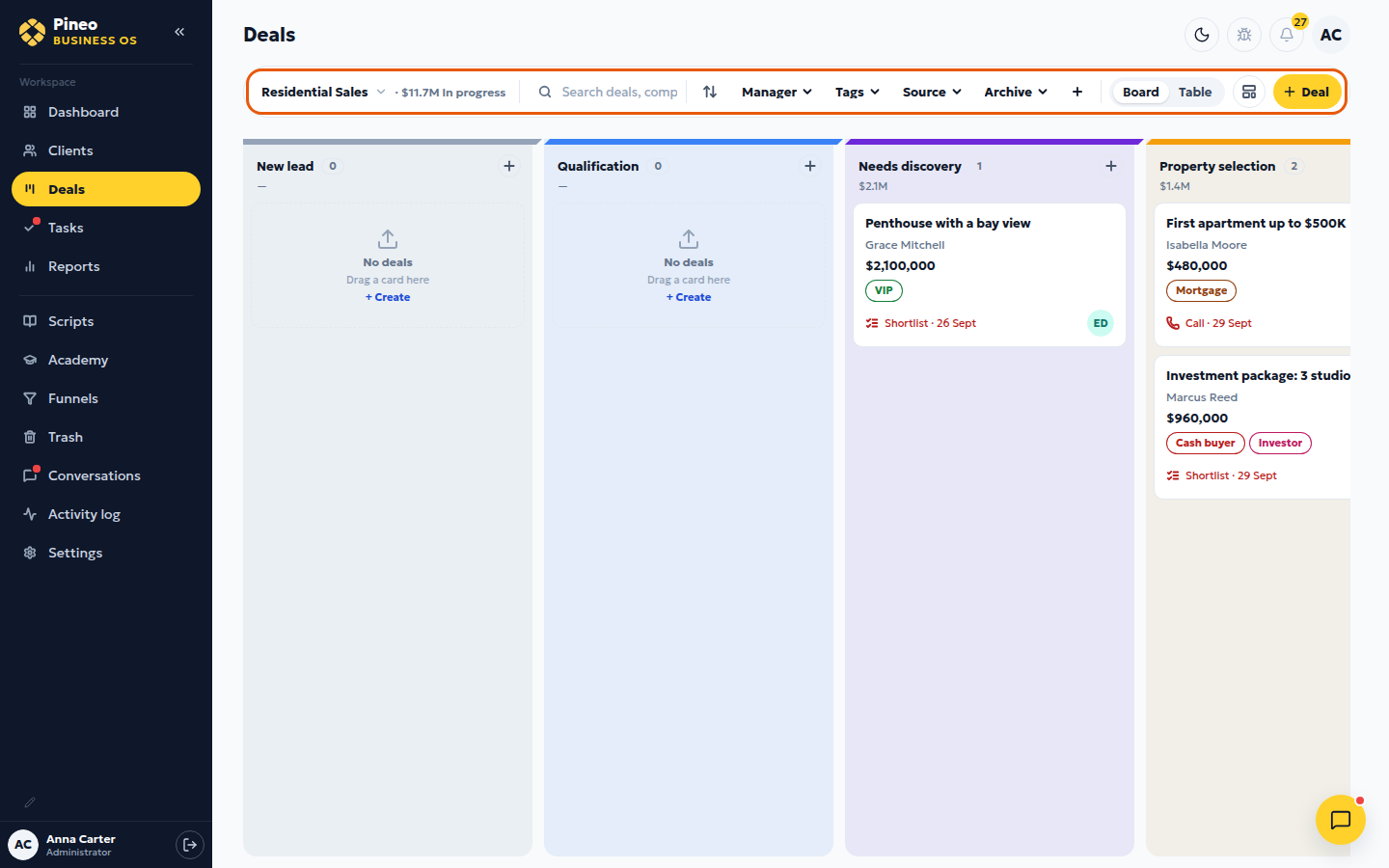
- Funnel picker — the first button on the left: the funnel name and the amount "in progress". This is the total of all columns of the funnel, won and lost deals included, under the current filters, per currency. In the archive view it says "Deal archive · N deals taken off the board" instead.
- Search — by deal name, client name and the client's contacts: phone (by digits, from three, the format does not matter), email and others. Clients in the trash are not found.
- Sort — the icon with arrows.
- Filter pills: Manager, Tags, Source, Archive, and "Field" — a filter by the value of a custom deal field.
- Board / Table — the view switch.
- Display — settings for cards and column headers.
- "+ Deal" — create a deal (see How to create a deal).
The "Manager", "Tags" and "Source" pills are shown only when there is something to choose: "Manager" — to those who see other people's deals; "Tags" and "Source" — when the directories have values. In a narrow window the pills fold into a "Filters" button with a counter, and "Reset" clears all filters.
Choosing a funnel#
Click the funnel name — the "Sales funnels" list opens with a search and the number of deals and stages in each funnel. The "Set up funnels" link at the bottom leads to the funnel directory.
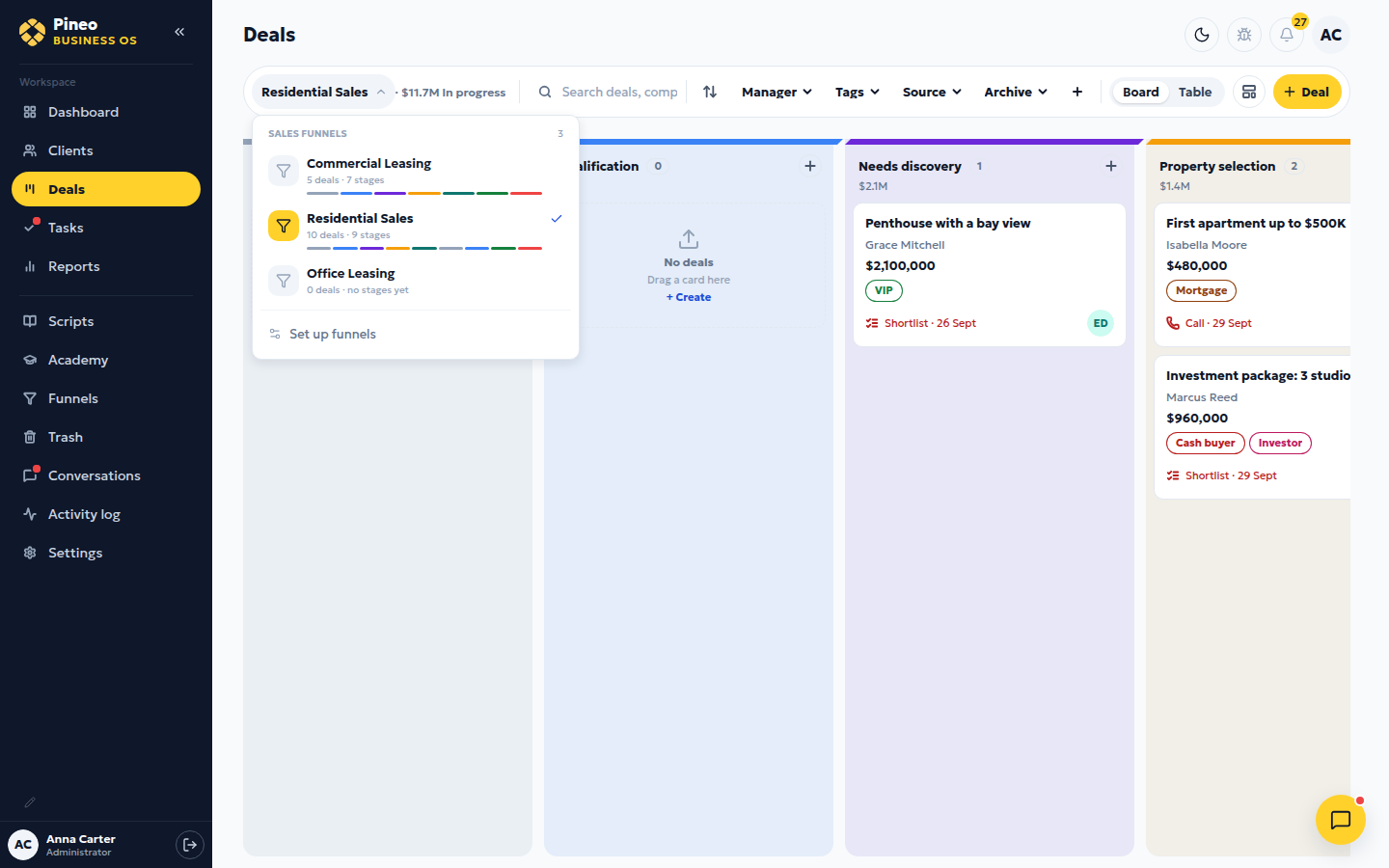
The list shows only the funnels available to you: a funnel can be assigned to departments, and then only employees of those departments, the funnel's author and the administrator can work in it. For everyone else such a funnel is not shown in the picker, you cannot create a deal in it or move a deal between its stages — but existing deals that you can see by your role stay visible in lists, the table and the card. Setup — in Funnels and stages.
What is on the board#
- A column — the stage header, the number of deals, the total and a "+" button (quick deal creation on this stage, open stages only). The header style is a personal setting: six variants, "Slanted stripe" by default.
- A card — by default the name, client, amount, tags, the nearest step ("No step" if there is no nearest task) and the owner's avatar. Click to open the deal card. A deal whose client is in the trash carries a "client in the trash" mark.
- Deals on closing stages (won and lost) stay on the board in their columns with a "closed" mark; they do not vanish from reports.
Quick deal creation in a column#
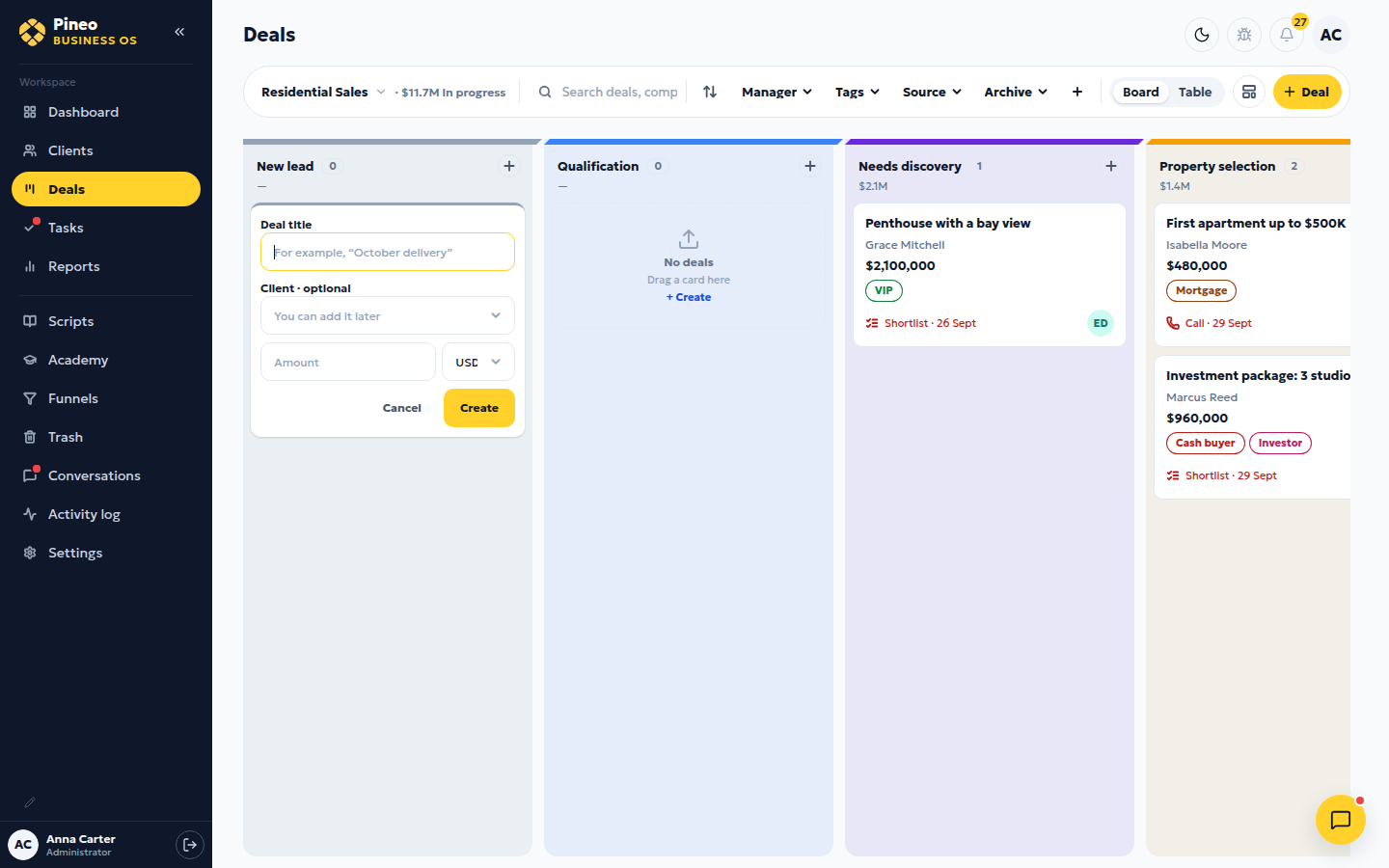
The "+" button in an open stage's header expands a mini-form: "Deal title" (required), "Client · optional", Amount and currency, plus the fields required at this stage. Click "Create" — the deal appears right in that column.
Dragging#
Drag a card to another column — the deal moves to that stage. If the stage requires data (a client, an amount, a contract, a loss reason, required fields), the system asks for it before the move. More — Deal stages.
Display#
The "Display" button opens the "Board display" window with two tabs: "Card" (which fields to show on a deal card of this funnel and in what order — drag items from the left to the right, custom funnel fields included) and "Stage header". On the right is a live example. "Save for myself" changes the look for you only; a supervisor or administrator can click "Apply to all employees" and switch on "Forbid employees to change the view".
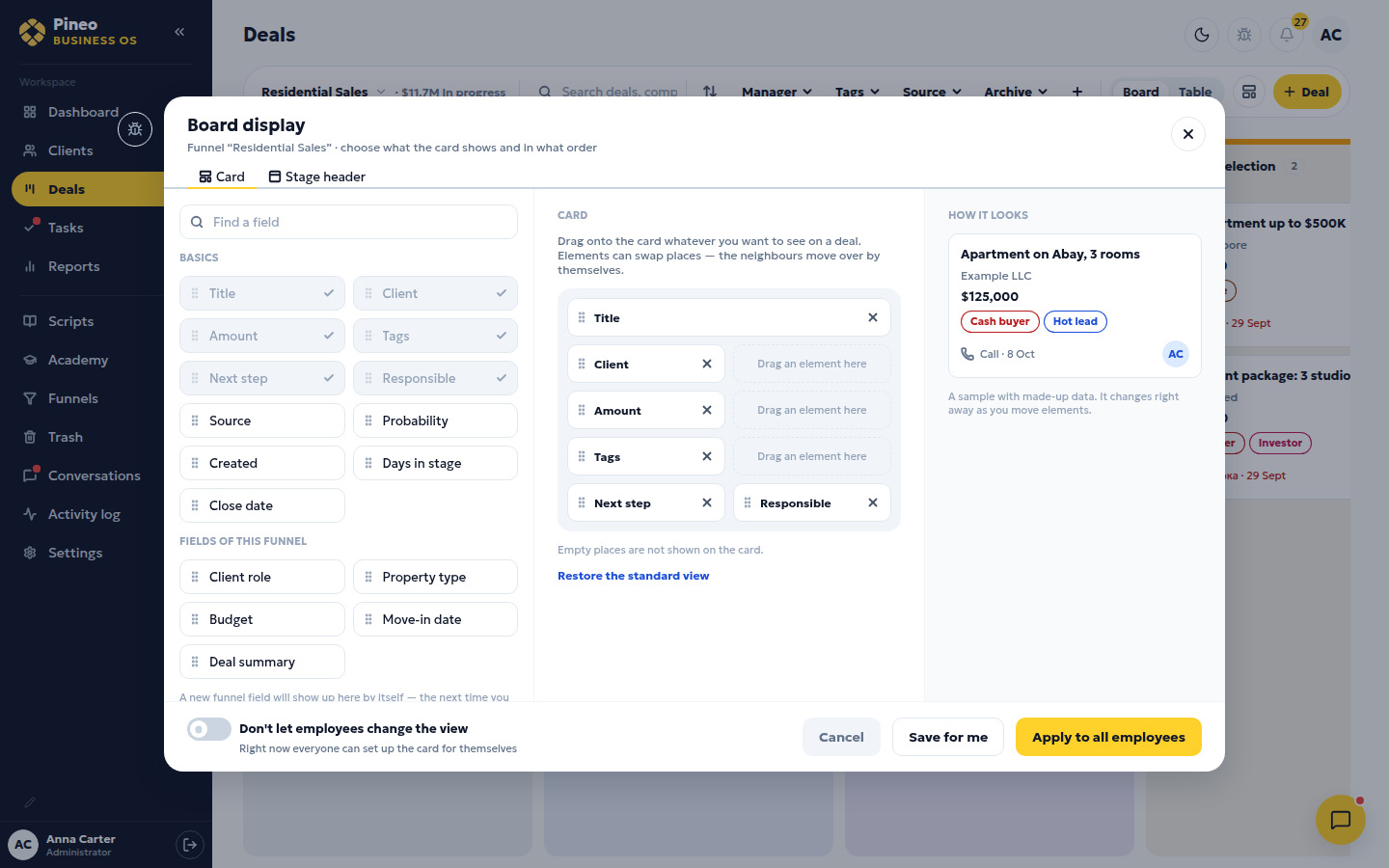
Showing deal amounts in lists can be switched off in Settings → Appearance ("Show deal amounts in lists").
The table#
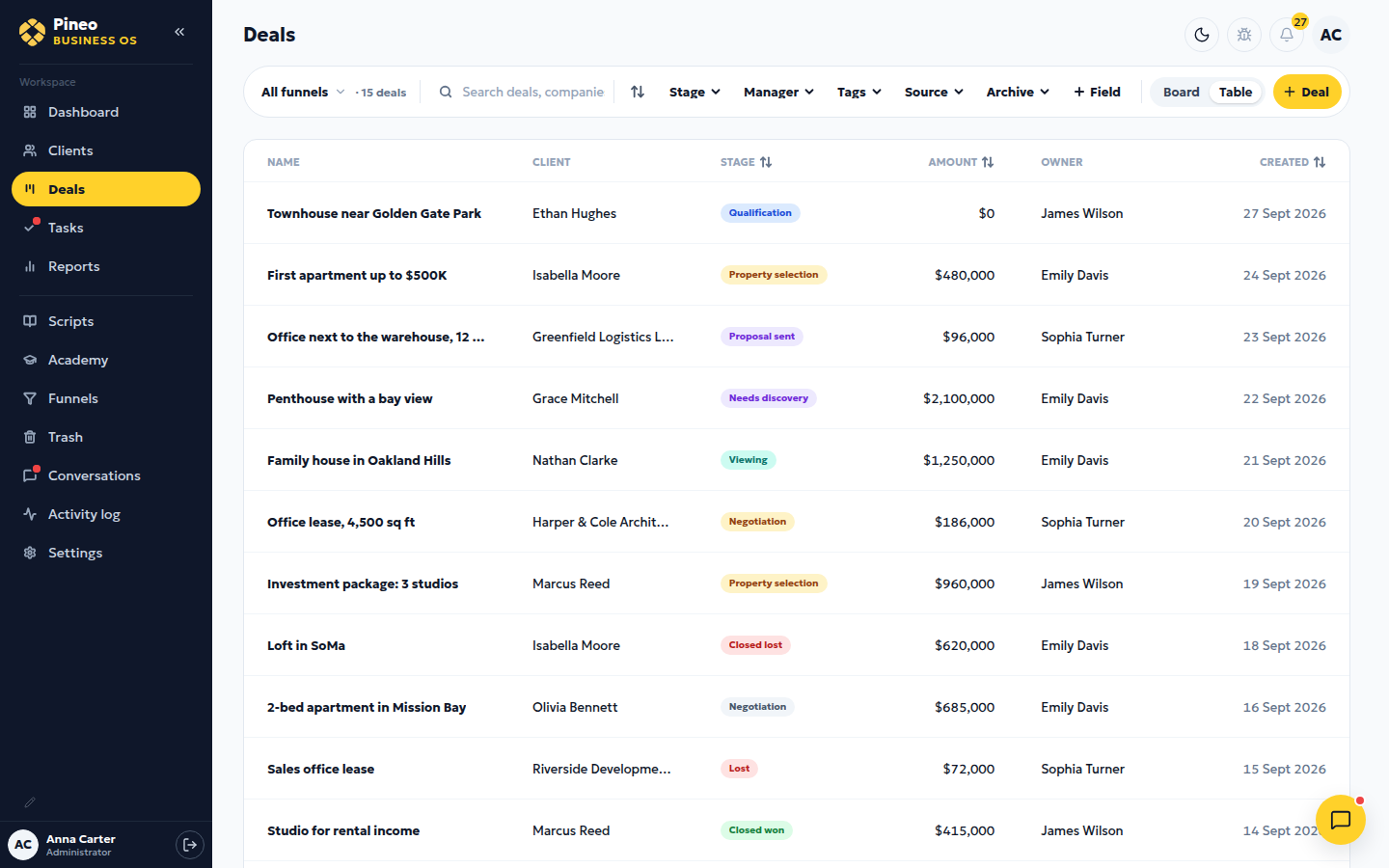
The Board / Table switch shows the same deals as a list with the columns: Name, Client, Stage, Amount, Owner, Created. Sort by clicking the "Stage", "Amount" or "Created" header. In the table the "Stage" pill lets you pick particular stages, the "Archive" pill also has "All", and the funnel picker has an "All funnels" item. Ctrl/⌘ + click on a row opens the deal in a new tab.
Sorting and filters#
| What | Options |
|---|---|
| Sort | "Date created: newest first / oldest first" (newest by default), "Amount: largest first / smallest first", "Next step: most urgent first", "Stage change: most recent first / oldest first". |
| Manager | "All managers", a particular owner, or "Not assigned". |
| Tags | Deals with the chosen tags. |
| Source | Where the deal came from. |
| Archive | "Not archived" (the default) and "Archived". |
| Field | A filter by the value of a custom field; chosen fields are shown as chips under the strip. |
Who sees what#
A manager sees their own deals, a supervisor — their own and their team's, an administrator — all (the exact scope is set by the role, see Roles and access). A deal without an owner — for example, one created automatically from a client enquiry when nobody is appointed as the owner for new enquiries — is visible only to those with "Whole company" access to deals (by default, the administrator). "Own department" access does not show it, and appointing an "owner for new enquiries" gives no access to other people's deals by itself — it only records new deals on that person.