
The task card: checklist, comments, completion
What you can do in an open task — complete it, reschedule, break it into steps, discuss it with colleagues.
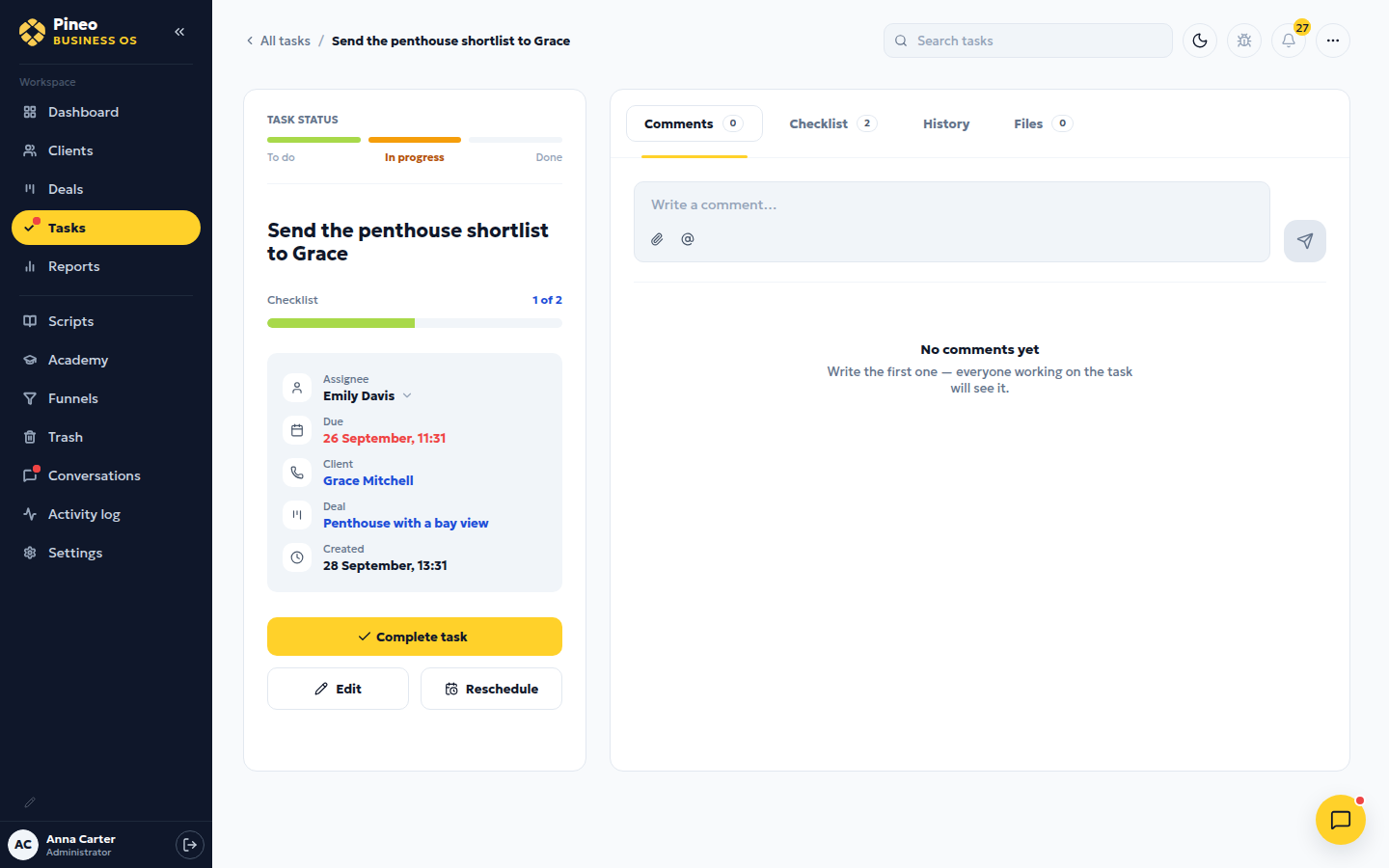
Left — status and data#
The Task status bar shows where the task stands: "To do", "In progress", "Done". Clicking it opens a status-change menu; the "Overdue" status cannot be set by hand. Below are the assignee (can be changed with the arrow if your role lets you assign others), the deadline (red if overdue), the client and the deal as links (they open in a side panel), and the creation date. If the task is done, a "Completed {date}" banner is shown at the top. The checklist progress "N of M" is visible in the left column and on the tab.
Buttons:
- Complete task — close it as done. After completion the button turns into "Reopen".
- Edit — name, description, type, links.
- Reschedule — a new date and time. You may also pick a past date: the task becomes overdue at once. The "due soon" and "overdue" notifications are sent at most once per task and are not re-sent when the deadline is moved.
Tabs#
| Tab | What is inside |
|---|---|
| Comments | The discussion of the task. A comment is seen by everyone who works with the task; the @ button mentions an employee, a deal, a client or a task, and the paper clip attaches files (up to 10 at a time; a comment may consist of files alone). Ctrl/⌘ + Enter sends. A supervisor's or administrator's comment reaches the assignee as a notification; a mention arrives as a notification in the bell (not duplicated by email). |
| Checklist | Break the task into steps ("Add item") and tick them off as you go. The progress "Done N of M" is visible in the card, not in the task list. Items can be dragged. |
| History | Who created, changed, rescheduled or completed the task, and when. |
| Files | Attachments of the task itself: PDF, JPEG, PNG or DOCX up to 10 MB. Files from comments are kept inside the comments. |
Complete from the list#
You do not have to open the card: the checkbox at the start of a row in the task list also completes the task.
Deleting#
The ··· menu in the header — Edit, Reschedule, Move to trash. A deleted task is kept in the trash for 30 days. When a client or a deal is deleted, only their unfinished tasks go to the trash; when the client or deal is restored, those tasks are not brought back automatically.