
How to create a script
Name, business line, stage, channel, situation, scenario text, language and tags.
Scripts can be created by employees with the "Sales scripts" capability in their role (by default, supervisors and administrators).
Step 1. Click "+ Script"#
In the Scripts section click the "+ Script" button in the top-right corner (the button uses the accent colour, yellow by default). A "New script" panel opens on the right.
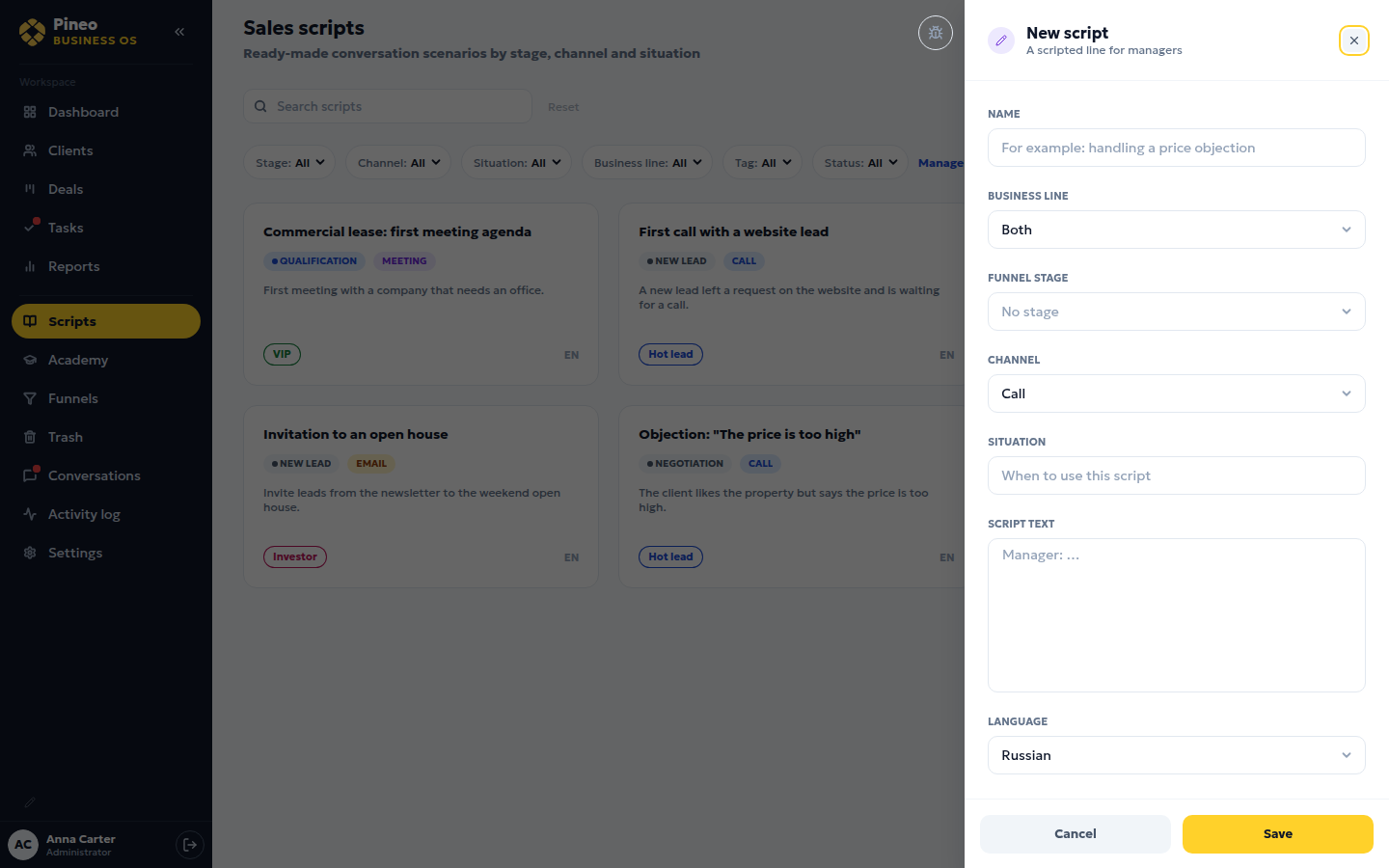
Step 2. Describe what the script is for#
The fields come in this order. Only "Name" and "Script text" are required.
| Field | What to enter |
|---|---|
| Name | Short, the way it will look in the list: "First call on an inbound enquiry". |
| Business line | The business line: real estate, B2B or "Both". |
| Funnel stage | At which deal stage the script is useful; you can leave "No stage". The library filters find the script by stage. |
| Channel | Call, conversation, meeting or email. |
| Situation | One phrase on when to use the script: "A website enquiry, the client does not know the product yet". |
| Script text | The scenario itself. |
| Language | Russian, English or Uzbek. |
| Tags | Labels for filtering; shared with deal tags. |
Step 3. Write the text#
The scenario text is free-form: a greeting, questions, answers to objections, a closing. Write it so that a manager can read it from the screen during a conversation.
Step 4. Switch the script on#
The "Active" switch is on by default. If the script is not ready, save it switched off: inactive scripts are visible only to those who manage scripts. Click "Save".