
Script suggestion right in a conversation
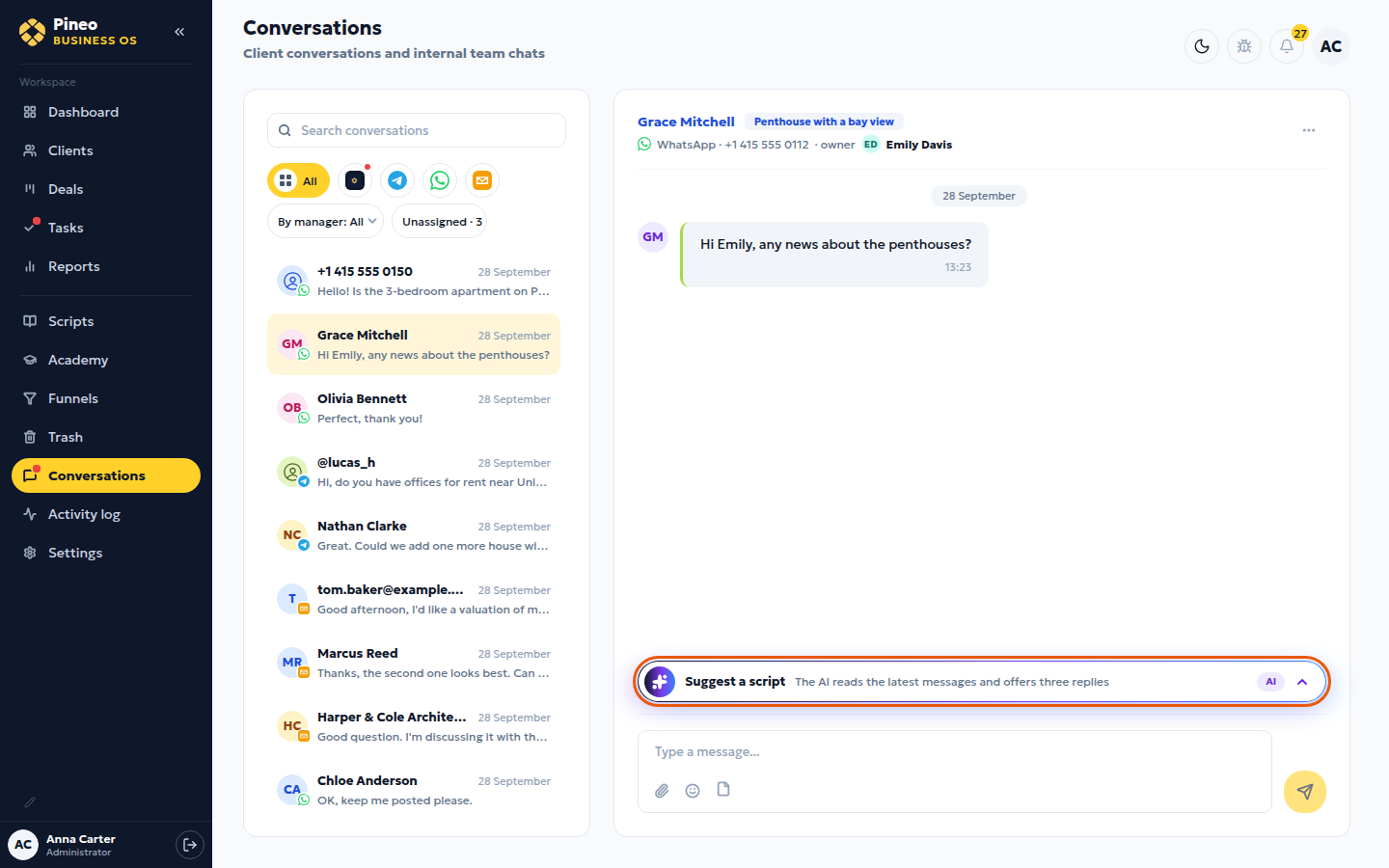
The AI assistant's "Suggest a script" oval above the input field: three reply scenarios for the current conversation, inserted into the reply field.
Above the input field of every conversation is the AI assistant's "Suggest a script" oval with the hint "The AI reads the latest messages and offers three replies". It is the only entry to the suggestion everywhere there is a conversation: the "Conversations" page, the "Conversations" tab in client and deal cards, the "Messages" mini-window and the "Message the client" panel.
How to use it#
- Click the oval — the "AI assistant · script suggestion" window expands. It opens empty: the suggestion does not start by itself (it has a request limit).
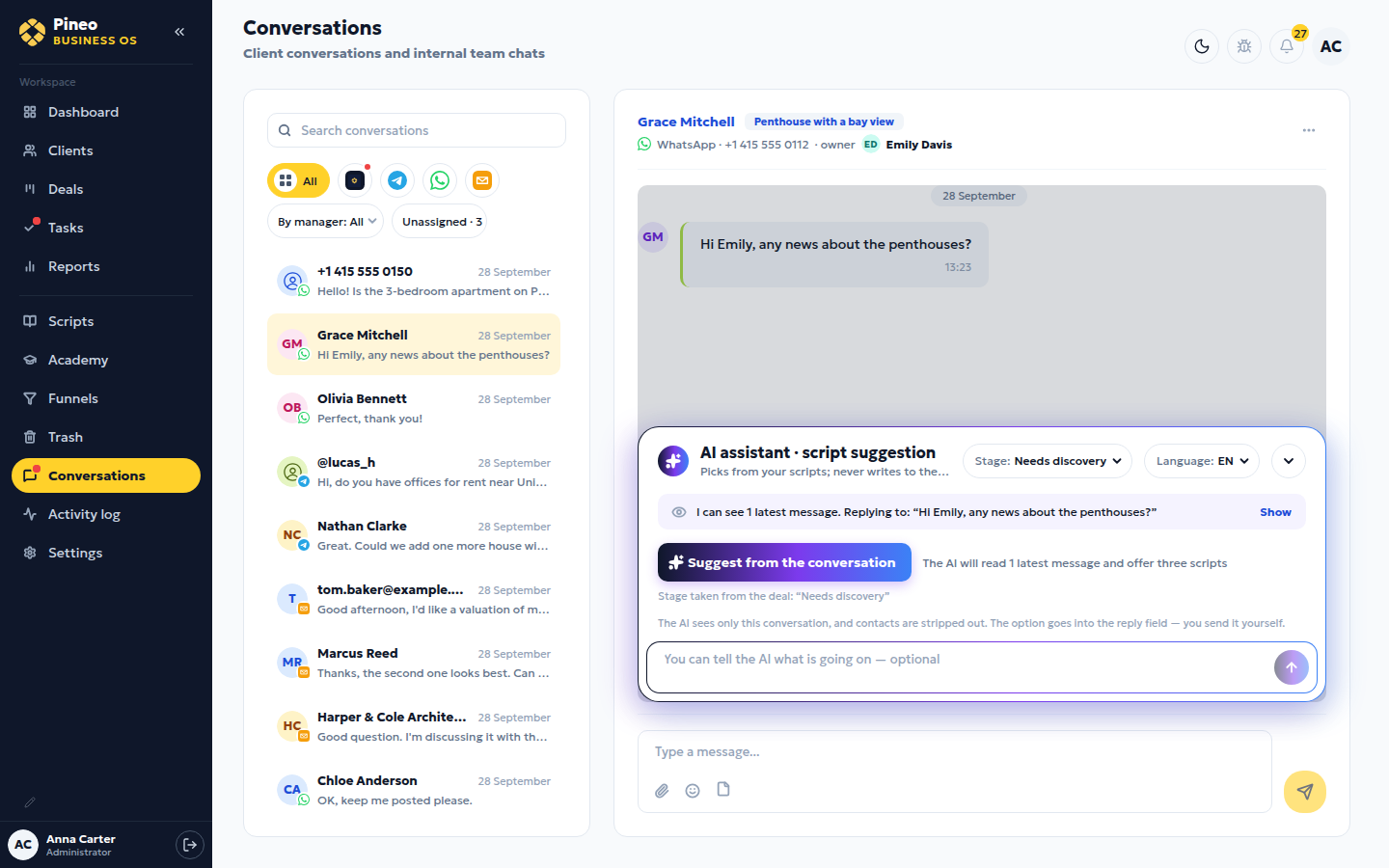
- At the top are the pills "Stage" (filled in from the deal's stage, but it is a catalogue category, not a stage of your funnel) and "Language"; under them — what the AI "sees": "I can see N latest messages. Replying to: “…”". The "Show" button expands those messages.
- Click "Suggest from the conversation" (if the conversation has no messages yet — "Suggest by stage"). A few seconds later three scripts appear.
- If the suggestion missed, you can explain the situation to the AI in the field at the bottom ("it is not about price, it is about timing") and click "Send the note and suggest again".
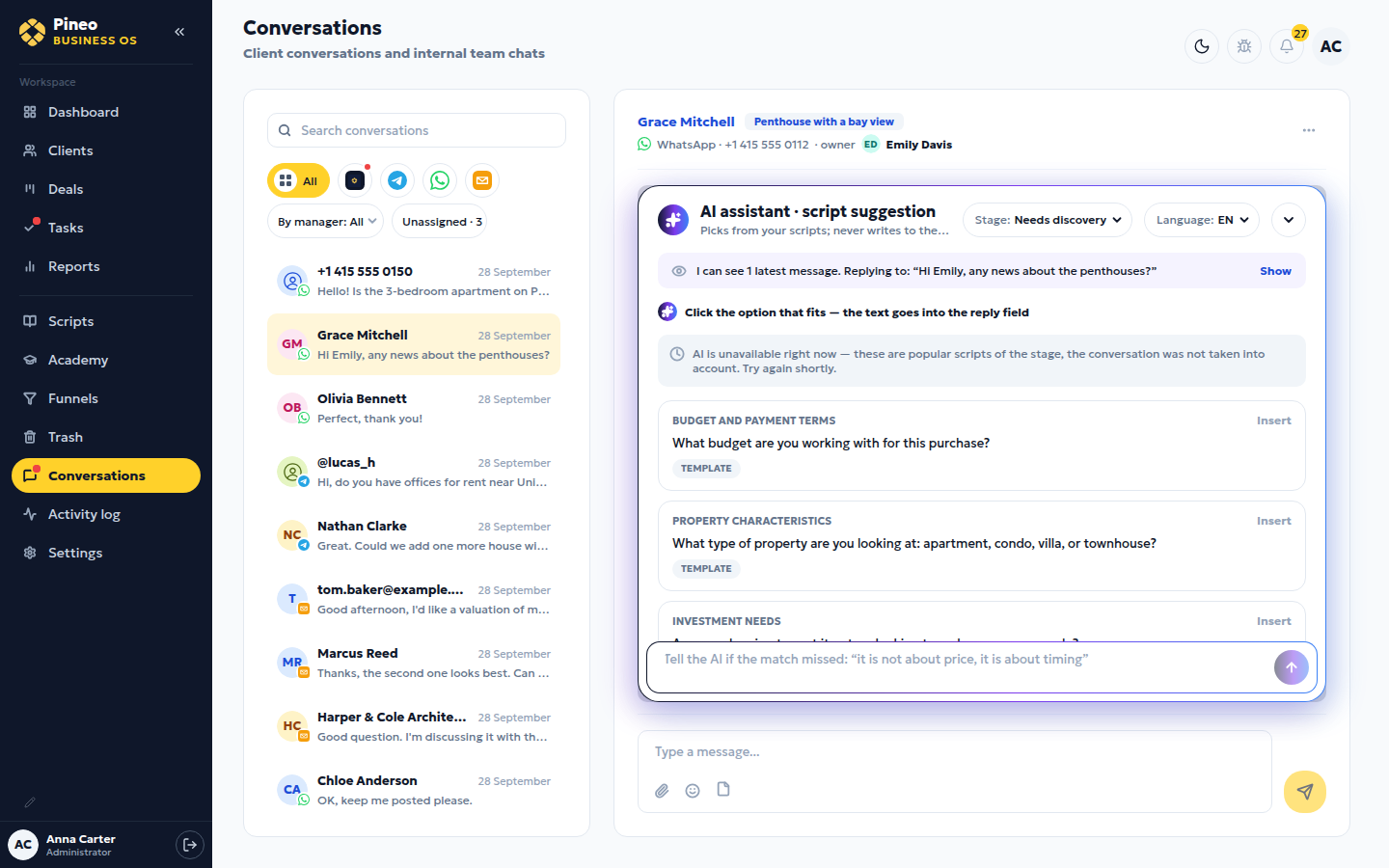
- Click a suitable option (or "Insert into the reply") — the text goes into the reply field. Check it, replace the placeholders in curly braces and send it yourself: the AI never writes to the client by itself.
After insertion the oval says "Script in the reply field" and offers to pick another. The arrow on the right collapses the window, and "Hide the AI assistant" tucks the oval behind the input field; you bring it back with the "Show the AI assistant" tab.
Where the scripts come from#
The suggestion picks only from Pineo's shared scenario catalogue, not from your organisation's scripts, and invents nothing. The window's subtitle says the same: "Picks from Pineo's script library". More — Script suggestion by situation.
If the suggestion is unavailable#
When the suggestion service does not respond, Pineo still shows three scripts of the same stage — the most used — and marks this with the line "AI is unavailable right now — popular scripts of the stage are shown, the conversation was not taken into account". The limit is 5 requests a minute per employee.
When there is no oval#
The oval is not shown in conversations marked as spam, and in WhatsApp Business API when the reply window is closed (there you choose a template first — see How to reply to a client).
Confidentiality#
Before the suggestion, phone numbers, email addresses and links are removed from the conversation — they are not passed outside. The AI sees only this conversation, at most the 10 latest messages.