
The unassigned enquiries queue
Where enquiries without an owner go, who sees them, how to triage a conversation and how to keep the queue from piling up.
When a new client writes, Pineo creates a client and a deal by itself (how exactly — see How an incoming message becomes a deal). If your organisation has appointed an owner for new enquiries, the enquiry goes to that person right away. If not, the conversation goes to the unassigned queue and waits until someone takes it.
What ends up in the queue#
- Enquiries from new clients when no owner for new enquiries is appointed (or that person is disabled).
- Conversations for which the system created nothing by itself: the number matched several clients; the sender left no phone, email or username; the client's card is in the Trash; the organisation has no funnel with an open stage.
Where the queue is#
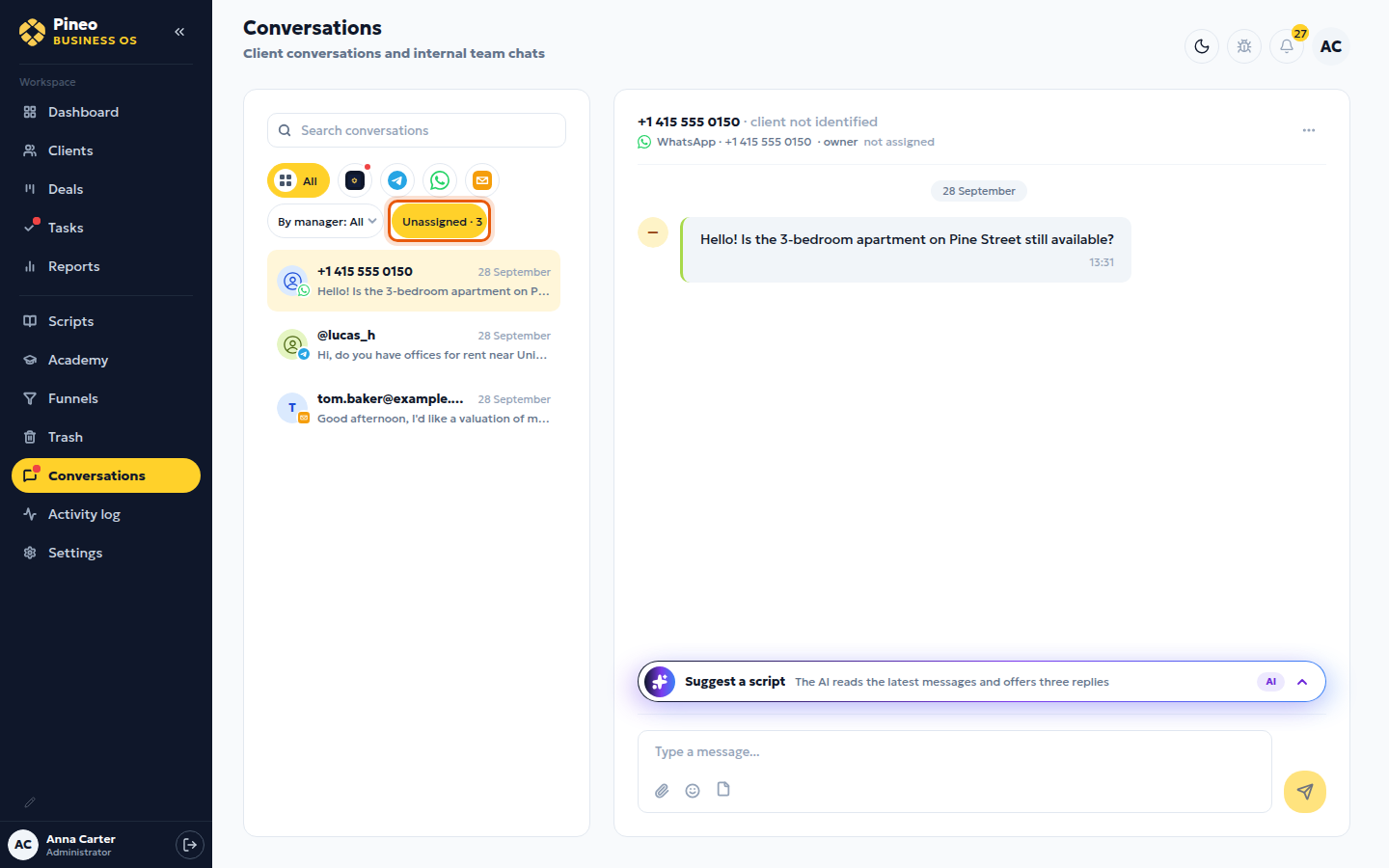
In the Conversations section, under the search box, there is the "Unassigned · N" pill, where N is how many conversations are waiting. Click it to keep only conversations without an owner in the list; click again to see all conversations.
Who sees it#
The pill is shown to those whose role has one of these capabilities:
| Capability | Who has it by default | Who they can hand a conversation to |
|---|---|---|
| Unsorted conversations | Administrator, Supervisor | Employees whose records they can see themselves. |
| Lead qualification | none of the standard roles; switched on in a role or in the "New enquiries" card | Any active employee of the organisation, even if otherwise their rights are limited to their own records. |
An administrator switches capabilities on in Settings → Roles (see Roles and permissions). Lead qualification does not widen editing: other people's deals still open read-only unless the role's matrix says otherwise.
How to triage a conversation#
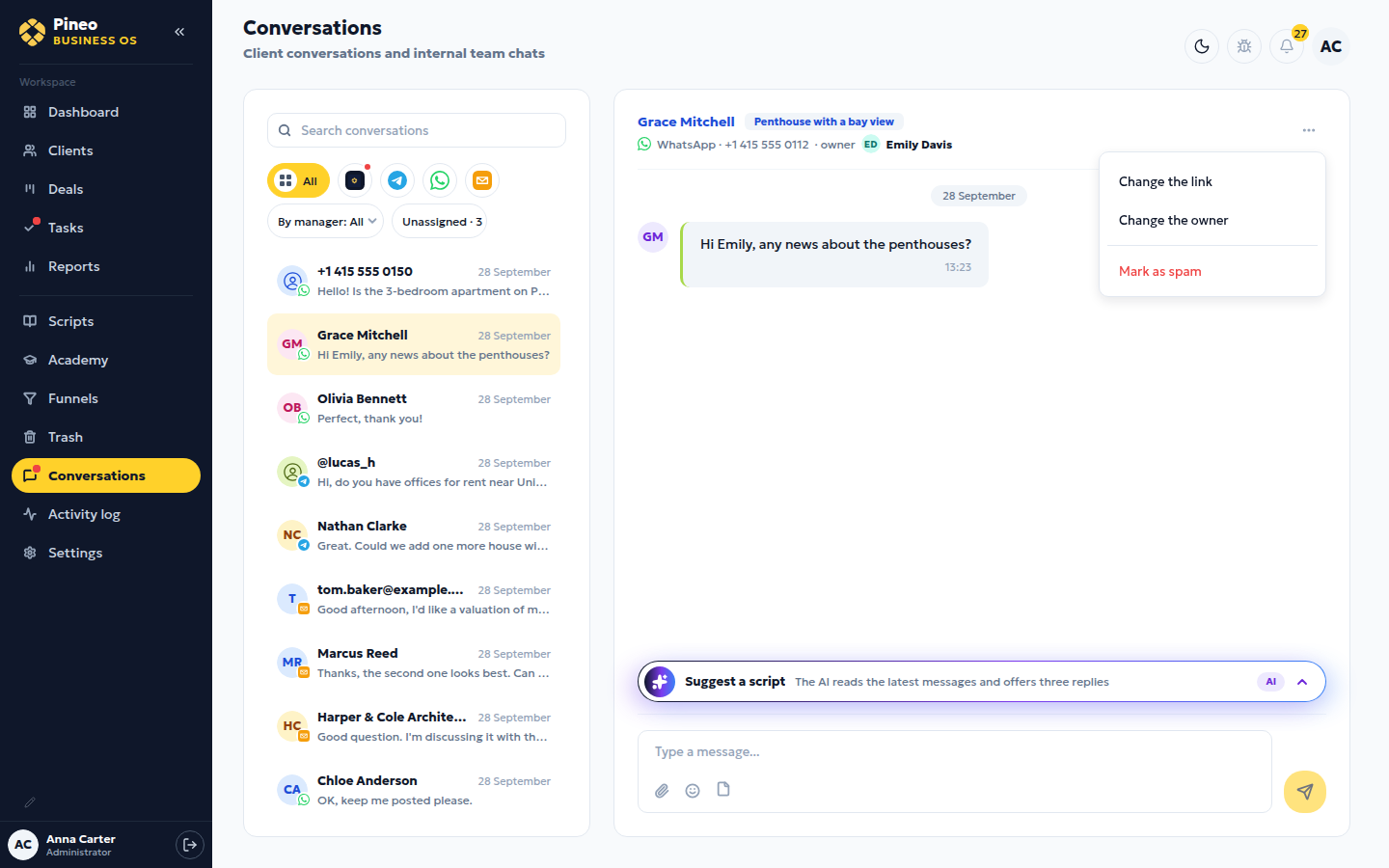
Open a conversation from the queue and click "···" in its header.
Quick: just assign an owner#
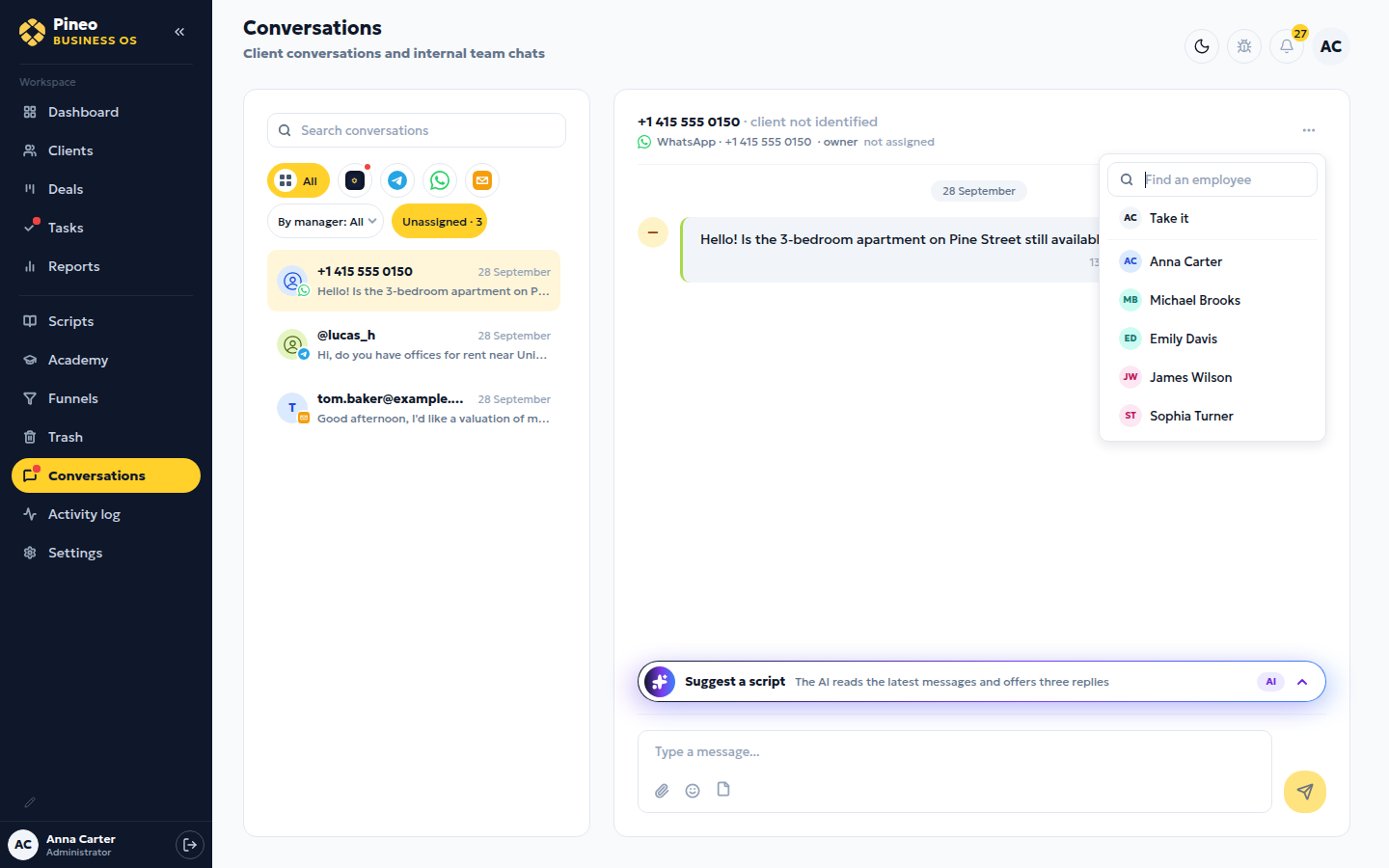
If the client and the deal already exist, it is enough to pick a person: "···" → "Assign an owner", then an employee from the list or "Take it". "Clear the owner" returns the conversation to the queue.
Complete: "Triage the conversation"#
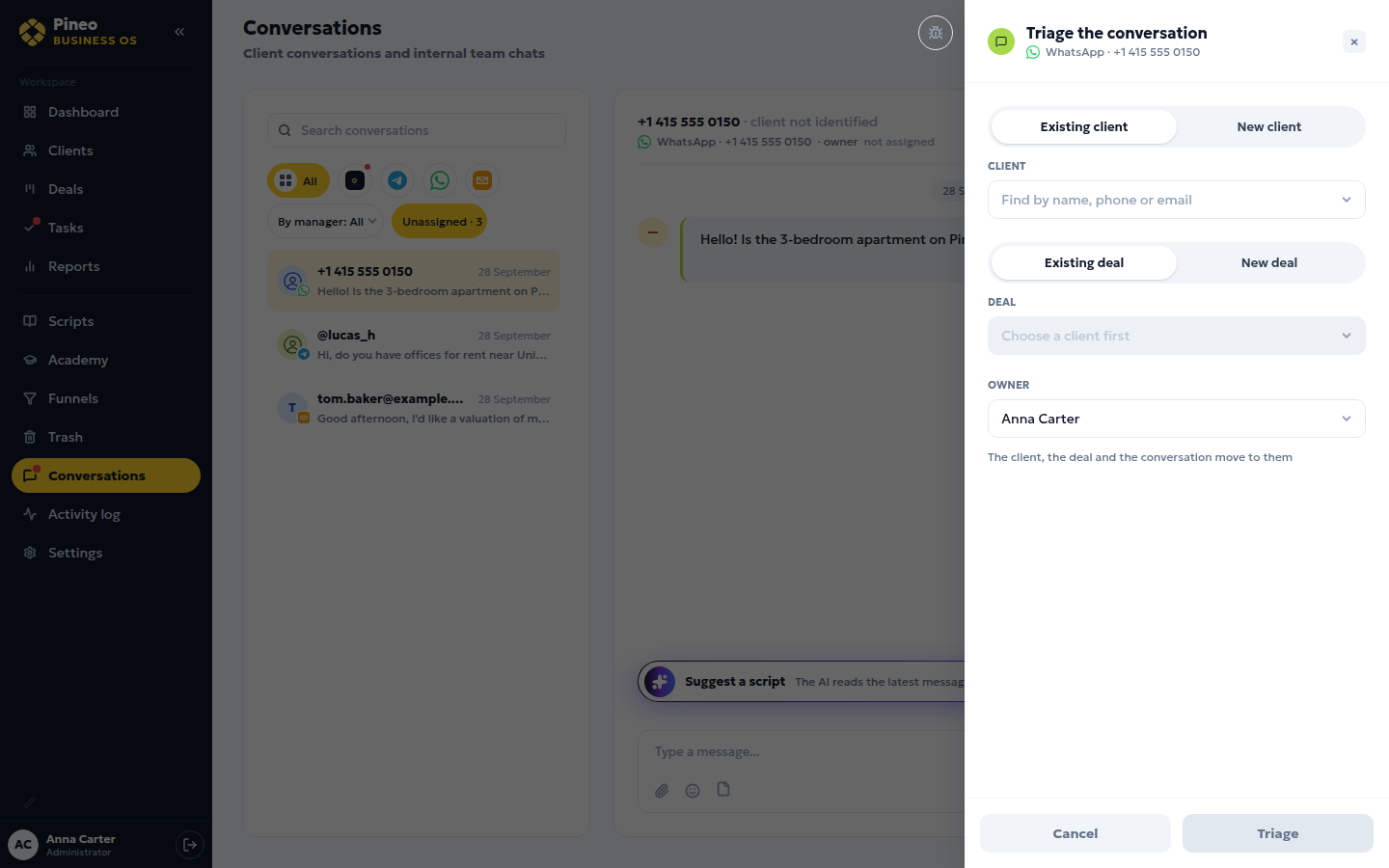
"···" → "Triage the conversation" opens a panel where everything is decided in one go:
- Client — "Existing client" (search by name, phone or email) or "New client" (the "Name / company" field).
- Deal — the client's "Existing deal" or a "New deal" with a name and a funnel.
- Owner — who receives the client, the deal and the conversation. The field is visible to those with "Lead qualification".
- If the funnel has fields required from the first stage, they appear below.
- Click "Triage".
If the conversation is already linked, the same menu item is called "Link a deal" or "Change the link".
How to keep the queue from piling up#
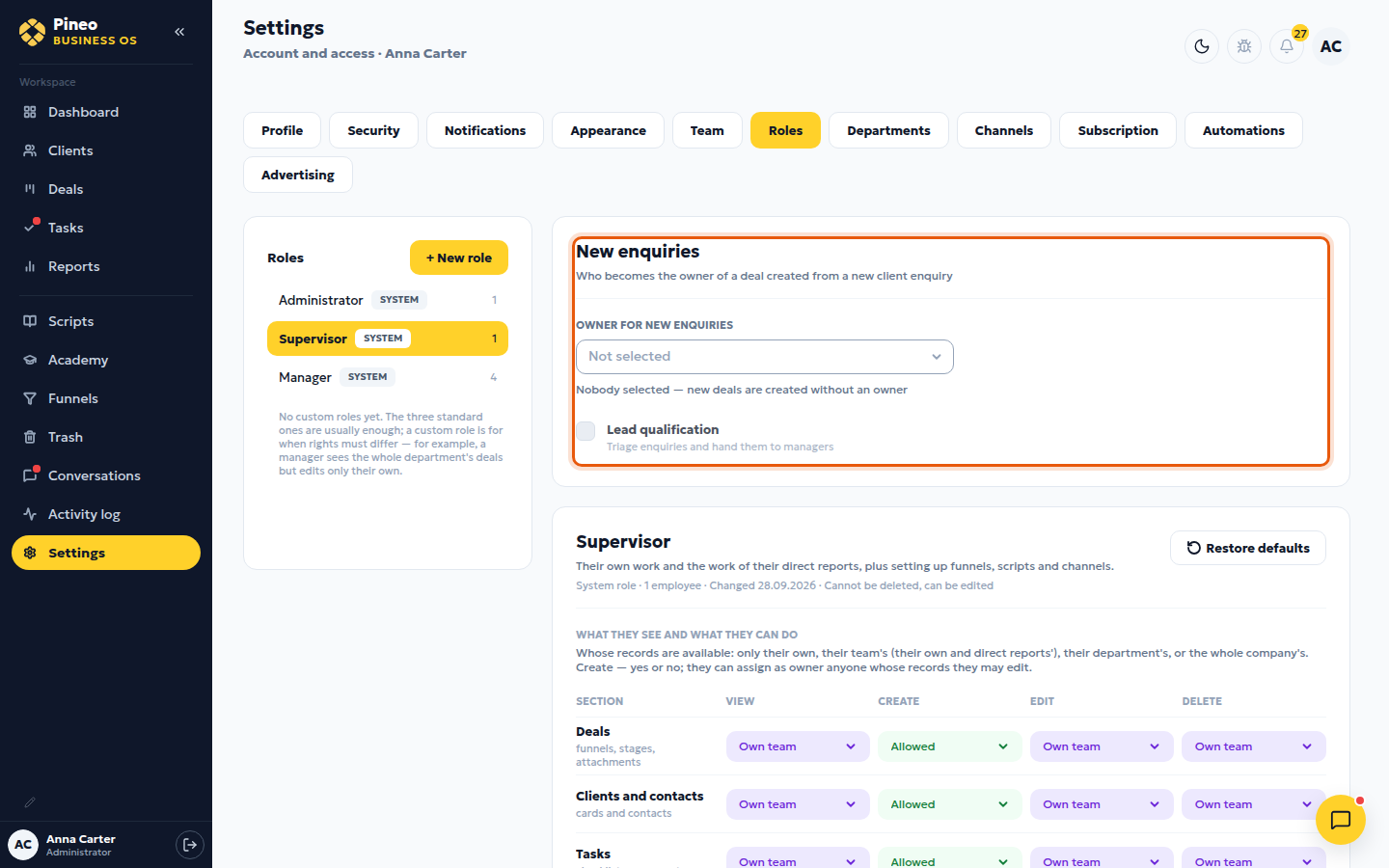
- Open Settings → Roles, the "New enquiries" card.
- In the "Owner for new enquiries" field, choose an employee — all new enquiries will be assigned to them right away.
- If they hand leads out to managers themselves, tick "Lead qualification".
On a phone, the queue is a separate "Unassigned" folder tab, and every row has a "Take" button.