The Tasks section: tabs, filters, overdue
How the task list works, what the tabs and colours mean, where "overdue" comes from, which notifications arrive and how an administrator sets up task types.
A task is an action with a date and an assignee: call, meet, send an email. Tasks are linked to a client and a deal, so the history of the work stays in one place.
Tabs#
| Tab | What it shows |
|---|---|
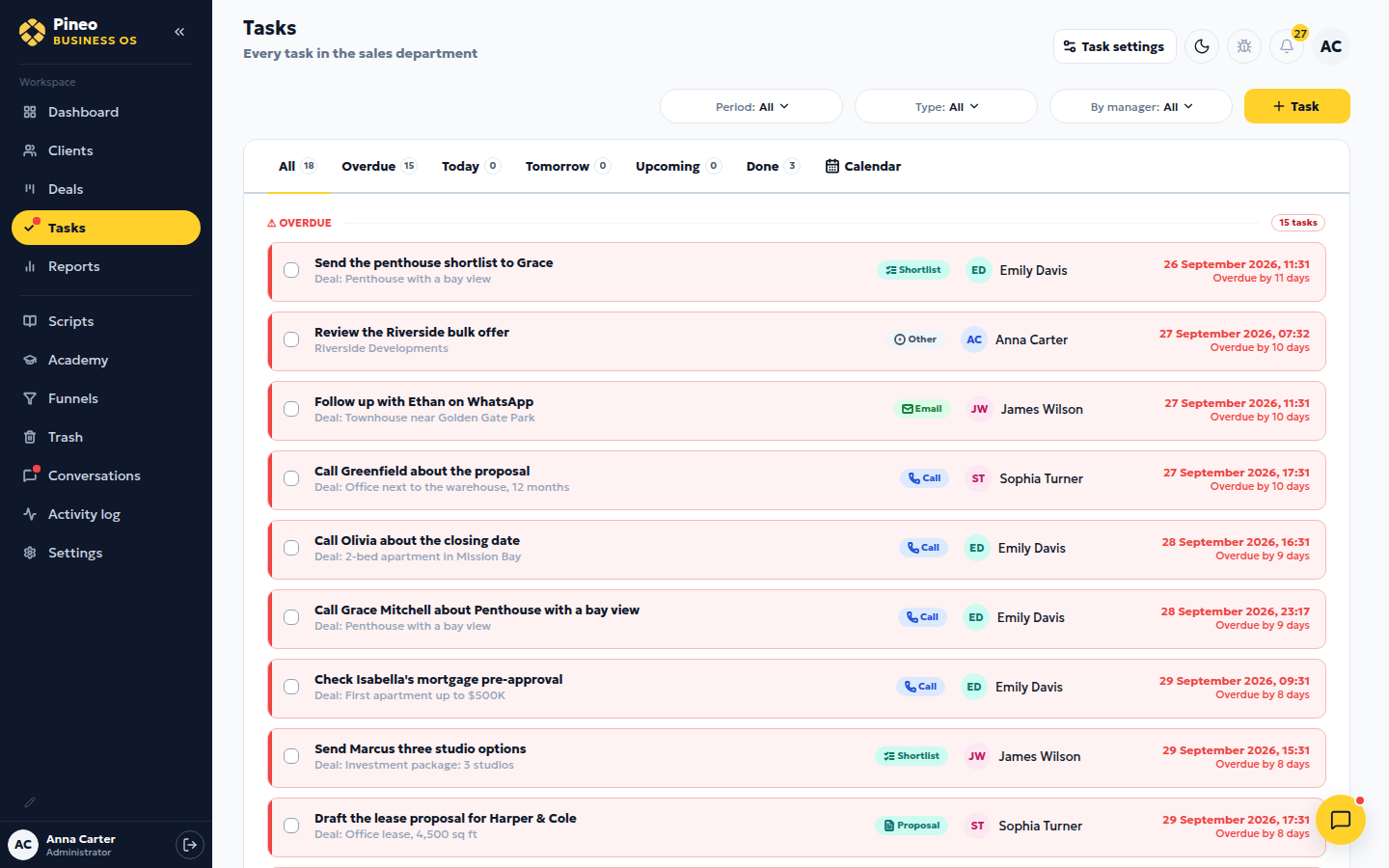
| All | All tasks available to you, grouped: OVERDUE, TODAY, TOMORROW, UPCOMING, DONE. |
| Overdue | The deadline has passed and the task is not done. Rows are highlighted red. |
| Today | Tasks for today whose time has not yet come. Those whose time has already passed today are under "Overdue". |
| Tomorrow | Tasks due tomorrow. |
| Upcoming | Everything after tomorrow. |
| Done | Completed tasks. 30 days after completion they move to the Trash, and 30 days later are erased. |
| Calendar | The same tasks on a month or week grid — see Calendar. |
The numbers on the tabs are the number of tasks in each.
The task row#
On the left is a checkbox: tick it to complete the task right from the list (unticking it brings a completed task back into work). Then the title, the linked deal, the type (Call, Meeting, Email…), the assignee and the deadline. Overdue rows carry a red "Overdue by N days" or "Overdue today". A dot before the title means "A new task — not opened yet".
Filters#
- Period limits the list by dates (it is absent on the "Calendar" tab);
- Type — by task type, several can be chosen;
- By manager — the chosen employee's tasks. A supervisor sees their team's tasks, an administrator — everyone's; a manager has no such filter.
Overdue#
A task counts as overdue from the moment its deadline passes — the list, the counters and the card show it at once. The "overdue" status is additionally written to the database by a background check every 15 minutes — for reports; it cannot be set by hand.
Task notifications#
- "A task was assigned to you" — to the assignee, if someone other than themselves set the task (to the bell and by email).
- "A task is due soon" — once, when less than a day remains until the deadline (checked hourly).
- "A task is overdue" — once, within an hour after the deadline.
- A supervisor's comment and an @-mention in comments arrive in the bell. More — in The task card.
Which notifications arrive and how — see Notifications.
The red dot on "Tasks"#
It appears when a new task was assigned to you and you have not opened it yet, or when one of your own tasks is overdue. A task you set for yourself does not count as "new". It goes out when nothing new remains (the dot refreshes every 30 seconds).
Task types — for administrators#
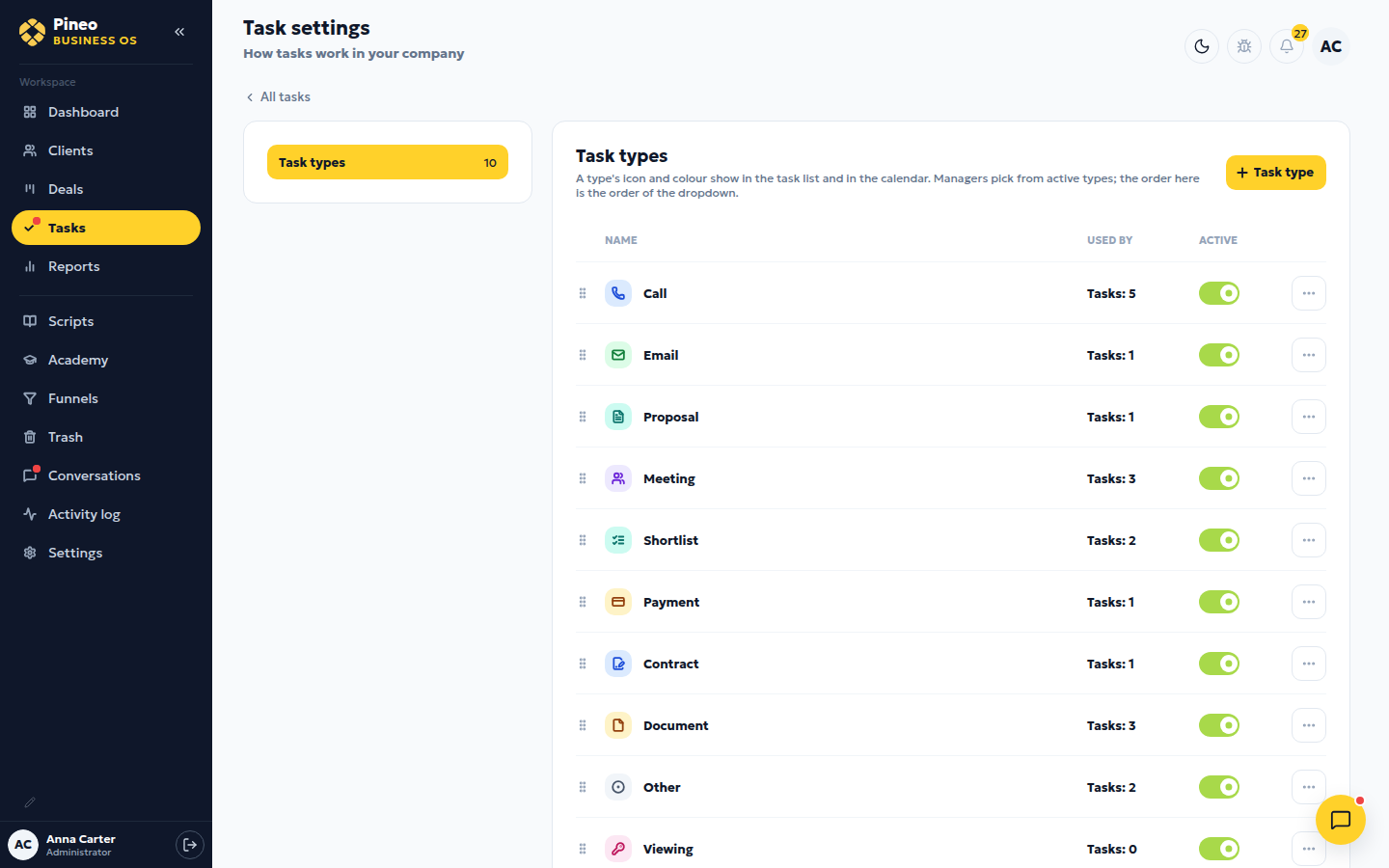
The "Task settings" button in the section header (visible to an administrator) leads to the "Task types" page: types are an organisation directory with their own icon and colour, shown in the list and the calendar. A type can be switched off (it is then not offered when creating a task), dragged to change the order, or added with the "+ Task type" button. A task can also be created with "No type".