
Roles and permissions
System and custom roles, the “what they see and what they can do” matrix, capabilities, assigning a role to an employee, and the “New enquiries” card.
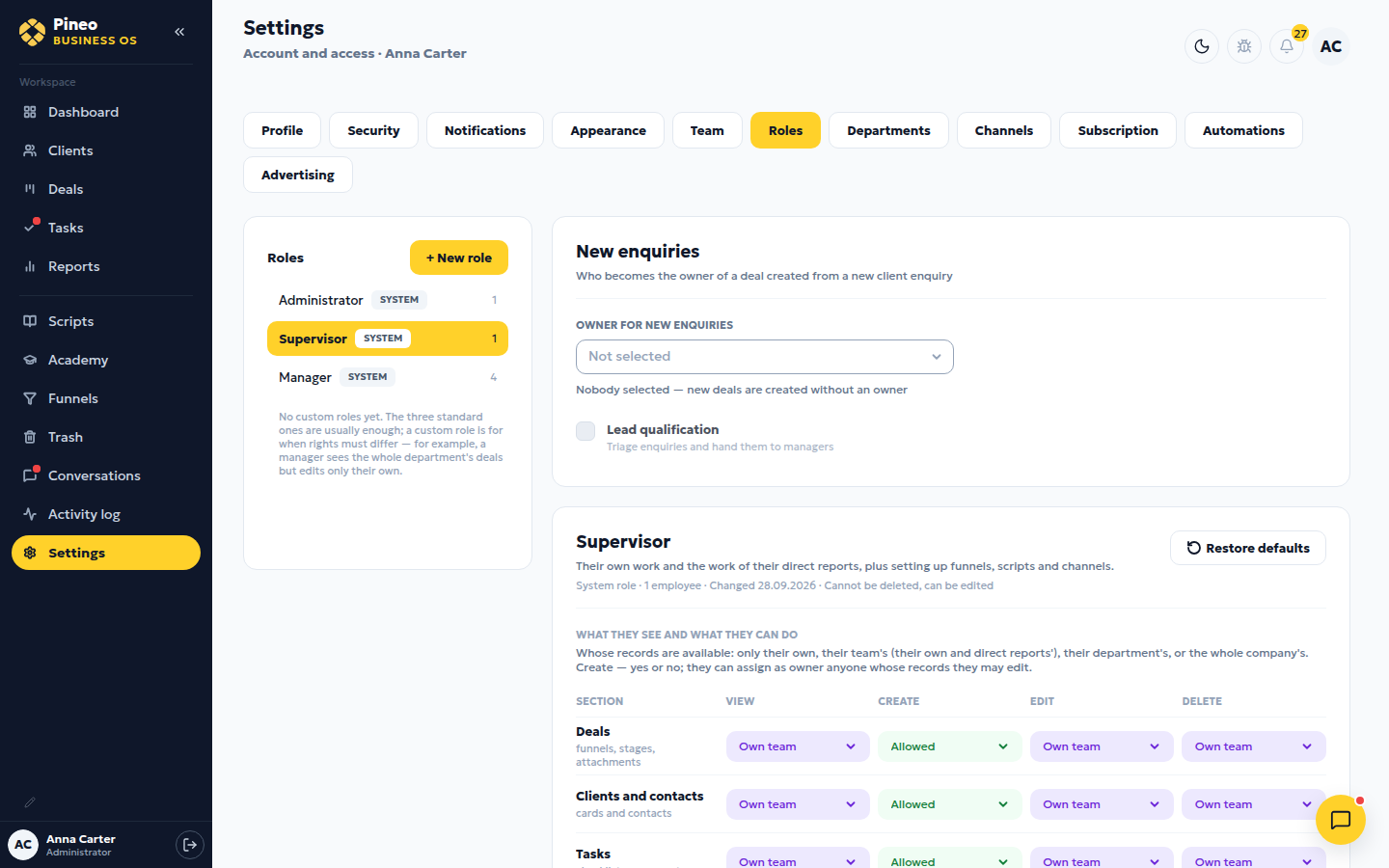
Settings → Roles is the permissions builder. On the left is the list of roles; on the right are the New enquiries card (an organisation setting) and the editor of the selected role. The tab is visible to the administrator only.
System roles#
Administrator, Supervisor and Manager are created in advance and marked “System”.
| Role | What it has by default |
|---|---|
| Administrator | Full access to everything in the company, including the structure, roles and subscription. It cannot be changed or deleted. |
| Supervisor | Their own work and the work of their direct reports, plus setting up funnels, scripts and channels. |
| Manager | Only their own clients, deals, tasks and conversations. |
You can adjust Supervisor and Manager; the Restore defaults button returns the original settings. A system role cannot be deleted.
A custom role#
- Press + New role.
- Choose From scratch (like “Manager”: own records only, creating allowed) or a ready-made draft — Lead qualifier. A draft is only a starting point: you can adjust the rights before saving.
- Set the name and description, and configure the matrix and capabilities.
- Press Create role.
- Assign the role to employees: the Role field in the invitation or in the employee card (Employees).
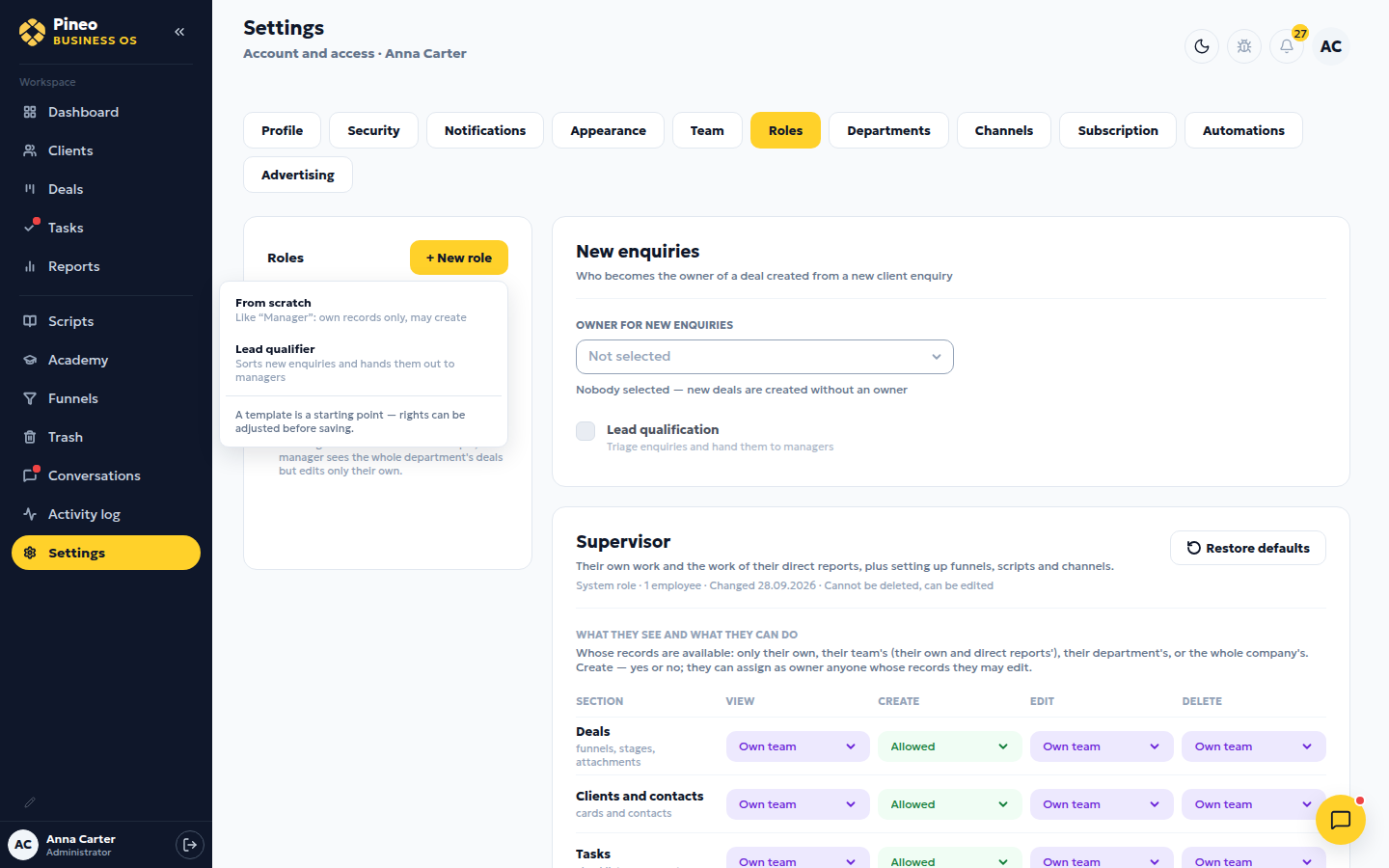
When you save a change to a role, it applies immediately to everyone with that role — the bottom of the editor says to how many people.
Deleting a custom role. If the role has employees, Pineo asks you to choose a role to move them to (“Move employees to role”) — their rights change at once. A deleted role cannot be brought back.
The “what they see and what they can do” matrix#
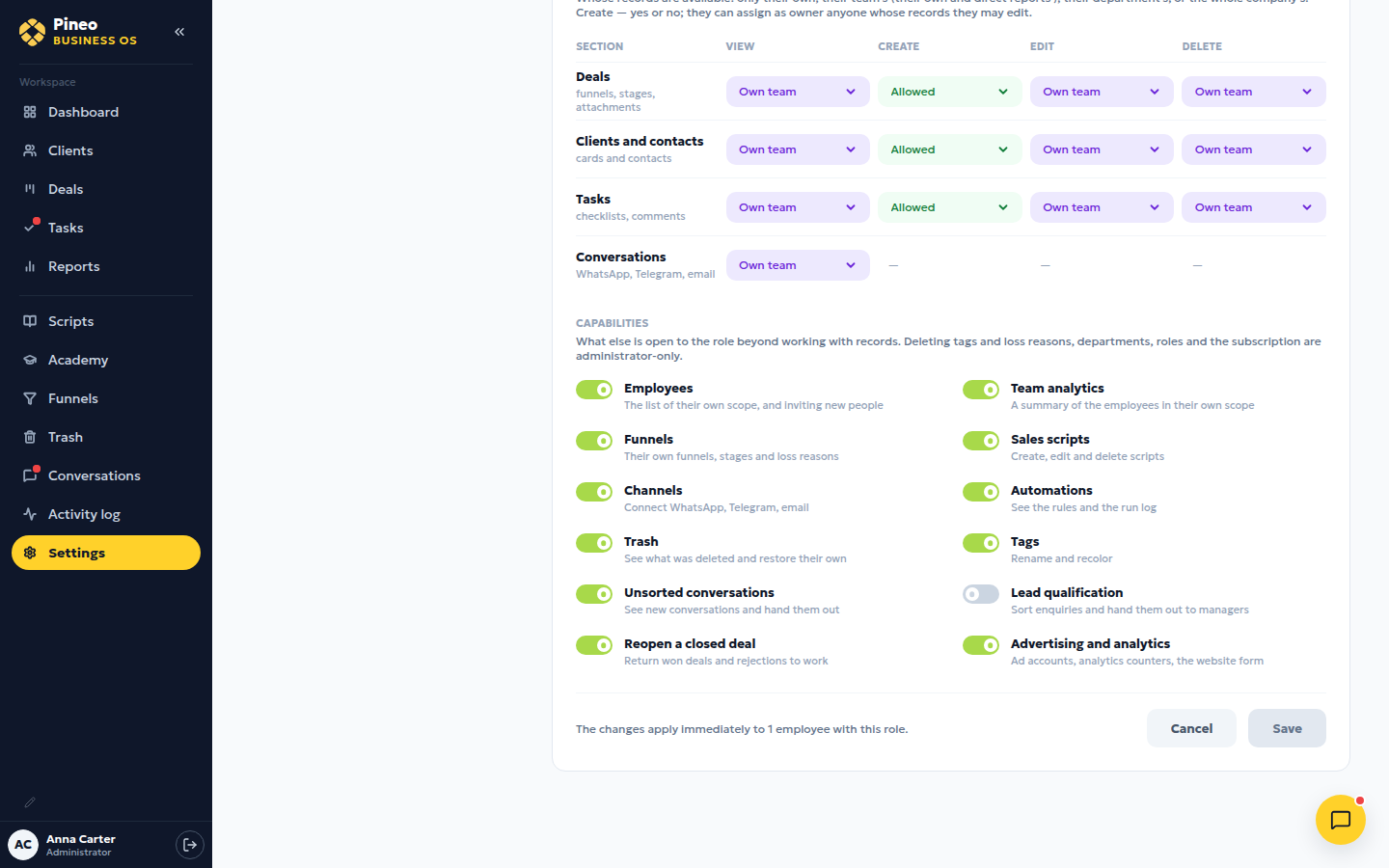
For four areas — Deals, Clients and contacts, Tasks, Conversations — you choose levels for the actions View, Create, Edit, Delete. Conversations have only “View”.
| Level | Whose records |
|---|---|
| Own only | where the employee is the owner |
| Own team | their own and their direct reports' (the “Supervisor” field in the employee card) |
| Own department | employees of the departments the person belongs to (Departments) |
| Whole company | all records of the organisation |
| No access | the action is unavailable |
“Create” is a choice between Allowed and Not allowed; who can be assigned as an owner is decided by the “Edit” level: you can assign as owner only a person whose records the employee may edit.
Consistency rules. You can edit no wider than you can view; delete no wider than you can edit; to create you need at least “Edit — Own only”; to create deals you must see at least your own clients (a deal is created for a client). The interface tells you what to fix, and when you narrow one right it lowers the dependent ones itself.
Capabilities#
The switches under the matrix are what the role can do besides working with records.
| Capability | What it gives |
|---|---|
| Employees | The list of their own scope, and inviting new people. |
| Team analytics | A summary of the employees in their own scope: reports and the supervisor dashboard. |
| Funnels | Their own funnels, stages, loss reasons, lead sources; the “Funnels” menu item. |
| Sales scripts | Create, edit and delete scripts. |
| Channels | Connect WhatsApp, Telegram, email. |
| Automations | See the rules and the run log (only the administrator can edit). |
| Trash | See what was deleted and restore their own. |
| Tags | Rename and recolor tags. |
| Unsorted conversations | See new conversations without an owner and hand them out. |
| Lead qualification | Sort enquiries and hand them out to managers — assign any employee of the company as owner without widening the right to edit other people's records. |
| Reopen a closed deal | Return won and lost deals to work. |
| Advertising and analytics | Ad accounts, analytics counters, the website form (only the administrator can connect accounts and change settings). |
Deleting tags and loss reasons, the department structure, roles and the subscription are for the administrator only; there is no switch for them.
New enquiries#
The card above the role editor is an organisation setting, not a role setting: it is always visible, whichever role is selected on the left.
- Owner for new enquiries — who becomes the owner of the client and the deal that Pineo creates by itself from a client's new enquiry (messenger, email), and from a website enquiry if the form has no owner of its own.
- The Lead qualification checkbox gives this employee the right to triage enquiries and hand them to managers without changing their role — handy when an ordinary manager is appointed qualifier but should keep the manager's rights. If the capability already comes from the role, the line under the checkbox says “Granted by role “…””.
- If the chosen employee is blocked or left the organisation, the card warns: “The employee is disabled — new deals are created without an owner”.
- If nobody is chosen, deals are created without an owner and wait in the Unassigned queue.